To add WhatsApp to a Shopify store, pick one of three routes: a chat button or wa.me link (free, customers message you), the WhatsApp Business app on a phone (free to message from, but manual), or the official WhatsApp Business Platform connected through a Shopify app (automated order messages, a team inbox, Meta per-message fees). Most stores that sell every day end up on the third.
I'm Safwan, co-founder of WhatFlow. We build a WhatsApp app for Shopify, so I've watched a lot of stores go through this setup and trip on the same few things. This guide is the map: it covers how to add WhatsApp to Shopify with each route, what each costs as of November 2026, how to set up the official route step by step, and which messages to automate first. Every section links to a deeper guide when you want the detail.
What are the three ways to add WhatsApp to Shopify?
Here's the short version.
Route
What it does
What it costs
Who it suits
Chat button or wa.me link
Puts a "Chat on WhatsApp" button or link on your store. Customers start the chat.
Free
Any store, from day one
WhatsApp Business app
You reply from a phone (or linked devices) with quick replies, labels and away messages.
WhatsApp Business Platform (Cloud API) through a Shopify app
Sends approved templates on Shopify events, runs a shared inbox, connects to Shopify Flow.
Meta charges per delivered template message, plus any app plan
Stores sending order updates, COD confirmations or campaigns
These aren't mutually exclusive. Almost every store should have a chat button, whatever else it runs. The real decision is between the app on a phone and the platform.
Route 1: a chat button or wa.me link
This is the simplest way to put WhatsApp on Shopify. WhatsApp's click-to-chat feature turns a phone number into a link: https://wa.me/ followed by your full number in international format, with no plus sign, zeros, brackets or dashes, per WhatsApp's click to chat help page. Add ?text= and a URL-encoded message and the customer's chat opens with that text already typed.
You can paste that link into your theme, footer or contact page and be done. A floating button works better because it's there on every product page when the question comes up. Our chat button guide covers placement on desktop and mobile.
The catch: a button only opens a chat. You still need somewhere to answer it, and it can't send anything on its own.
Route 2: the WhatsApp Business app
The WhatsApp Business app is the phone app with a catalog, quick replies, labels, and away and greeting messages, according to Meta's Business app features page. It's genuinely good for a founder answering questions between packing orders. For wording to start from, see our WhatsApp greeting message examples.
Where it runs out:
No Shopify events. It can't send "your order #1042 is confirmed" when an order is created. Someone has to copy the details and type it.
Shared phone problem. Two or three people working from one number gets messy fast. Who answered? Who's following up?
Manual broadcasts. Broadcast lists exist, but there's no audience from Shopify data and no tracking against orders.
Route 3: the official WhatsApp Business Platform through a Shopify app
The WhatsApp Business Platform (often called the WhatsApp Business API) is Meta's interface for businesses that message programmatically. The Cloud API is the version Meta hosts. You don't use it directly; a Shopify app connects your number to it and adds the Shopify parts: order events, templates, an inbox, automations. What is the WhatsApp Business API? explains the moving parts in plain English.
This is the route for automated order confirmations, COD confirmation, shipping updates, abandoned checkout reminders and campaigns. It's also the route for a team, because replies go into a shared inbox instead of one phone.
A note on WhatFlow, since it's ours: there are two WhatFlow apps. WhatFlow WhatsApp Business API runs on the official Meta Cloud API and is the one this guide sets up. WhatFlow Chat Automation is our older app that connects as a linked device without a Meta business account, built for very small and startup stores. If you're unsure which you have, compare the two WhatFlow apps.
Which WhatsApp route should your Shopify store use?
My rule of thumb:
Fewer than a handful of chats a day, one person replying, no COD: chat button plus the WhatsApp Business app. Revisit in three months.
You sell cash on delivery: go straight to the platform. Confirming COD orders by hand doesn't scale past a few dozen a day, and an unconfirmed parcel that comes back costs you shipping both ways.
More than one person answers customers: the platform with a shared inbox. A phone passed around a team is how chats get lost.
You want order and shipping updates on WhatsApp instead of (or as well as) email: the platform. Only templates can be sent automatically outside the 24-hour window.
Say you run a skincare store in Lahore doing 40 orders a day, 70% COD. Two people handle chats. You'd connect the API, switch on COD confirmation first, then shipping updates, and give both agents the inbox. That's the setup this guide walks through.
There are two bills on the platform route: Meta's messaging charges and your Shopify app's plan.
Meta's charges. Since July 1, 2025, Meta charges per delivered template message, with rates set by template category and the recipient's country. From October 1, 2026, two things changed, per Meta's pricing documentation:
Service messages (free-form replies inside the customer service window) are free for the first 1,000 per business phone number per month, then charged at the published rate.
Utility templates sent inside an open customer service window are now charged. They were free from July 2025 until October 2026.
Example rates per message, as of November 2026 (USD):
Recipient country
Marketing
Utility (and service, after the first 1,000)
India
$0.0118
$0.0014
North America
$0.025
$0.0034
UK
$0.0635
$0.022
Brazil
$0.0625
$0.0068
Pakistan
$0.0473
$0.015
Saudi Arabia
$0.0576
$0.0107
UAE
$0.0576
$0.0157
Indonesia
$0.0411
$0.025
Germany
$0.1365
$0.055
Utility and authentication messages also get monthly volume tier discounts at higher volumes.
A worked example. Say you ship 600 orders a month to customers in India and send three utility templates per order: confirmation, shipped, delivered. That's 1,800 utility messages at $0.0014, or about $2.52 a month to Meta. The same plan for 600 UK orders is 1,800 × $0.022, about $39.60. Marketing is where the bill grows: 2,000 campaign messages to UK customers would be about $127. Our country guides for India and Pakistan cover local rates and COD.
One more pricing rule worth knowing: if a customer reaches you from a click-to-WhatsApp ad on the mobile app and you reply inside the customer service window, Meta opens a free entry point window that may stay open for up to 7 days, and messages to that customer in that window aren't charged.
The app's plan. WhatFlow has a Free plan and paid plans from $4.99/month, and every feature is on every plan, including Free. Plans differ only by messaging allowance. Meta's charges are billed by Meta and passed through with zero markup. The WhatFlow pricing page has a country rate table and a cost calculator, and WhatsApp Business API pricing explained goes deeper on Meta's side.
How to set up WhatsApp on Shopify with WhatFlow, step by step
This is the official route. You'll need WhatFlow WhatsApp Business API installed from the Shopify App Store, access to the Meta business portfolio you'll use, a phone number for sending, and a second phone you control for testing.
Step 1: Connect your number through Meta Embedded Signup
WhatFlow connects through Meta's own signup flow, opened from inside Shopify Admin. In Meta's Embedded Signup, you choose or create a business portfolio, choose or create a WhatsApp account, enter and verify your business phone number, and enter a display name.
Open WhatFlow Business API in Shopify Admin and go to Connections.
Start the WhatsApp setup and pick the Meta business portfolio and WhatsApp account you actually intend to use.
Read the options shown for your number before you authorise. This matters most if the number already runs in the WhatsApp Business app or with another provider.
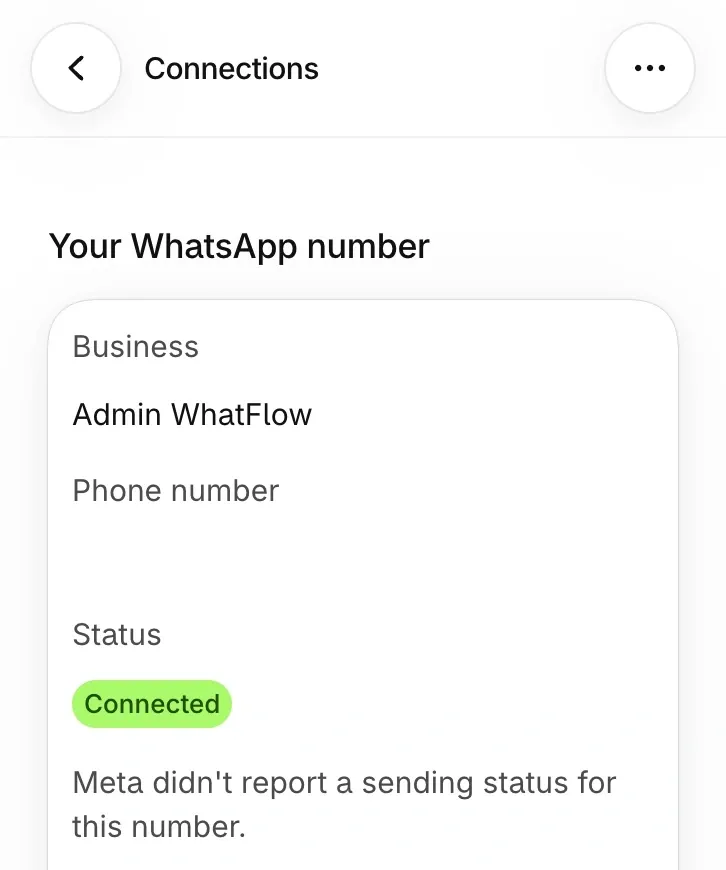
Back in Connections, check the number, display name and connection status.
Demo store with the sender number obscured. Connected means the number is linked to WhatFlow; check Meta status and billing before a first send.
Which number? Use a mobile number you own that can receive an SMS or voice call for verification; Meta's phone number requirements list the rest. Normally a number registered on Cloud API can't also be used in a WhatsApp app. The exception is Meta's flow for onboarding WhatsApp Business app users, which lets a number keep working in the Business app for one-to-one chats, with some app features switched off. The setup screen tells you what's available for your number.
The display name is what customers see instead of your number. Meta may review it; the status can sit at pending for a while. If it shows as pending, message your sending number from another phone and check which name actually appears.
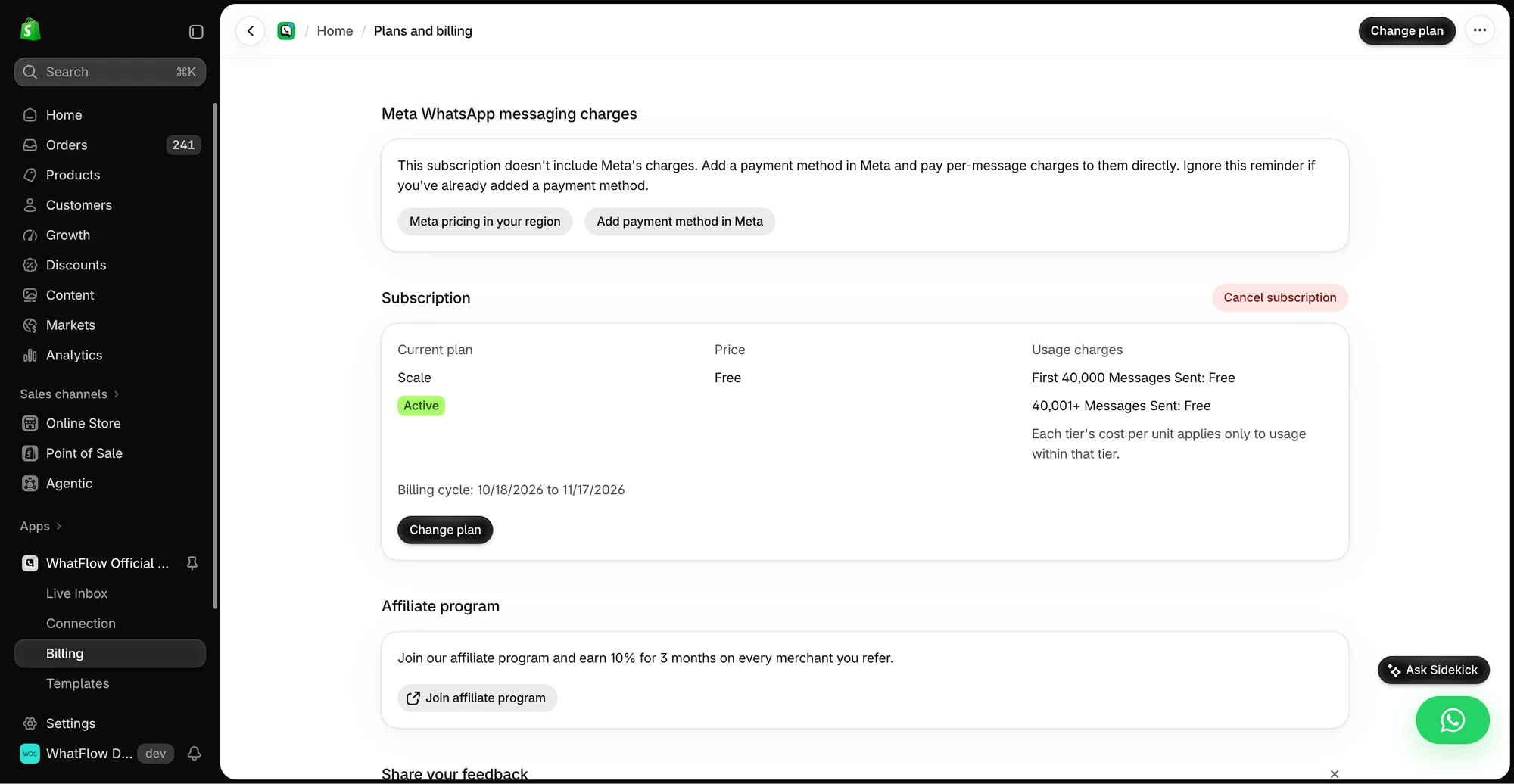
Then open Billing. Your WhatFlow plan and Meta's messaging charges are separate. I see this catch people all the time: the app subscription is active, but there's no payment method on the Meta side, and the first send fails.
Demo store Billing page. Meta's messaging charges and the WhatFlow plan are shown separately.
Step 3: Create your first templates
A WhatsApp template is a message Meta approves in advance. Outside the 24-hour customer service window, it's the only kind of message a business can send. Each template has a category: marketing, utility or authentication.
Utility, per Meta's template categorization guide, covers non-promotional messages tied to a user's order, account or transaction, like order confirmations and shipping updates. Meta treats cart reminders as marketing, and any template that mixes an order update with a promo becomes marketing too. Meta can also move an approved template into marketing later if its messages don't fit utility.
An abandoned checkout reminder (this one will be marketing).
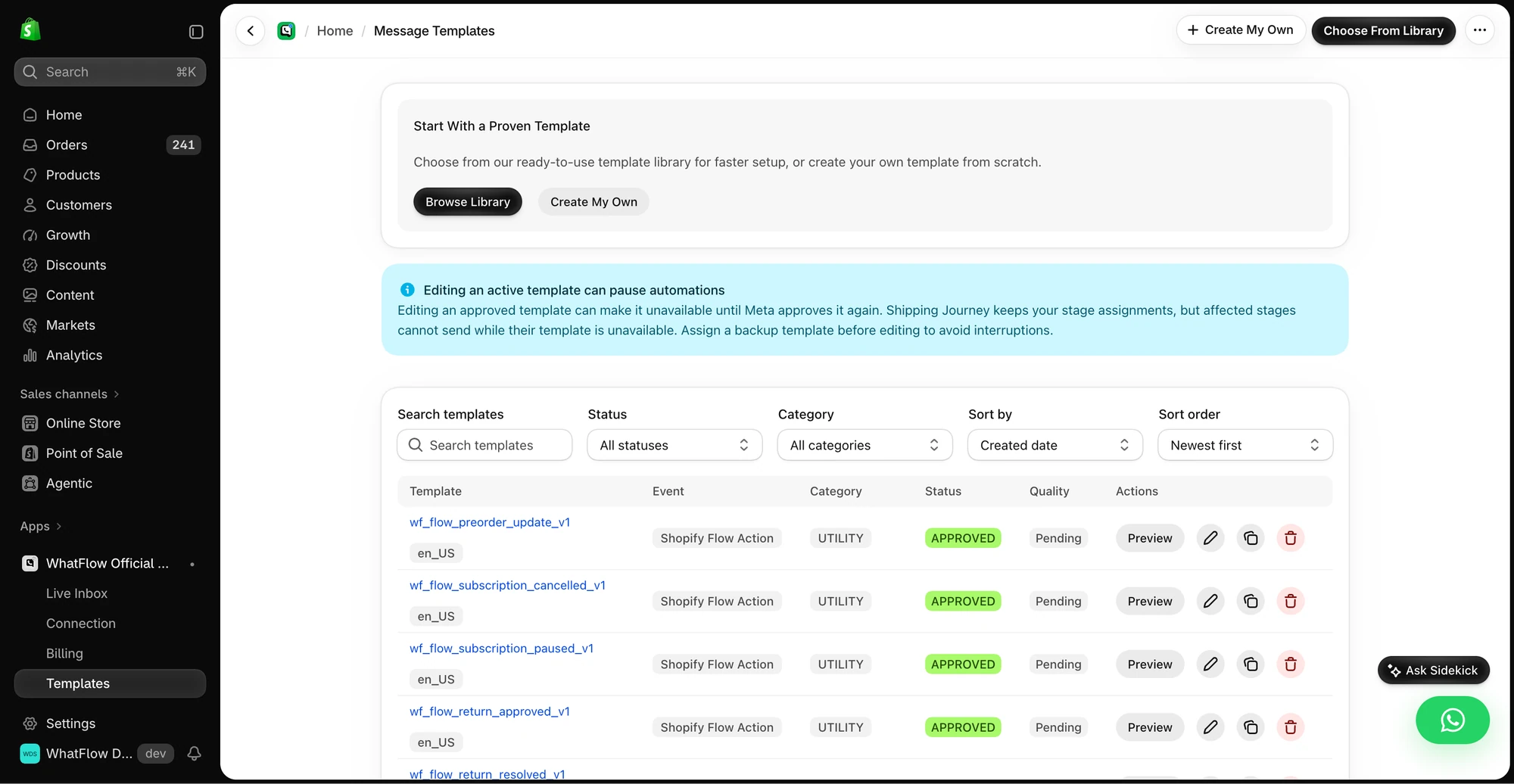
In WhatFlow, pick the Shopify event first in Template Library or Message Editor, because the event decides what data you can use. A new-order template can't include a tracking link that doesn't exist yet. Then check approval and category in Templates before any automation points at it.
Demo template manager showing category, approval status and preview.
A shipping template might read:
Hi {{1}}, good news: your order {{2}} is on its way. Track it here: {{3}}. Reply to this message if anything looks wrong.
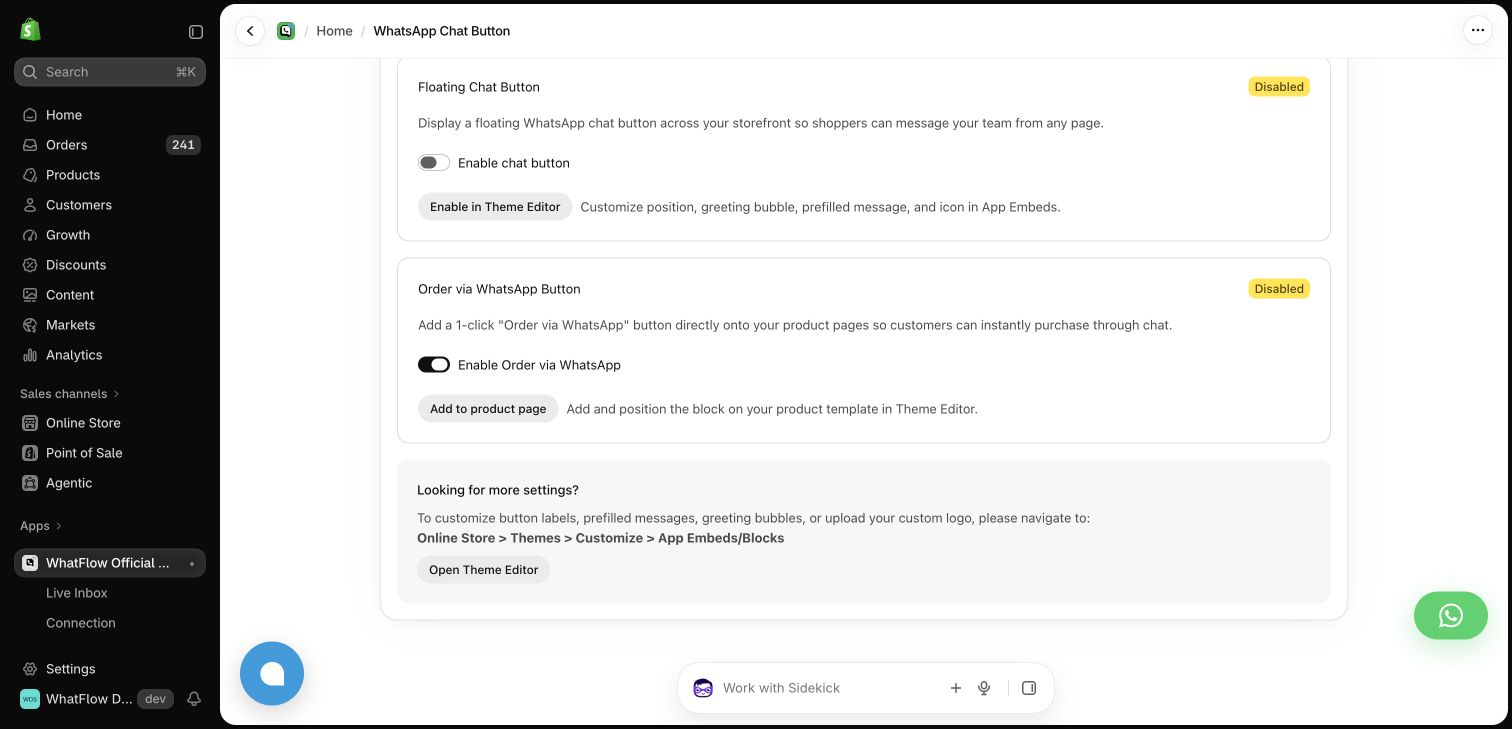
WhatFlow's theme-matched WhatsApp chat button is free forever on every plan. Open the chat button setup in WhatFlow, then place and style the button in Shopify's theme editor. There's a floating button and a product-page button.
WhatsApp button controls in the WhatFlow demo store, each linking to the Theme Editor.
Preview on mobile, tap the button on a real phone, and check it doesn't sit on top of your cart drawer or cookie banner. Give it a useful opening message:
Hi, I have a question about this product before I order.
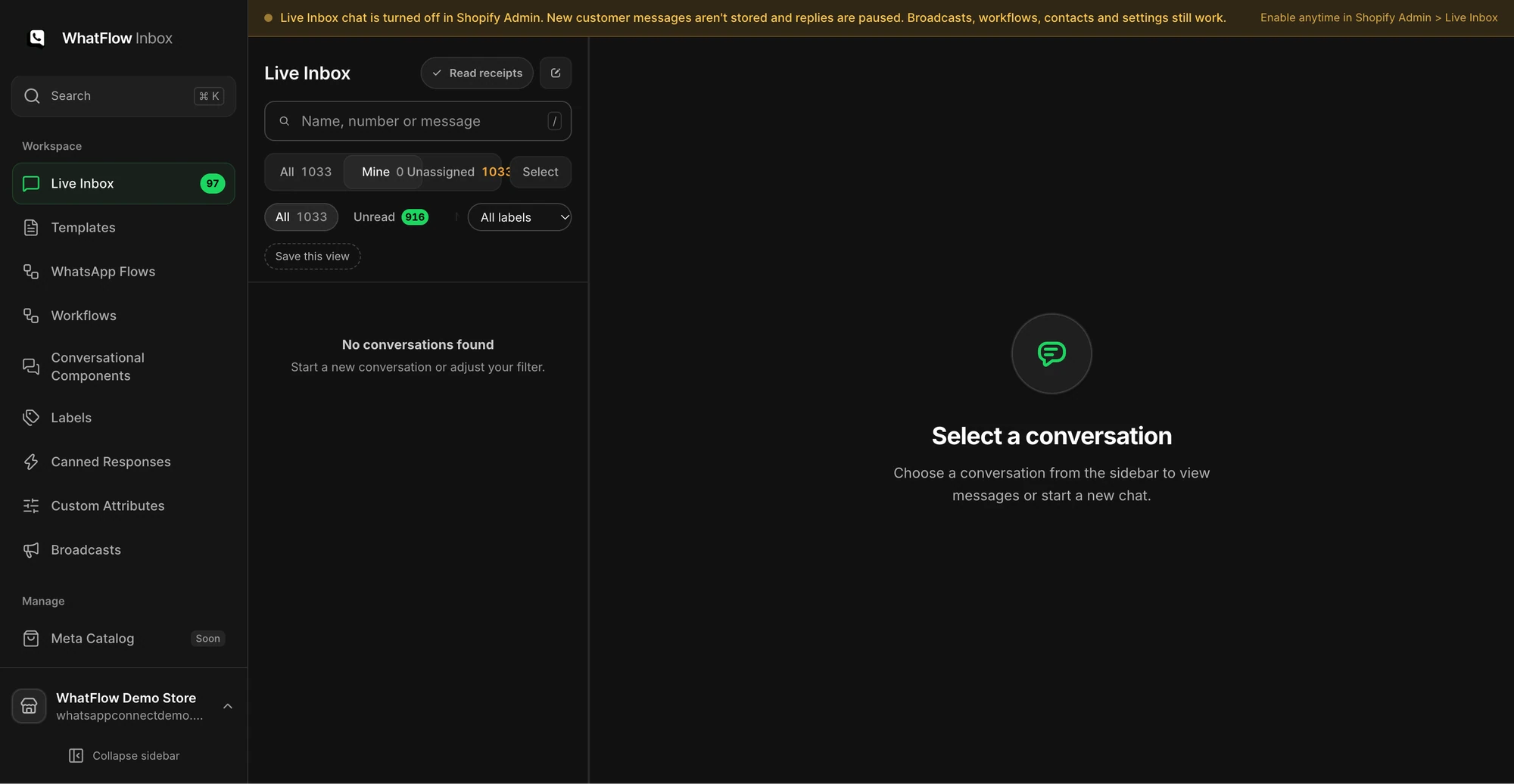
Replies to your messages, and chats from the button, land in WhatFlow's shared team inbox. There are no seat fees, so add everyone who answers customers. A 20-person team costs the same in seats as a team of two, which is why growing and larger Shopify teams use it, not just one-person shops.
Use the assignment filters to see chats that are yours or unassigned.
Claim a test conversation and check it moves to your queue, not your colleague's.
Save a canned response for your most common question, like delivery times.
Create labels for repeat jobs, such as address changes or returns.
Demo Inbox with the Mine filter selected and no chats assigned yet.
Send one approved template to your own phone. Check the sender name, every variable, and every button. Then place a test order and watch the whole chain: order confirmation, a reply, the Flow run if you have one. Only then switch automations on for customers.
How do you collect WhatsApp opt-in on Shopify?
The WhatsApp Business Messaging Policy says you can only contact people who've given you their number and opt-in permission confirming they want to receive messages from you. You also have to honour every opt-out request, whether it arrives on WhatsApp or anywhere else. How you collect opt-in is your call, as long as it meets local law.
In practice, for a Shopify store:
At checkout: a clear line next to the phone field saying what you'll send on WhatsApp. Keep order updates and marketing as separate permissions if you can; Meta's policy recommends opt-in for each category you plan to send.
From the chat button: a customer who messages you has started the conversation, which opens the service window. It's not a blanket yes to marketing.
Back-in-stock requests: permission for that product's alert, not for every promotion you run.
Example checkout wording:
Send me order and delivery updates on WhatsApp. You can reply STOP any time.
And a separate, unticked box for marketing:
Also send me offers and new arrivals on WhatsApp (about twice a month).
On the opt-out side, WhatFlow's WhatsApp Blocklist records STOP replies, and its Respect blocklist setting suppresses automated sends to opted-out numbers for the message types you select. Turn it on before your first campaign.
The first five WhatsApp automations to switch on
Not twenty. Five. Get these right, watch them for a couple of weeks, then add more.
1. Order confirmation or COD confirmation
The message customers expect, sent the moment they order. For COD, it doubles as a dispatch decision:
Hi Bilal, thanks for your order #1042 (Rs 4,500, cash on delivery). Tap Confirm and we'll dispatch it today, or Cancel if you no longer need it.
Decide who reviews unclear replies and no-replies before you automate cancellations.
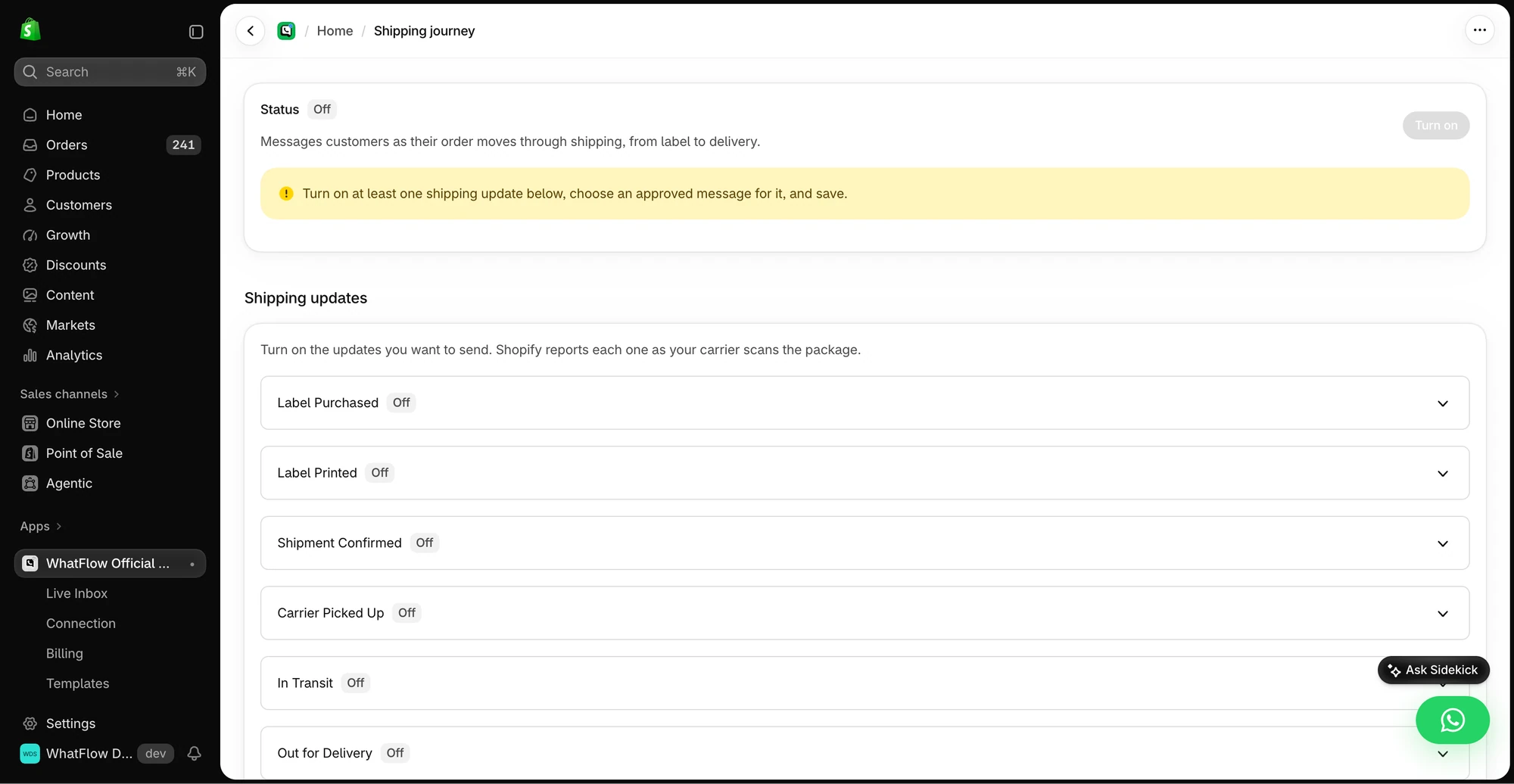
2. One shipping update
Pick the stage that cuts the most "where's my order?" chats. For most stores that's "shipped" with a tracking link. Add "delivered" later once you trust your carrier's tracking events.
3. Abandoned checkout reminder
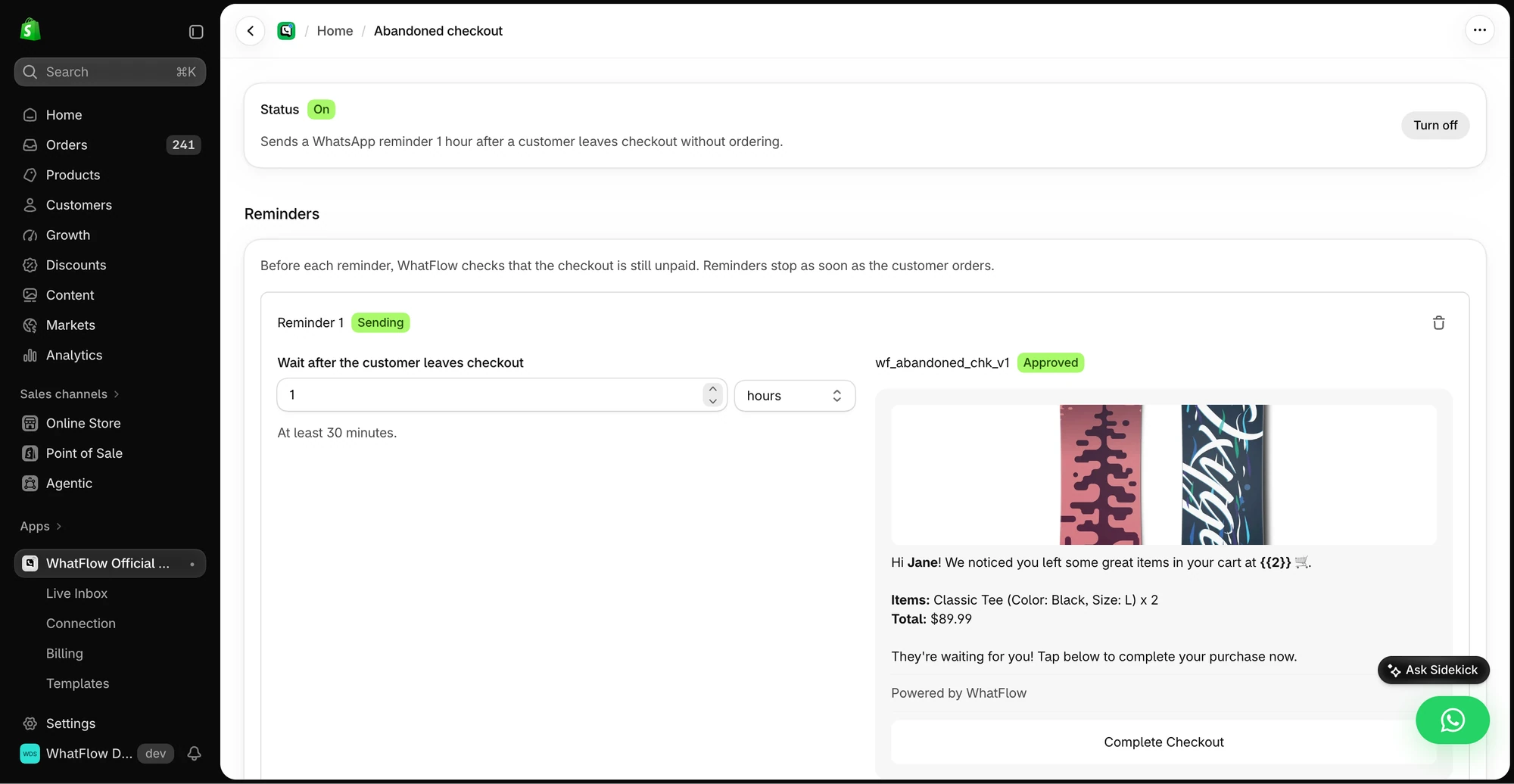
In WhatFlow, open Abandoned Checkout, pick an approved template and set a delay that gives the shopper a fair chance to finish on their own. Then test two checkouts: one you abandon, and one you complete before the delay runs out. The second should never get a reminder.
Demo abandoned checkout reminder showing the delay and a sample message.
Create one narrow rule in Auto-replies for the question you get most. Test the exact phrase and a near miss. "Where's my order" should get the auto-reply; "tracking says delivered but nothing came" needs a person.
5. A review request after delivery
In Review Requests, choose the timing and template. Time it after the parcel has actually arrived, not two days after fulfillment while it's still in a van. If you use Judge.me, WhatFlow can send its review link through Shopify Flow; use one route per order so nobody gets two invitations.
Everything else (broadcasts, back-in-stock alerts, draft-order reminders, Flow workflows that route incoming chats) can come once these five are stable. Shopify Flow, Shopify's automation app on Basic, Grow, Advanced and Plus plans per the Shopify Help Center, is where that bigger automation lives, and WhatFlow adds WhatsApp triggers and actions to it.
Run WhatsApp for your Shopify store with WhatFlow
Free plan available. Templates, COD confirmation, Shopify Flow automations and a shared team inbox with no seat fees. Every feature is included on every plan, including Free.
Common WhatsApp setup errors on Shopify (and fixes)
These are the problems I see most in the first week.
1. Connected the wrong Meta business portfolio. Someone picks an old portfolio from a previous agency during signup. Check the portfolio and WhatsApp account name in Connections before you build anything on top.
2. The number is still on a WhatsApp phone app. Standard Cloud API registration needs a number that isn't in use with WhatsApp. If yours is on the Business app, read the options during signup carefully; don't delete your account on a hunch.
3. No payment method on the Meta side. The app plan is active, the template is approved, and sends still fail. Check Meta billing. And remember that past the first 1,000 service messages a month, Meta says a business without a payment method may stop receiving service messages once the free tier is used up.
4. Display name pending or declined. Customers see your number instead of your brand. Check the status in Connections and fix the name to match your business.
5. Template rejected or recategorised. Usually promo copy in an order update, or a vague body like "{{1}}". Remove the discount, make it clearly about the order, resubmit. Why Meta rejects WhatsApp templates lists the common causes.
6. Variables in the wrong order. {{1}} shows the order number and {{2}} the name. Check the placeholder order against your examples in Message Editor.
7. Tracking link in an order-created template. The order exists before the tracking number does. Move the link to the shipping template.
8. Hitting messaging limits on a first campaign. Meta caps how many unique people a business portfolio can message outside a customer service window in a rolling 24 hours, and the cap rises with quality and volume. Start with order messages, then grow campaigns. Quality rating and messaging limits explains how it works.
9. Messages not delivered to some customers. Wrong country code, a number that isn't on WhatsApp, or an opt-out. Why WhatsApp messages aren't delivered walks through nine common causes.
If you've followed this far, you've got a chat button, a connected number, approved templates, order notifications, an inbox and an opt-in plan. That's more than most stores ever set up.
From here, the WhatFlow Business API help centre has a short task doc for every feature: broadcasts, back-in-stock, FlowSense COD review, Inbox workflows and AI connections over MCP. Pick the one that matches the next job your team keeps doing by hand.
Yes. A wa.me link or a chat button costs nothing, and WhatFlow's theme-matched chat button is free forever. You only start paying Meta once you send messages through the WhatsApp Business Platform, such as template messages or service replies beyond 1,000 a month per number.
Do I need the WhatsApp Business API to send Shopify order notifications?
For automatic order confirmations and shipping updates, yes. The WhatsApp Business app has no way to fire a message from a Shopify order event, so you'd be copying and pasting by hand. The official WhatsApp Business Platform, connected through a Shopify app, sends approved templates when the order event happens.
Can I keep using the WhatsApp Business app on my phone after connecting the API?
Meta supports this for WhatsApp Business app numbers when the provider enables it (Meta calls it onboarding Business app users), with some features switched off in the app. In WhatFlow, the Meta connection step shows which options are available for your specific number, so read them before you authorise.
How long does it take to set up WhatsApp on Shopify?
A chat button takes minutes. Connecting the official API takes as long as Meta's signup and your first template approvals, so plan a day or so before your first automated message goes to a real customer, and test everything on your own phone first.
Which WhatsApp messages should a new Shopify store automate first?
Start with order confirmation (or COD confirmation if you sell cash on delivery), one shipping update, an abandoned checkout reminder, an auto-reply for order tracking questions and a review request timed after delivery. Add more only once those fire reliably.
Per-message pricing since July 1, 2025, the October 1, 2026 service-message and utility changes, the 24-hour customer service window and the free entry point window.
What Meta's WhatsApp test number proves, what it can't, and the live pilot checklist to run on your real Shopify sender before customers see a message.
SSafwan AdnanRead
How to add WhatsApp to Shopify: 2026 setup guide | WhatFlow