To confirm COD orders on WhatsApp and record the answer in Shopify, send an approved template with Confirm and Cancel buttons when the order is placed, then build a Shopify Flow workflow on WhatFlow's WhatsApp Order Reply trigger. Check that the reply is the Confirm button, and add a tag like WF_COD_CONFIRMED to the order the trigger supplies. Everything else goes to a person.
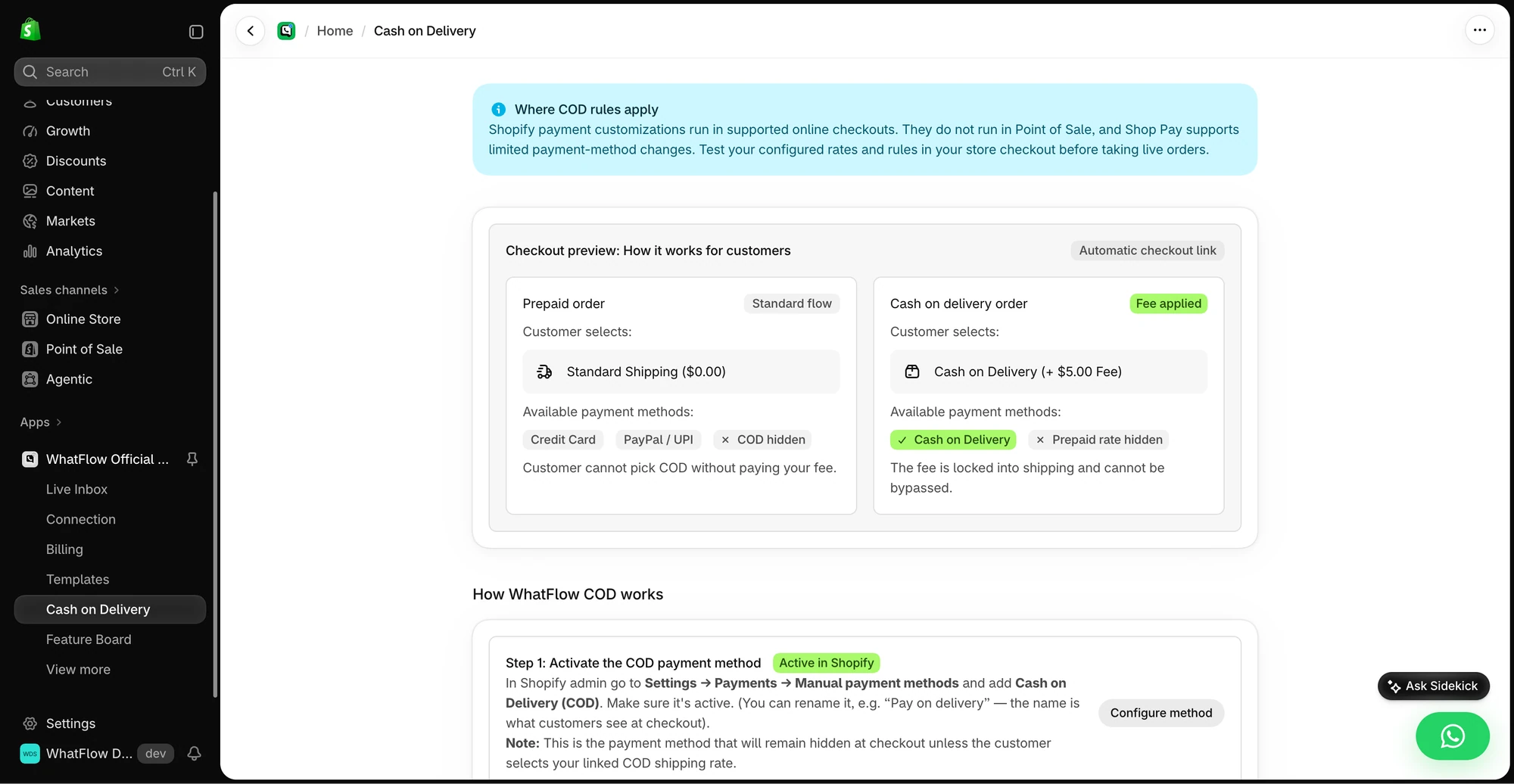
The demo COD rules screen previews how the selected shipping rate affects the COD payment option at checkout.
If you sell cash on delivery, you already know why this matters. Every fake or forgotten COD order is a wasted courier trip and a parcel coming back. A confirmation step catches many of those before you ship, and Flow means nobody has to tag orders by hand.
What is WhatsApp COD confirmation?
COD confirmation is a message sent after a cash-on-delivery order is placed, asking the buyer to confirm they still want it before you dispatch. On WhatsApp it's usually a utility template with two buttons. The customer taps one, and your store acts on the answer.
Most stores used to do this by phone. Our comparison of WhatsApp COD confirmation vs calling every customer covers the trade-off. The short version: a message waits until the customer is free, and a button tap is easy to record automatically.
Step 1: Send a confirmation template that carries the order
The outbound message is a WhatsApp template, sent on Shopify's Order created event. Here's a version I like because it gives the customer everything they need to check:
Hi Ayesha, thanks for your order #1042 from Noor Home! Total to pay on delivery: PKR 4,850. Delivering to House 12, Street 4, DHA Phase 5, Lahore. Please confirm so we can ship it today.
[Confirm order] [Cancel order]
When you set this up in Flow, pass the order and customer references in WhatFlow's template action. That's what lets the reply find its way back to the right order. Our guide to sending WhatsApp templates from Shopify Flow covers the mapping step by step.
Be clear about what you're asking. "Confirm your order" and "confirm you'll pay on delivery" and "OK to ship" are slightly different questions. Pick one, word the template around it, and name the tag to match.
Step 2: Use the WhatsApp Order Reply trigger, not Button Clicked
In a new, inactive workflow, choose WhatsApp Order Reply. It gives you:
The order and customer references
Reply Type (BUTTON or text)
Button Text and Button Payload
Message Body for typed replies
The order reference is the reason to use this trigger. WhatFlow's generic WhatsApp Button Clicked trigger looks similar, but it doesn't tell Flow which order the tap belongs to. If a workflow can't identify the order, it shouldn't change one.
Step 3: Match the exact button
Add a condition: Reply Type is BUTTON and Button Text (or Button Payload) equals your Confirm label. Use the exact value from your own template. "Confirm order" and "Confirm" aren't the same string, and I wouldn't assume every template uses CONFIRM as its payload.
Typed replies need more care. A customer who types "yes" is probably confirming. A customer who types "yes but can you change the address" isn't, and neither is "no, wait". If you add a typed-reply rule, keep it to an exact short word and send everything longer to a person.
Step 4: Add the order tag
On the true branch, add Shopify's Add order tags action. Select the order from the trigger, and use a tag your warehouse will understand at a glance:
Customer's reply
Tag
What happens next
Taps Confirm
WF_COD_CONFIRMED
Goes out with today's batch
Taps Cancel
WF_COD_CANCEL_REQUEST
Someone checks, then cancels
Types a question
WF_COD_REVIEW
Stays in the inbox for a reply
No reply after your cut-off
(none)
Your team decides: follow-up template or call
That's a visual field picker, not an API call. Your packer can filter orders by tag and ship only the confirmed ones.
WhatFlow's COD confirmation replies can also drive a cancellation through Flow. I'd still start with a "cancel request" tag and a human check for the first week or two. Cancels are hard to undo, and you'll want to see how customers actually use the buttons before handing that decision to automation.
Step 5: Give the "no" branch somewhere to go
Anything that isn't a clean Confirm should land in front of a person. The WhatFlow inbox already has the conversation, so the simplest version is: tag it for review and let your team reply. If you use a helpdesk with a Flow action, you can create a task there too, once its required fields are mapped.
A lot of these will be address changes. Here's a good holding reply:
No problem, I'll update that for you. Can you send the full new address including the area and nearest landmark? I'll confirm here once it's changed, before anything ships.
Don't bolt a refund or fulfillment step onto this workflow just to make the diagram look finished. Those are separate decisions with separate rules.
Test the order matching, not just the happy path
The test that matters most: one customer, two open orders. Send a confirmation for each, tap Confirm on the older message, and check which order gets tagged. Then run these:
Tap Confirm once. Right order tagged?
Tap Confirm twice. Still one tag, no duplicate replies?
Tap Cancel. Goes to the cancel-request path?
Type "can I pay by card instead?" Lands in review?
Test order with no phone number. Template step skipped cleanly?
Flow's test mode checks the logic without changing live orders. Then do one controlled run with your own phone and look at the actual order in Shopify, not just the run log.
Why this works for teams of any size
The founder, the support person and the packer stop passing screenshots around to work out who confirmed what. The answer is on the order. And when someone needs to step into a conversation, there's no seat fee to add them to WhatFlow's inbox, whether that's one weekend packer or a 20-person ops team assigning chats by city.
Every WhatFlow feature, COD confirmation and Flow included, is on every plan including Free; plans only differ by messaging allowances and rates (see WhatFlow pricing). Meta charges separately per delivered template, as of November 2026. If you're still deciding between this and stricter COD rules at checkout, read Shopify COD checkout rules vs WhatsApp confirmation.
Free plan available
Run WhatsApp for your Shopify store with WhatFlow
Templates, COD confirmation, Shopify Flow automations and a shared team inbox with no seat fees. Every feature is included on every plan, including Free.
Tag-only for the first fortnight. Watch the review queue. Once you trust how customers use the buttons, decide what to automate next, like a cancel on a clear Cancel tap or a reminder template for no-replies. The WhatFlow and Shopify Flow guide has the rest of the building blocks, and the routing guide covers replies that aren't about an order.
Frequently asked questions
How do I confirm COD orders on WhatsApp in Shopify?
Send an approved WhatsApp template with Confirm and Cancel buttons when the order is created, then use WhatFlow's WhatsApp Order Reply trigger in Shopify Flow to check which button was tapped and tag the order, for example WF_COD_CONFIRMED.
Why use WhatsApp Order Reply instead of WhatsApp Button Clicked?
WhatsApp Order Reply carries the Shopify order and customer references, so Flow knows which order to tag. WhatsApp Button Clicked only gives you the button and sender, which isn't enough to change an order safely.
Can a WhatsApp reply cancel a Shopify order automatically?
Yes. WhatFlow's COD confirmation replies can drive Flow actions such as tagging or cancelling. Start with tags, check a week of real replies, and only then add an automatic cancel on a clear Cancel tap.
Does confirming on WhatsApp mean the order should be fulfilled?
Only if that's your rule. A confirmation tag records that the customer said yes; fulfillment, payment collection and cancellation are separate decisions your workflow or team should make deliberately.