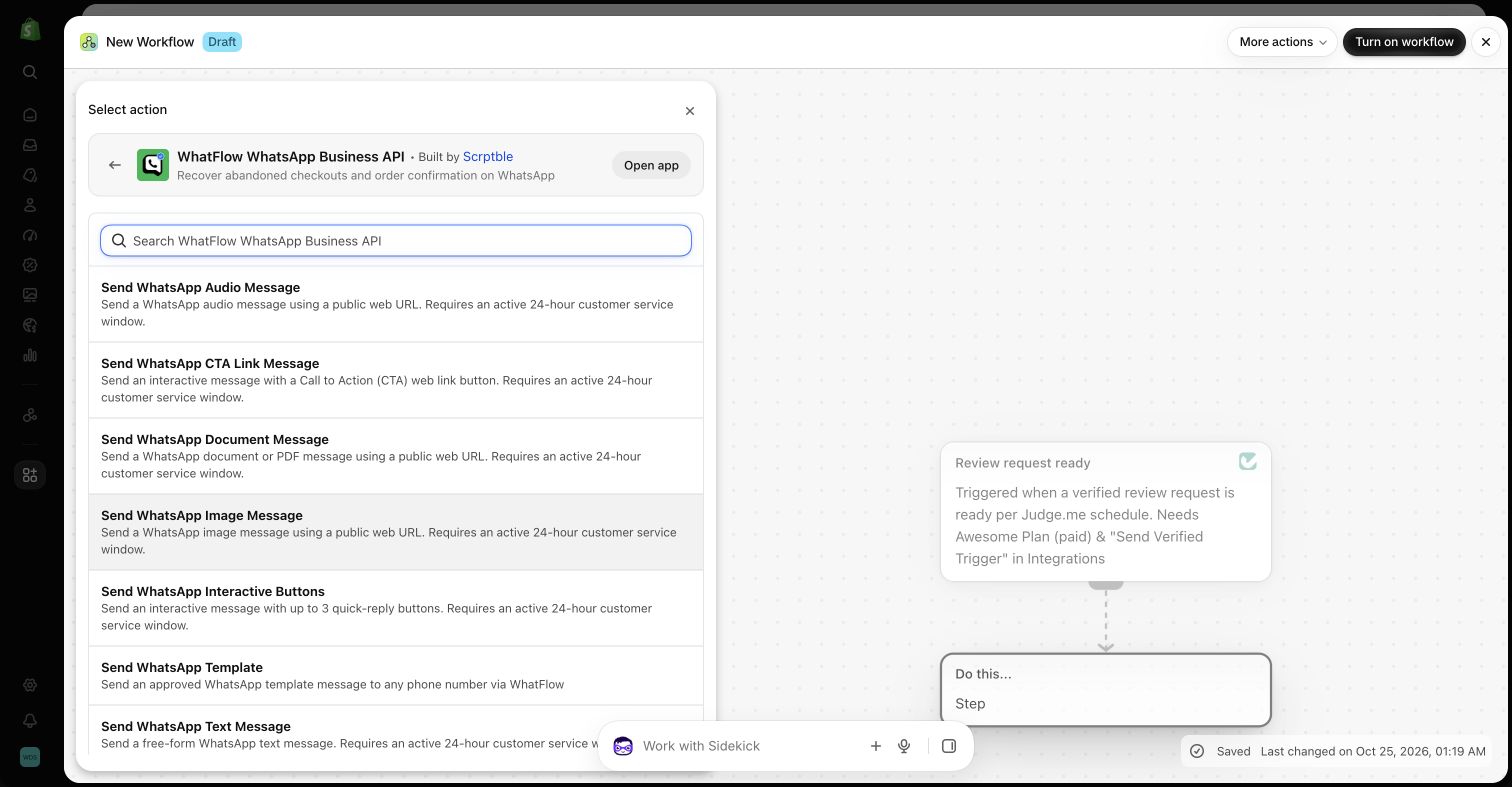
You can automate WhatsApp in Shopify without code by installing WhatFlow WhatsApp Business API and building workflows in Shopify Flow. WhatFlow adds five WhatsApp triggers (incoming text, button click, order reply, media received, opt-out) and eight message actions (templates, text, buttons, CTA links and media). You pick a trigger, add a condition, choose an action and map the fields. No webhooks, no JSON.
I'm Safwan, co-founder of WhatFlow. WhatFlow WhatsApp Business API runs on Meta's official WhatsApp Cloud API, and we built its automation on Shopify Flow rather than a separate builder because your store's logic already lives there. That's what lets the same setup work for a two-person shop and a large support team. This guide covers every WhatFlow step, the first two workflows I'd build, and how to test them without messaging a real customer.
How does WhatsApp automation in Shopify Flow work?
Shopify Flow is Shopify's built-in automation tool. Every workflow is a sentence: when this happens, if this is true, do that.
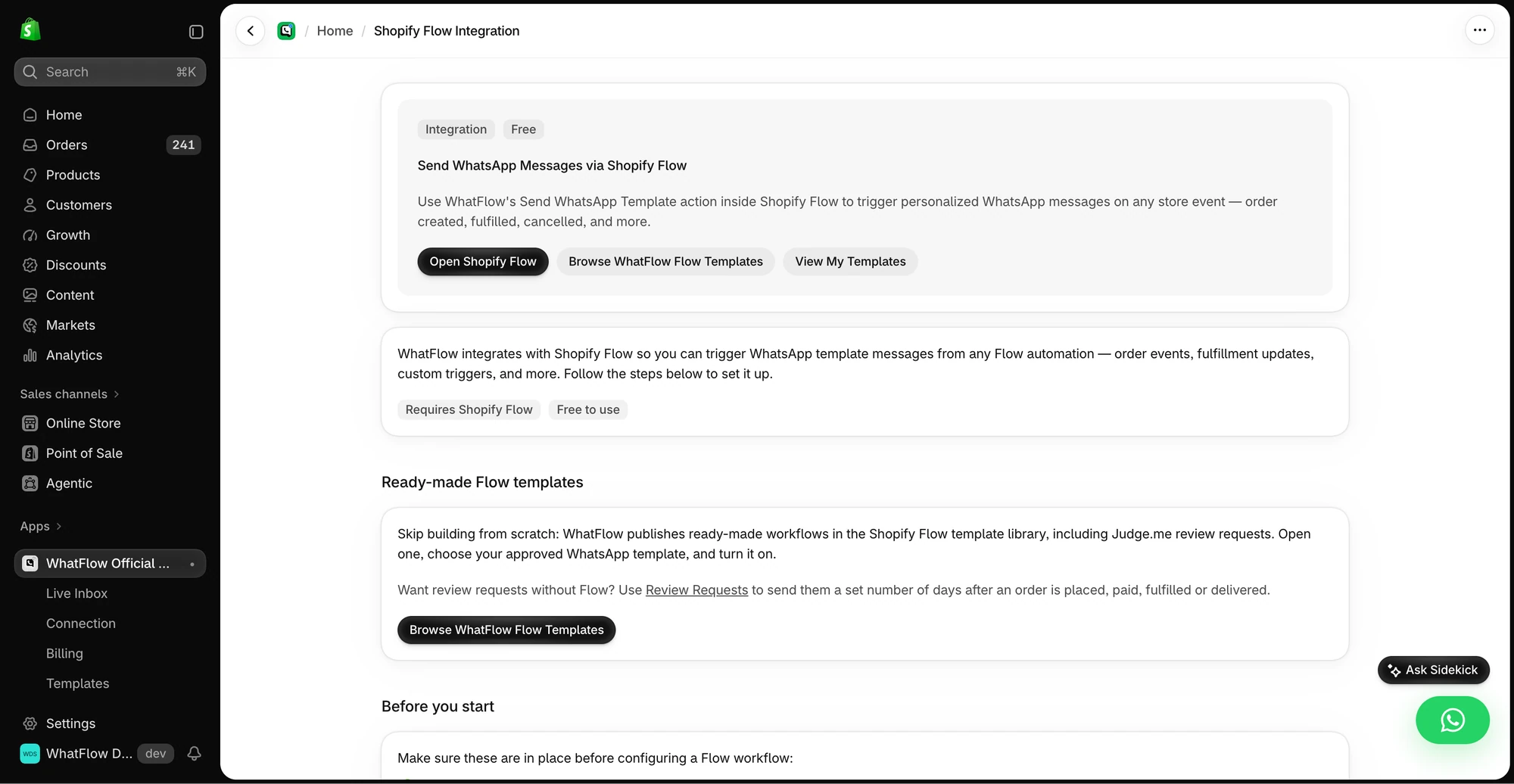
The in-app guide links to Shopify Flow, templates and setup instructions for WhatsApp actions.
A trigger starts the workflow (an order is created, a WhatsApp message arrives).
A condition checks the data (did they tap "Confirm"? is there a phone number?).
An action does the work (send a template, tag the order).
Shopify provides store triggers and actions. Installed apps add their own. WhatFlow adds the WhatsApp side, so a customer's WhatsApp reply can change something in your store, and a store event can send a WhatsApp message. Shopify's getting started guide for Flow covers the editor itself.
WhatFlow gives you three distinct tools: Shopify Flow for Shopify and WhatsApp events, Inbox Workflows for API-triggered sequences with waits and decisions, and WhatsApp Flows for forms customers fill out inside the chat. If the goal is a sale, a catalog cart event can start a Shopify Flow workflow, while payment is verified separately in Shopify. See the .
Here's the practical picture. A COD customer taps Confirm order in WhatsApp. Without automation, someone reads that, finds the order in Shopify and tags it. With Flow, the reply checks the button and tags the order on its own, and anything unusual stays in the inbox for a person.
The five WhatFlow triggers in Shopify Flow
Trigger
Fires when
Useful fields
Use it for
WhatsApp Text Message Received
A customer sends a text, product enquiry or ad reply
Message Body, Sender Phone Number (fromPhoneNumber), Profile Name
Answering common questions, routing
WhatsApp Button Clicked
A customer taps a quick-reply button
Button Text, Button Payload
Menus and intent routing
WhatsApp Order Reply
A customer replies to an order message
Order and customer references, Reply Type, Button Text, Button Payload, Message Body
COD confirmation, tagging orders
WhatsApp media received
An image, video, audio, document or sticker arrives
Media details
Sending photos to a person for review
WhatsApp Customer Opted Out
An opt-out such as STOP is added to the blocklist
Customer details
Updating your other tools
Three notes from building these:
Button Clicked doesn't know about orders. If the next step changes an order, use Order Reply.
A photo isn't a decision. A damaged-item picture should go to a person, not trigger a refund.
Never send a promo in response to an opt-out. Use that trigger to update other systems, nothing more. Our guide to handling WhatsApp opt-outs covers what to do with it.
If you look closely you'll also see an internal lifecycle callback in WhatFlow's Flow setup. That's plumbing for the integration, not a customer event, so ignore it when building.
The eight WhatFlow message actions
WhatFlow's message actions in a demo Flow editor.
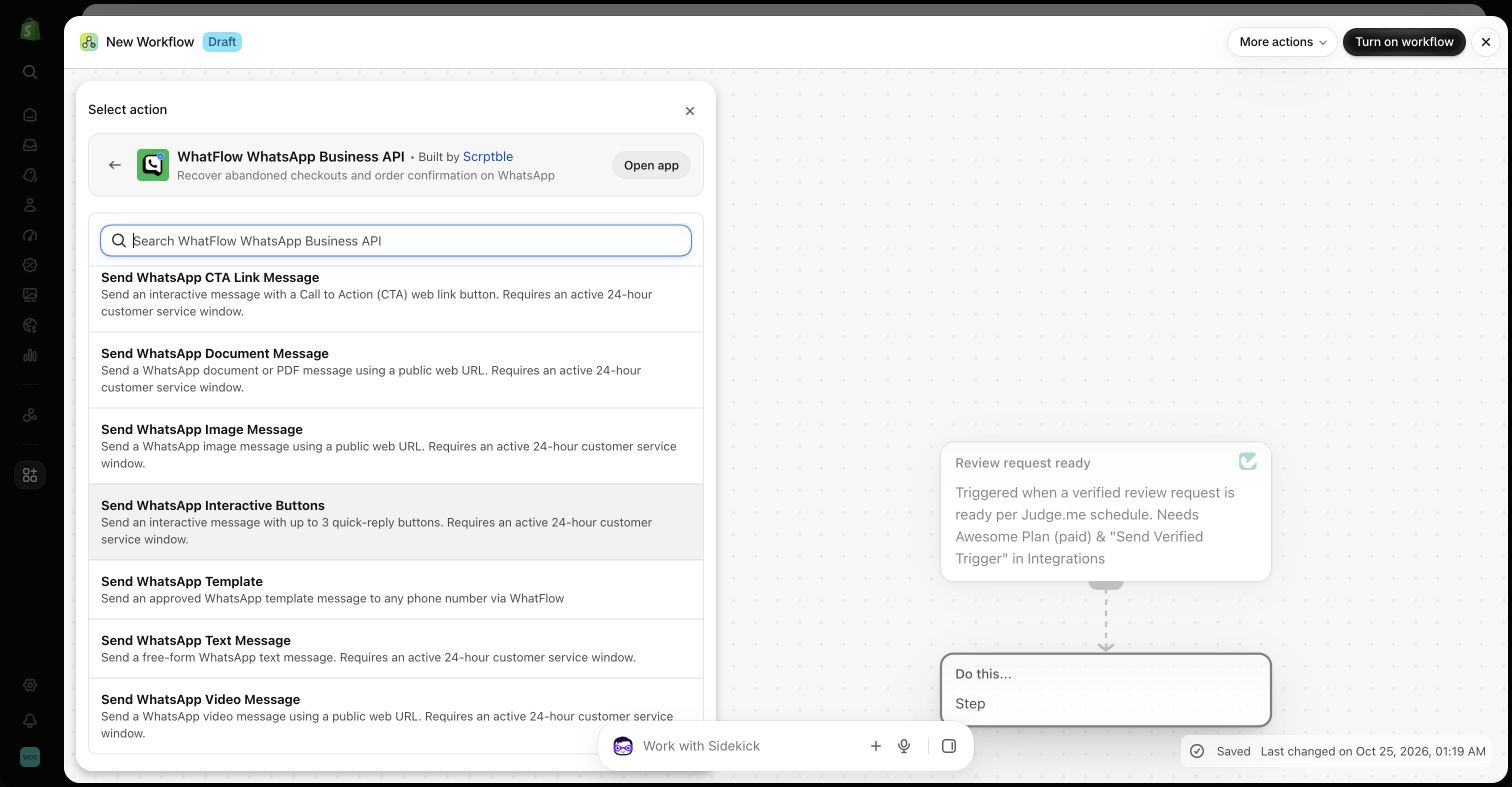
The remaining WhatFlow actions, including text and video.
Action
What it sends
Needs an open 24-hour window?
Send WhatsApp Template
A Meta-approved template with your variables
No
Send WhatsApp Text Message
Plain text
Yes
Send WhatsApp Interactive Buttons
Text with up to three quick-reply buttons
Yes
Send WhatsApp CTA Link Message
Text with one link button
Yes
Send image, video, audio or document
A file from a direct URL
Yes
The 24-hour customer service window opens when a customer messages you and lasts 24 hours from their last message. Inside it you can send anything; outside it, WhatsApp only allows approved templates. So: templates for anything you start, everything else for replies. Our guide to sending WhatsApp templates from Shopify Flow covers the template action in detail.
Your first workflow: answer one common question
Start small. Pick one question your team answers ten times a day, like delivery times, and automate just that.
Trigger: WhatsApp Text Message Received
Condition: Message Body equals DELIVERY_INFO (an exact keyword is easy to test; widen it later)
Action: Send WhatsApp Text Message, recipient = fromPhoneNumber
The reply might read:
We deliver in 3–5 business days in most cities. You'll get a tracking link on WhatsApp as soon as your order ships. Need something else? Reply TEAM and one of us will pick this up.
Use your real delivery times, not ours. And "Reply TEAM" only works if someone is actually watching the inbox for it; it doesn't assign anyone by itself. The incoming message routing guide shows how to grow this into proper routing.
Your second workflow: turn a reply into an order tag
This is the one that saves real time for COD stores.
Trigger: WhatsApp Order Reply
Condition: Reply Type is BUTTON and Button Text is your exact "Confirm" label
Action: Shopify's Add order tags, using the order from the trigger, tag WF_COD_CONFIRMED
Keep these two workflows separate while you learn. It makes it obvious which data each trigger gives you, and stops you from mistaking a sender's phone number for an order reference.
How do you test a WhatsApp workflow in Flow?
Two stages:
Flow's test mode. It walks your logic and shows the field values. Shopify's testing guide says it doesn't send notifications or change live data, so it proves the logic, not the send.
One controlled live test. Use your own phone and a test order. Try a matching reply, a non-matching one, a missing phone number and a double tap. Check the result in Shopify and the conversation in WhatFlow.
A green run means Flow accepted the request. Delivered and read are separate things you check in the inbox.
Can WhatFlow work with my other Shopify apps?
If they have Flow connectors, usually yes. A review app's trigger can send a WhatsApp template; a WhatsApp reply can create a task in a helpdesk. The catch is data: each app only exposes what its connector exposes, and a missing phone number or order ID breaks the chain. Our guide to connecting WhatsApp to your other Shopify apps has four recipes and the gaps to check.
If the event comes from an external system and doesn’t have a Shopify Flow trigger, see how to build an API-triggered Inbox Workflow. It shows how to map a sample event, branch on a field, and test both paths.
Can Sidekick build these for me?
Shopify Sidekick can draft a Flow workflow from a plain-English description on desktop, and it can use WhatFlow's steps. Drafts start inactive. Treat them as a first draft and check the trigger, recipient and branches. Our Sidekick walkthrough has prompts that work. (The AI there is Shopify's. WhatFlow has no built-in AI bot; it plugs into Sidekick and, through WhatFlow's MCP connector, into Claude, ChatGPT or Cursor, which can draft inbox replies for a person to approve.)
What does it cost?
WhatFlow WhatsApp Business API includes every feature on every plan, including Free: all Flow triggers and actions, templates, the team inbox. Plans differ only by messaging allowances and rates, from $4.99/month for paid plans as of November 2026; see current pricing. The team inbox, with assignment and filters, has no seat fees at any team size. Meta's WhatsApp charges are separate, and Flow is included on Shopify's Basic, Grow, Advanced and Plus plans.
Free plan available
Run WhatsApp for your Shopify store with WhatFlow
Templates, COD confirmation, Shopify Flow automations and a shared team inbox with no seat fees. Every feature is included on every plan, including Free.
The best automation is the one the person running the store understands. Build the delivery-question workflow this week, watch a few days of real replies, then add the order tag. If you're not sure which to start with, our guide to choosing your first Shopify automation helps you decide.
Frequently asked questions
How do I automate WhatsApp messages in Shopify?
Install a WhatsApp app that adds Shopify Flow steps, such as WhatFlow WhatsApp Business API, then build a workflow in Flow: a trigger (an order event or an incoming WhatsApp message), a condition, and a WhatsApp action like Send WhatsApp Template.
Do I need to know APIs or code to automate WhatsApp with Shopify Flow?
No. WhatFlow's triggers and actions appear in Flow's visual editor, and you build workflows by picking steps and mapping fields. You only need code if you want custom HTTP requests or integrations outside Flow.
Can a WhatsApp button reply update a Shopify order?
Yes. WhatFlow's WhatsApp Order Reply trigger carries the order reference, so a condition can check the button and Shopify's Add order tags action can tag that order. The generic WhatsApp Button Clicked trigger doesn't identify an order.
Which Shopify plans include Shopify Flow?
As of November 2026, Shopify makes Flow available on the Basic, Grow, Advanced and Plus plans. Some individual Flow features have their own plan limits.
Is WhatFlow's Shopify Flow integration a paid add-on?
No. WhatFlow WhatsApp Business API includes every feature, including all Flow triggers and actions, on every plan including Free. Plans differ only by messaging allowances and rates.