You can connect WhatsApp to your other Shopify apps through Shopify Flow when both apps publish Flow triggers or actions. WhatFlow adds WhatsApp triggers (incoming messages, order replies, opt-outs) and message actions to Flow, so a review app's event can send a WhatsApp template, or a WhatsApp reply can tag an order. Before building, check that each step actually receives the data it needs, especially the phone number.
That last point is where most of these integrations stall. An app logo on a diagram is easy. A customer ID that never turns into a phone number is the real problem.
How do Shopify Flow app integrations work?
Shopify Flow is Shopify's built-in automation tool: a trigger starts a workflow, conditions decide which branch runs, and actions do the work. Installed apps can add their own triggers and actions through Flow connectors. That's the whole trick. If your review app, helpdesk and WhatsApp app all have connectors, Flow can chain them without you running a server or a Zapier account.
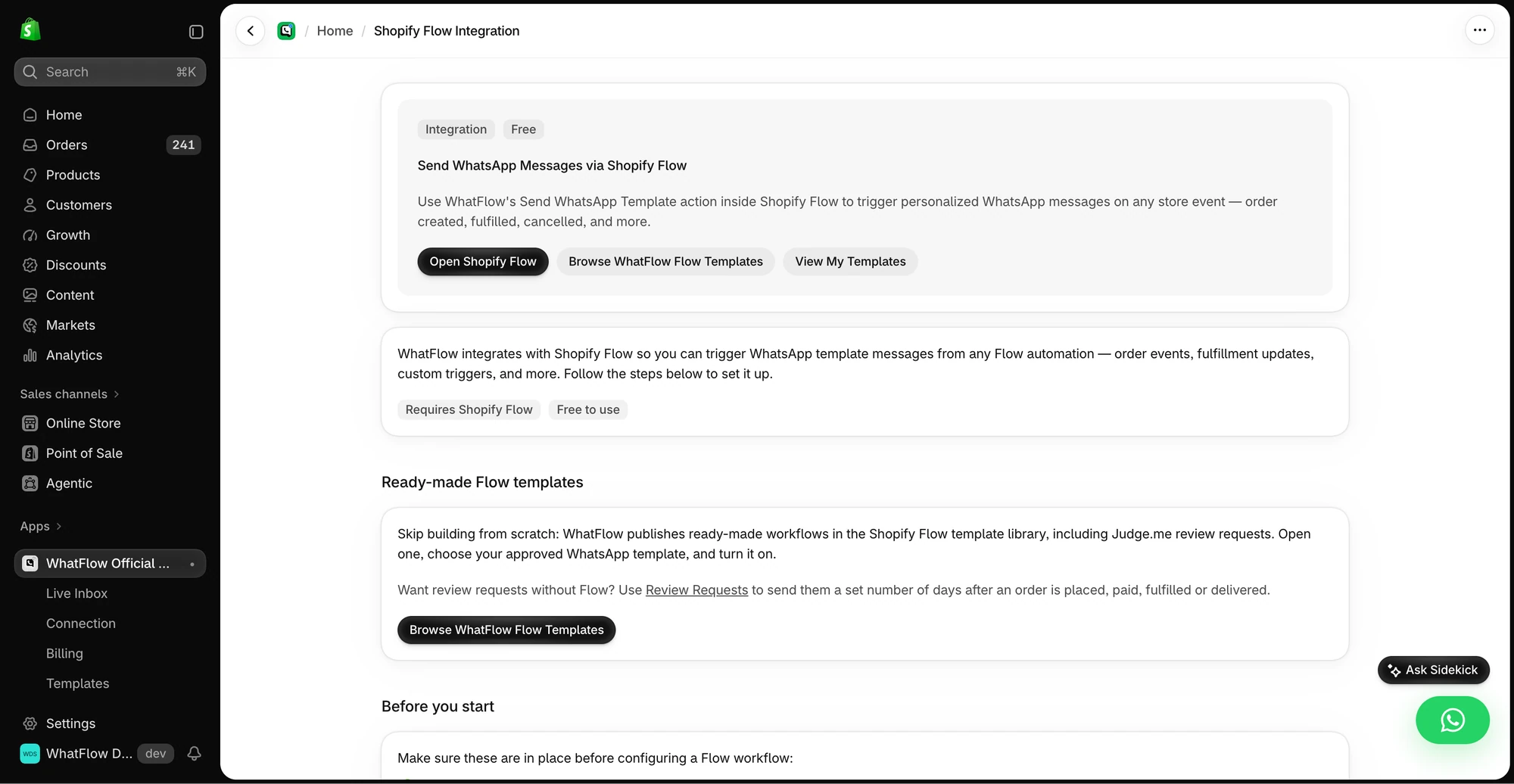
The in-app guide links to Shopify Flow, templates and setup instructions for WhatsApp actions.
WhatFlow brings two things to that table: events from WhatsApp (a text arrived, a button was tapped, a customer replied to an order message, someone opted out) and actions that send WhatsApp messages. The WhatFlow and Shopify Flow guide lists them all.
WhatFlow gives you three distinct tools: Shopify Flow for Shopify and WhatsApp events, Inbox Workflows for API-triggered sequences with waits and decisions, and WhatsApp Flows for forms customers fill out inside the chat. If the goal is a sale, a catalog cart event can start a Shopify Flow workflow, while payment is verified separately in Shopify. See the catalog event and checkout example.
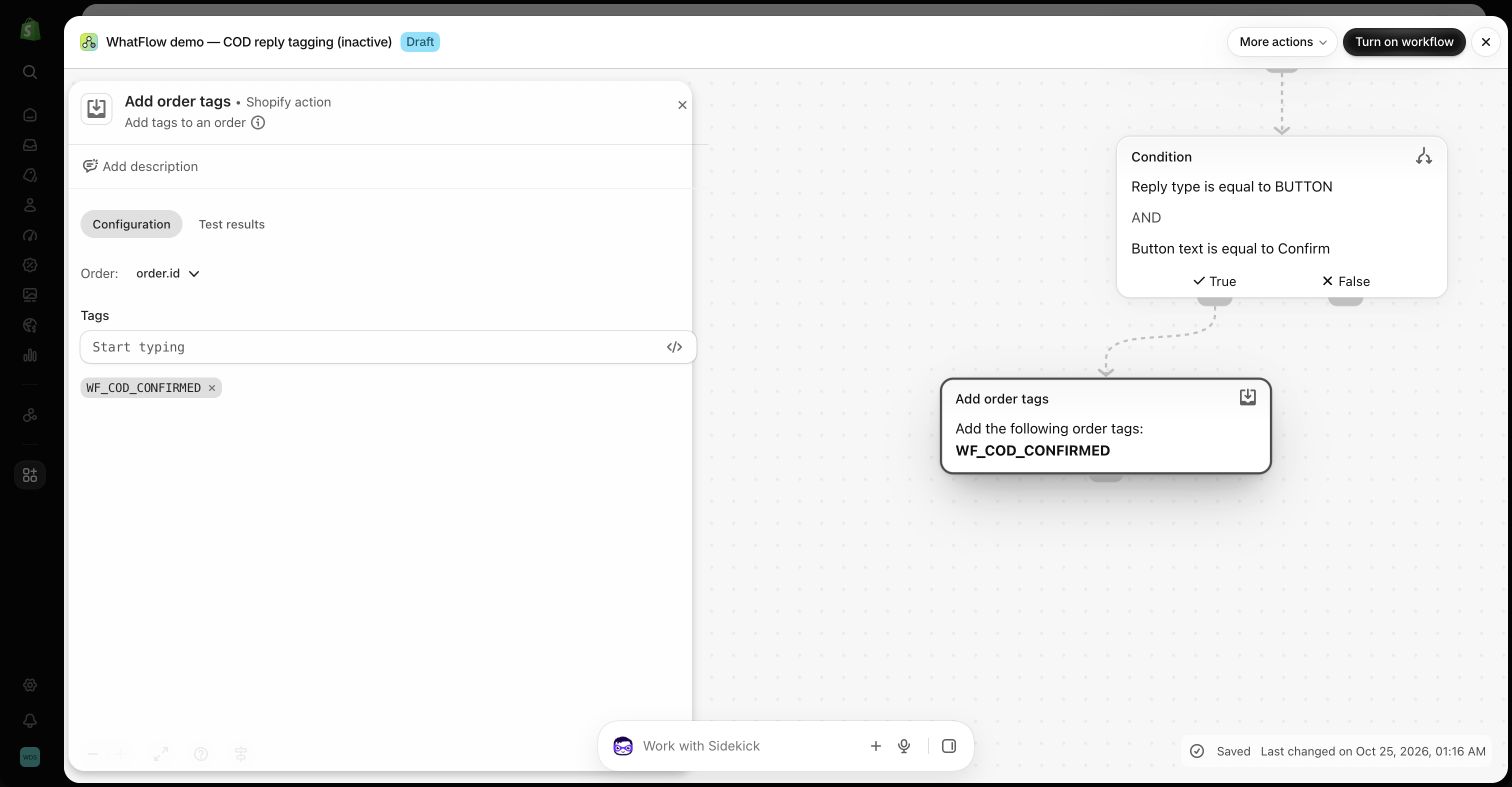
Inactive demo: Shopify's Add order tags action uses order.id from a WhatFlow order-reply trigger.
Three checks before you combine any two apps
I'd run through these before drawing a single box:
Does each app expose the step you need in Flow? Being on the App Store doesn't mean every feature is a Flow task. Look at the app's connector in the Shopify Flow connector reference or in the Flow editor itself.
Is the connector installed and set up? Some need a setting switched on inside the other app, or a specific paid plan.
Does the trigger hand over the fields the next action needs? A WhatsApp sender number isn't a helpdesk customer ID. A generic button tap isn't an order. If a field is missing, you need a lookup step, a different trigger, or a person.
WhatFlow includes a Flow template called Send WhatsApp review request for Judge.me. The idea is simple: when Judge.me decides it's time to ask for a review, WhatFlow sends an approved WhatsApp template with the review link instead of (or alongside) an email.
Here's what we found when we inspected Judge.me's connector in our demo store, as of November 2026:
The trigger is Review request ready. Judge.me lists it as requiring their paid Awesome plan and the Send Verified Trigger setting turned on under Integrations. WhatFlow's free plan doesn't change that requirement.
The trigger's variables include customer_id, order_id, buyer_first_name, product_title, product_image_url and product_review_url.
It doesn't include the buyer's phone number.
So you can't map a recipient straight from the trigger. You need a step that turns customer_id into a phone number the customer has agreed to be messaged on, such as one of Flow's data-lookup actions if it resolves that customer in your store. Until that works in a test, leave the workflow inactive.
Once the phone is sorted, the template is easy:
Hi {{1}}, how's your {{2}} working out? If you have a minute, we'd love a quick review. It really helps other shoppers decide: {{3}}
Map buyer_first_name, product_title and product_review_url. And pick one owner for review reminders. If Judge.me is also sending email reminders on its own schedule, decide which channel goes first so the customer isn't asked three times in two days. For copy ideas, see our review request message examples.
Recipe 2: A WhatsApp order reply tags the order (and calls for help)
This one works cleanly because WhatFlow's WhatsApp Order Reply trigger carries the order and customer references. Your COD confirmation template goes out with Confirm and Cancel buttons; the reply comes back into Flow; a condition checks the button; Shopify's Add order tags action tags the order supplied by the trigger.
Add a second branch for anything that isn't a clean confirmation. If you use a helpdesk with a Flow action (create ticket, add note), you can send those cases there, as long as you map the identifiers it asks for. If you don't, just leave them in the WhatFlow inbox for a person. Don't tell the customer "we've opened a ticket" unless the action really ran. The full build is in our guide to turning WhatsApp order replies into Shopify actions.
Recipe 3: Log WhatsApp events to a spreadsheet
Some small teams like a running log: date, order number, "customer confirmed", "customer asked for help". If you have a spreadsheet connector in Flow, a WhatFlow trigger can add a row.
Keep it lean. Log the timestamp, order name and outcome. Don't log full message bodies, phone numbers or attachment links. A spreadsheet half the company can open shouldn't become a second, uncontrolled inbox. And received media download links expire, so they're no use as file storage anyway.
Recipe 4: A loyalty or subscription milestone sends a WhatsApp template
If your loyalty or subscription app exposes milestones in Flow (tier reached, renewal coming up, payment failed), each can start a WhatFlow template. A payment-failed message might read:
Hi {{1}}, we couldn't take payment for your next {{2}} box. You can update your card here before {{3}} so your delivery goes out on time: {{4}}
Each milestone needs its own message and its own rule. "You've reached Gold" and "your payment failed" shouldn't share a template, and you'll want a check so the same event doesn't fire twice. Trigger names differ between apps, so look at your installed app's connector rather than assuming. As with every recipe here, the customer needs to have opted in to WhatsApp messages first.
Give every customer message one owner
Once three apps can all react to the same order, it's easy to send three messages about it. Before switching anything on, write down every message Shopify, WhatFlow, your review app and your email tool send for an order, and decide which system owns each one.
Then test the whole path with a test order: trigger, condition, recipient, message, the other app's action and the human handoff. Flow's test mode checks the logic without sending, which is useful, but only a controlled real run shows what the customer actually gets.
Why we built WhatFlow around Flow instead of our own automation builder
Your store's automation already lives in Shopify. Flow sees your orders, customers and installed apps; a separate automation tool has to sync all of that and keep it in sync. We'd rather plug into what's there. (We wrote up the trade-offs in Shopify Flow vs a Zapier messaging chain.)
When a branch needs a human, the conversation lands in WhatFlow's team inbox, where it can be assigned to the right person. Adding the warehouse lead, a part-time helper or a whole support team doesn't add seat fees. And because WhatFlow Business API runs on Meta's official Cloud API, the same setup holds up as volume grows. Every feature, Flow included, is on every plan including Free. The other apps in the chain keep their own pricing, which is worth knowing before you budget the Judge.me recipe.
Free plan available
Run WhatsApp for your Shopify store with WhatFlow
Templates, COD confirmation, Shopify Flow automations and a shared team inbox with no seat fees. Every feature is included on every plan, including Free.
If you're new to this, build Recipe 2 first. The order-reply trigger already carries everything the tag action needs, so you'll see Flow and WhatsApp working together in an afternoon. Then tackle the Judge.me recipe once you've solved the phone lookup.
Frequently asked questions
Can Shopify Flow connect WhatsApp to any Shopify app?
Only to apps that publish Flow triggers or actions, and only for the features they expose. If an app has no Flow connector, or its trigger lacks a field you need such as a phone number, Flow can't fill that gap on its own.
Can I send Judge.me review requests on WhatsApp through Shopify Flow?
Yes, with conditions. WhatFlow ships a Flow template for Judge.me review requests, but Judge.me's Review request ready trigger needs its paid Awesome plan and the Send Verified Trigger setting, and its variables don't include the buyer's phone number, so you need a lookup step first.
Do I need Zapier to connect WhatsApp to my Shopify apps?
Not if both apps have Shopify Flow connectors. Flow runs inside Shopify admin, works on order and customer data directly, and WhatFlow's triggers and actions install with the app.
Does WhatFlow charge more for Flow integrations?
No. WhatFlow WhatsApp Business API includes every feature on every plan, including Free, and the team inbox has no seat fees. The other apps in your workflow keep their own pricing.