To add a WhatsApp button to Shopify, install a WhatsApp app, switch on its app embed in your theme editor, pick a style and position that matches your theme, save, and test it on your phone. No code needed. With WhatFlow, the theme-matched WhatsApp chat buttons are free forever. The real work is placement: on mobile, the button must never cover your add-to-cart.
That's five minutes of setup. Below is the step-by-step, plus the placement and mobile details that decide whether the button actually gets used.
Why add a WhatsApp chat button at all?
Because a lot of shoppers, especially in markets where WhatsApp is how people talk to shops, would rather ask than guess. "Does this run small?" "Do you deliver to Lahore by Friday?" "Is this safe with retinol?" If the only way to ask is an email form, many of them just leave.
A WhatsApp chat button turns those questions into conversations. When the customer messages you, Meta opens a 24-hour customer service window in which your team can reply freely (Meta's pricing page explains how service messages are charged; as of October 2026 there's a monthly free allowance per number, then a charge). The post on pre-purchase questions on WhatsApp shows how those chats can improve your product pages too.
How to add a WhatsApp button to Shopify (step by step)
These steps are for WhatFlow, but most Shopify chat-button apps follow the same pattern because they use Shopify's app embed system. Exact labels can differ slightly in your admin.
A storefront button starts the conversation. In WhatFlow Business API, the team can then claim the chat, check Shopify order context and share a catalog item if the buyer needs help choosing. That's the difference I'd test between a button-only app and a button with a commerce workspace behind it. See the product-sharing walkthrough.
Install WhatFlow from the Shopify App Store. WhatFlow WhatsApp Business API connects your number through Meta's official Embedded Signup, right from Shopify admin.
Open your theme editor. In Shopify admin, go to Online Store, then edit your live theme.
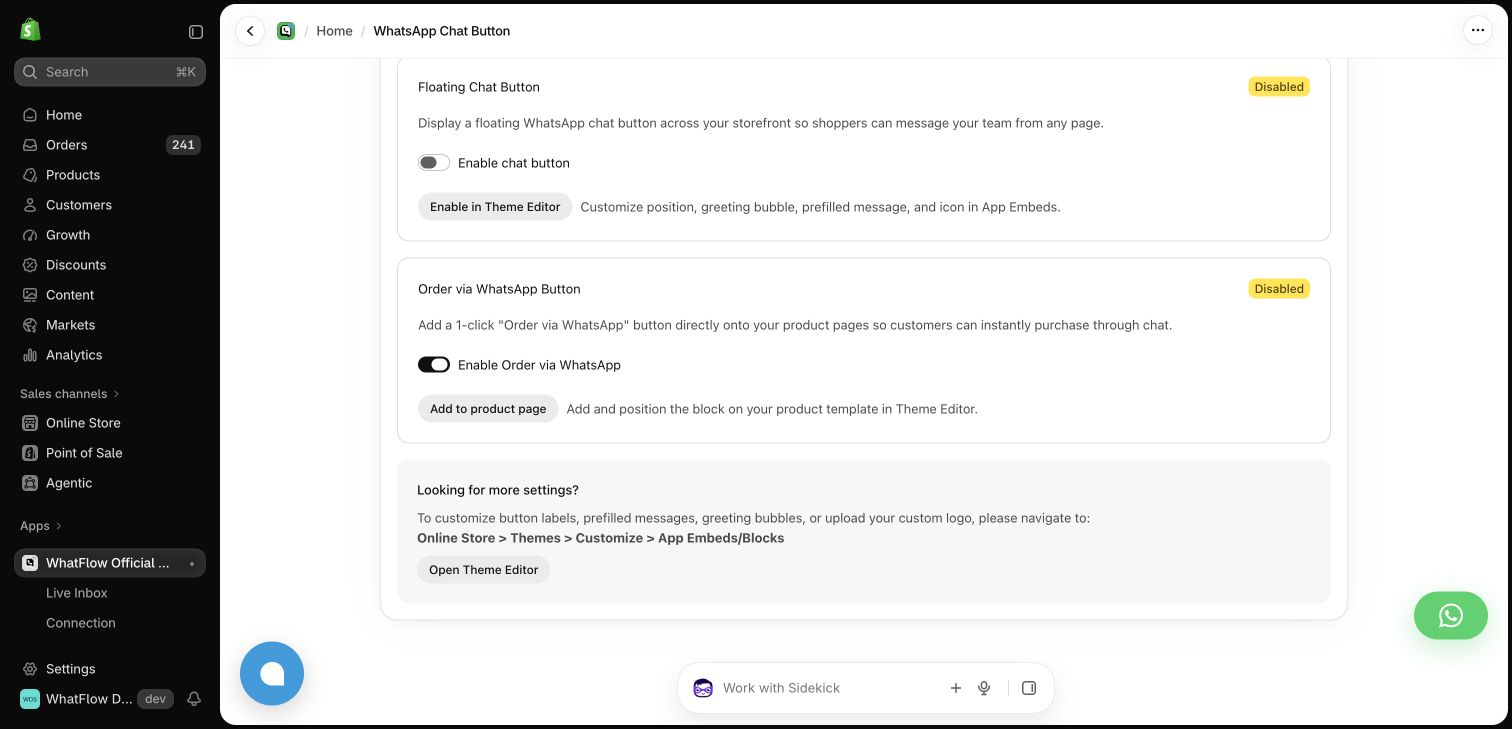
Turn on the app embed. Shopify's app embeds documentation describes the process: open the App embeds panel in the theme editor sidebar, find the WhatsApp button embed, and switch it on.
Choose the style and placement. Pick the button style, colours that match your theme, which corner it sits in, and where it appears.
Save, then preview the store.
Test on a real phone. Tap it, make sure it opens WhatsApp to the right number, and check what the first message looks like.
Here's what the button controls look like inside WhatFlow:
WhatFlow's theme-matched WhatsApp button settings, shown in our demo store.
One gotcha: app embeds are enabled per theme. If you're editing a draft theme and then publish a different one, the button won't be there. Always check the live theme after a theme switch.
Free app button vs a plain wa.me link
You can skip the app and put a wa.me link in your header menu or footer. It works. Here's the trade-off:
Placement matters more than design. A good rule: put the button where questions happen, and keep it away from where buying happens.
On mobile (where most of your traffic probably is)
Bottom corner, but not over the add-to-cart. Many themes have a sticky add-to-cart bar at the bottom of product pages. A floating button on top of it is a disaster. Move the button up, or to the other corner.
Watch the clutter. Cookie banners, review widgets, "back to top" arrows and loyalty launchers all want the same corners. Load a product page on your phone and look at what overlaps. The post on review widgets and WhatsApp buttons on mobile covers this in detail.
Size for thumbs. Big enough to tap easily, small enough that it doesn't cover product photos.
On desktop
A floating button in the bottom right is the convention people expect. Desktop users are less likely to message from WhatsApp, but WhatsApp Web and the desktop app mean some will.
Which pages
Product pages: the most valuable spot. Questions here are pre-purchase.
Cart: useful for delivery and COD questions right before checkout.
A blank chat makes the customer think about what to type. A prefilled message gets them started and tells your team the context:
Hi! I have a question about the Aria Wrap Dress.
Hi Kaya Home, I'm checking delivery times to Jeddah.
If your button can include the product name automatically, use it. Your team instantly knows which product the customer is looking at, and you save one back-and-forth.
Make sure someone answers
A chat button with slow replies is worse than no button. Before you switch it on:
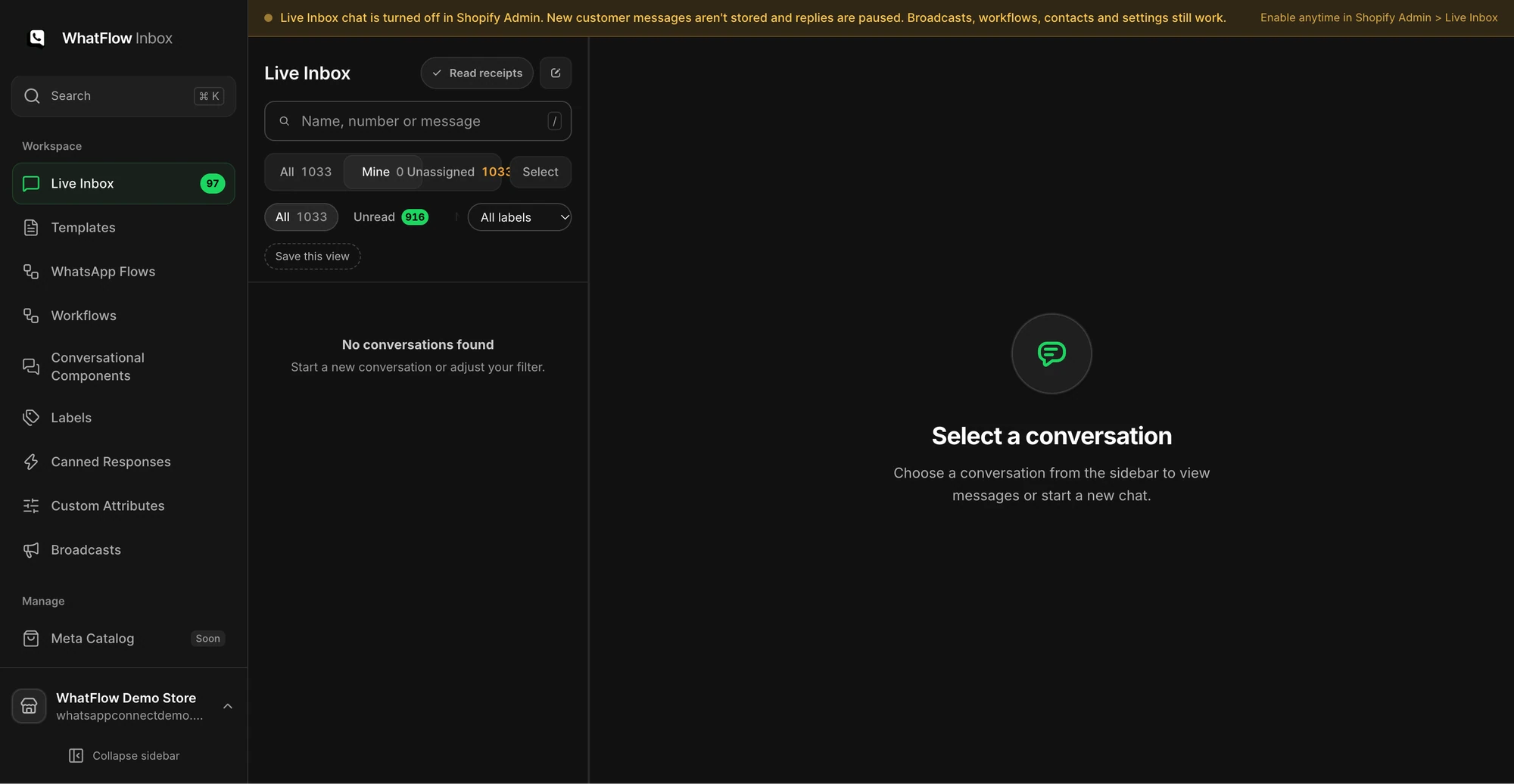
The Mine queue in the demo inbox shows how staff can narrow conversations to their assignments. No customer conversations are shown.
Decide who answers, and when. Post the hours somewhere visible.
Prepare saved replies for the five questions you get every day: delivery time, COD, sizing, returns, stock.
Use a shared inbox, not the owner's phone. WhatFlow's team inbox includes assignment, filters and saved replies with no seat fees, so it works the same for a two-person shop as for a support team of thirty.
That last point is where WhatFlow is different from a button-only app. The button is free, and on WhatFlow's Business API app every feature (inbox, templates, broadcasts, Shopify Flow automation, catalog sharing) is included on every plan, including Free. It runs on Meta's official WhatsApp Cloud API, so it's built for stores that are growing, not just testing the water.
Troubleshooting: button missing or opening the wrong chat
Not showing at all: check the app embed is switched on in the theme that's actually published, and that you clicked Save.
Showing on desktop but not mobile (or the reverse): look for device visibility settings in the button controls, and check that another widget isn't sitting on top of it.
Opens the wrong number: make sure the number connected in the app is your business number in international format.
Hidden behind the cookie banner: move the button or adjust its vertical offset, then dismiss the banner on your phone and check again.
Slows the page: compare a page speed test before and after enabling it. If a chat tool adds noticeable weight, that's worth knowing before you keep it.
Disappeared after a theme update: re-check app embeds on the new theme version. They don't always carry over the way you expect.
When in doubt, test in a private browser window on your phone, since cached pages can show an older version of the theme.
Turn button chats into opt-ins (carefully)
Someone messaging you through the button hasn't agreed to marketing. After you've helped them, you can ask:
Glad that helped! Want us to message you here when new styles drop? About twice a month, and you can stop anytime.
[Yes please] [No thanks]
Templates, COD confirmation, Shopify Flow automations and a shared team inbox with no seat fees. Every feature is included on every plan, including Free.
Style matches the theme; position clears the sticky add-to-cart on mobile.
Prefilled message names the product or the topic.
Tested on iPhone and Android.
Someone owns the inbox, with an away message for off-hours.
Frequently asked questions
How do I add a WhatsApp button to my Shopify store?
Install a WhatsApp app such as WhatFlow, turn on its app embed in the Shopify theme editor, choose the button style and placement, save, and test it on your phone. No theme code is needed.
Is there a free WhatsApp button for Shopify?
Yes. WhatFlow's theme-matched WhatsApp chat buttons are free forever. You can also link a plain wa.me URL from your theme, but you lose styling and placement control.
Where should the WhatsApp button go on a Shopify product page?
On mobile, keep it clear of the sticky add-to-cart bar, cookie banners and review widgets. Many stores do well with a floating button in a bottom corner plus an inline 'Ask about this product' link near the size or delivery details.
Why isn't my WhatsApp button showing on Shopify?
The most common reason is that the app embed is switched off in the theme editor, or it was enabled on a different theme from the one that's published. Check the live theme's app embeds and save.