
Publisher disclosure: this comparison is written by WhatFlow. Competitor capabilities are based on the linked public documentation; the WhatFlow screenshots come from our demo store. Examples are illustrative, and results depend on your store and configuration.
WhatFlow and Floating-only widget at a glance
| Consideration | WhatFlow | Floating-only widget |
|---|---|---|
| Placement | Floating chat button across the store plus an 'Order via WhatsApp' block you position on the product template. | One floating bubble in a corner of every page. |
| Cost | Free forever, on every plan including Free. | Free or paid depending on vendor; advanced styling is sometimes on a paid tier. |
| Design fit | Matches your theme: custom labels, greeting bubble, prefilled message, icon and logo, set in the Theme Editor. | A generic bubble that can clash with your brand or sit over sticky buttons. |
| Setup | Theme app embed and app block in Shopify's Theme Editor. No theme code edits. | Varies; some need a script snippet in the theme. |
| After the tap | Team inbox with no seat fees, saved replies and live catalog sharing; Shopify Flow trigger for incoming messages. | Depends on what the widget connects to. |
Theme-matched WhatsApp buttons beat a floating-only widget on Shopify. A corner bubble is fine for "contact us", but the questions that decide a sale (sizing, stock, delivery to my city) happen on the product page. WhatFlow gives you both: a floating chat button and an "Order via WhatsApp" product-page block, styled to your theme and free forever.
At a glance
- WhatFlow: floating button + product-page button, theme-matched, free forever, set up in the Theme Editor with no code.
- Floating-only widget: one bubble in a corner, the same on every page.
- After the tap: WhatFlow chats land in a team inbox with no seat fees; a floating widget often points at a single phone number.
Why does placement matter?
Think about where a shopper's question actually happens. Say someone's looking at a linen dress at 11pm. They're between a 38 and a 40 and want to know if it runs small. That question lives right under the size selector.
A floating bubble in the bottom corner is generic. It says "contact us". A button labelled "Ask about sizing on WhatsApp" next to Add to cart says "we'll help you choose this one". And the prefilled message gives your team the context instantly:
Hi! Question about the Linen Wrap Dress before I order.
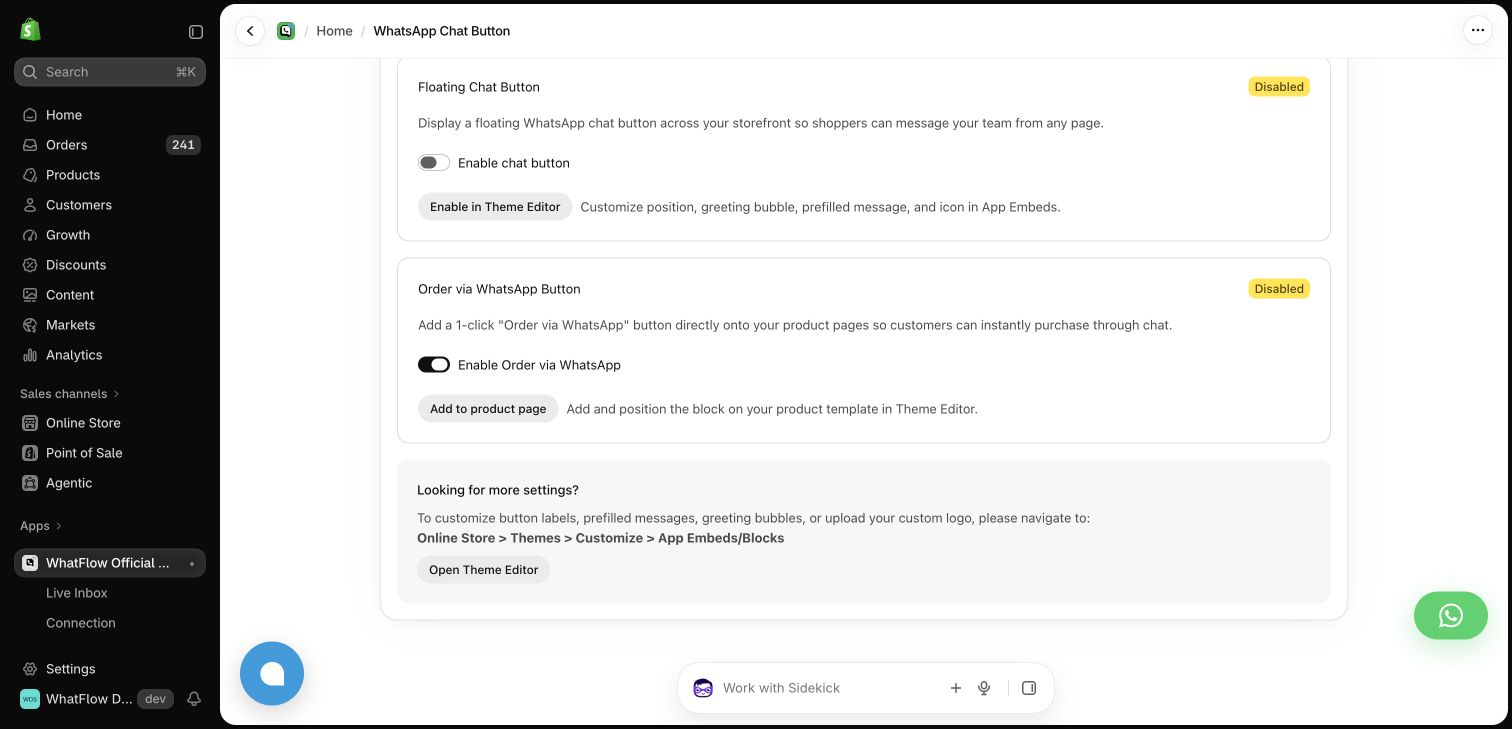
WhatFlow's Order via WhatsApp button is an app block, so you drop it into your product template in the Theme Editor and place it where it fits your layout. The floating chat button covers everywhere else. If you use pre-purchase questions well, they also feed your product pages: using pre-purchase WhatsApp questions explains how.
What does "theme-matched" mean in practice?
It means the button looks like part of your store, not a sticker on top of it. In WhatFlow you set:
- Button position (for the floating button)
- Button labels
- Greeting bubble text
- Prefilled message
- Icon or your own uploaded logo
All of it lives in Shopify's Theme Editor under App Embeds and Blocks. No theme code edits, and switching it off is a toggle.
What does a floating-only widget get wrong on mobile?
Most Shopify traffic is on phones, and phones are where floating bubbles cause trouble. On a narrow screen a corner bubble can sit over a sticky Add to cart bar, a cookie banner or the cart drawer's checkout button. Shoppers tap the wrong thing, or the bubble hides the one button that makes you money.
A quick test for any button:
- Open a product page on a phone. Scroll so the sticky bar appears.
- Open the cart drawer and look at the checkout button.
- Tab through the page with a keyboard to check the button is reachable and labelled.
- Tap it and check the prefilled message.
Making review widgets and WhatsApp buttons work together on mobile has more layout fixes.
One practical check: Can staff share a relevant product when the shopper asks about sizing? In WhatFlow, the storefront button can lead into a shared inbox with Shopify order context and catalog sharing. Try the product recommendation workflow after testing the click itself.
How much does each cost?
WhatFlow's theme-matched buttons are free forever on every plan. You only pay WhatFlow if you send automated messages (order updates, COD confirmations, broadcasts), and even then the Free plan includes 100 messages a month with every feature. Paid plans start at $4.99/month for 2,000 messages (as of November 2026); see the pricing page.
Floating widgets vary. Some are free with basic styling and charge for custom design or extra channels. Compare the plan that gives you the look you actually want, not the free icon. Free WhatsApp button vs a paid chat widget runs that math.
What happens after the tap?
This is where WhatFlow pulls ahead. The chat lands in a shared team inbox with assignment, filters, saved replies and live catalog sharing, and adding teammates costs nothing. WhatFlow also adds an incoming-message trigger to Shopify Flow, so you can route or tag chats automatically.
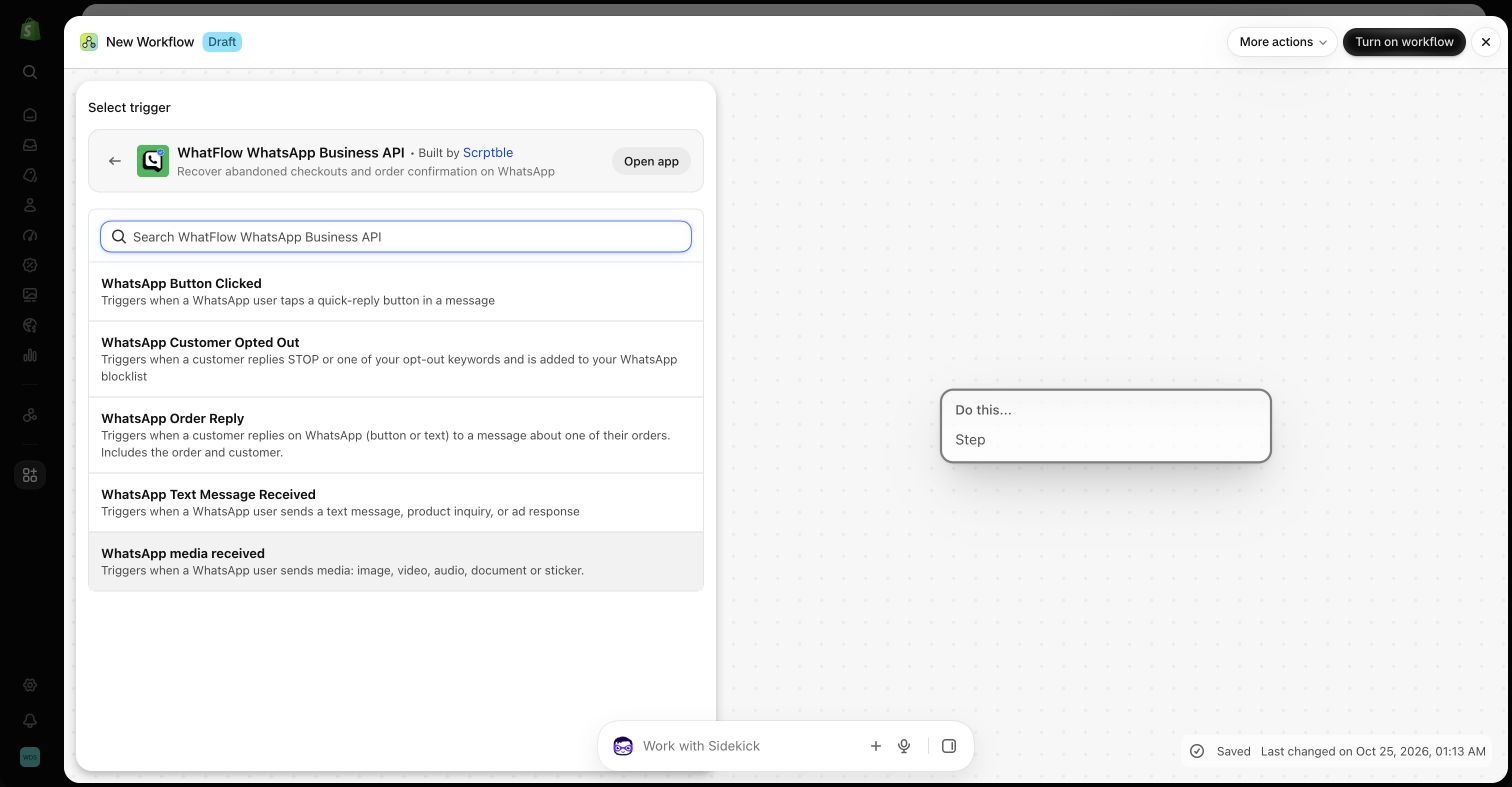
Full setup steps are in how to add a WhatsApp chat button to Shopify, and the chat button page shows the options.
What sits behind the button?
WhatFlow WhatsApp Business API, on the official Meta WhatsApp Cloud API. It's enterprise-ready (inbox assignment and filters, no seat fees at any team size, Shopify Flow automation, COD confirmation, live catalog sharing, Shopify admin extensions) and still the easiest place for a small store to start, with every feature on the Free plan.
When might a floating-only widget still make sense?
Pick a floating-only widget if you specifically want one launcher with several channels (WhatsApp, Instagram, phone, email) and you don't sell products where pre-purchase questions matter much. WhatFlow vs Chaty covers that kind of tool.
The bottom line
Put WhatsApp where shoppers make decisions, make it look like your store, and send the chat somewhere your whole team can answer. WhatFlow does that for free, on every plan. WhatFlow WhatsApp Business API is rated 5.0/5 from 55 ratings on the Shopify App Store (as of November 5, 2026).
Questions worth asking
Should a WhatsApp button float or sit on the product page?
Ideally both. A floating button covers general questions anywhere on the store, while a product-page button catches the sizing, stock and delivery questions right where a shopper is deciding. WhatFlow provides both for free.
How do I test WhatsApp button placement on Shopify?
Check a product page and the cart drawer on a narrow phone and on desktop. The button must not cover Add to cart, checkout or sticky bars, and should be reachable with the keyboard.
Are WhatFlow's buttons part of a paid plan?
No. WhatFlow's theme-matched WhatsApp buttons are free forever, and every other feature is on every plan, including Free.
Do WhatsApp chats from the button cost money?
The button itself is free. On Meta's side, as of November 2026 your free-form replies are free for the first 1,000 per business number each month and charged after that, and every template message is billed.
Sources and methodology
We checked these primary sources on November 5, 2026. Vendor pages describe advertised capabilities, rather than independent performance tests. Confirm current pricing, plan limits and availability with each provider.
- WhatFlow plans and Shopify integrations
WhatFlow listing: storefront WhatsApp chat button and plans, checked November 5, 2026. Free-forever theme-matched buttons confirmed by WhatFlow.
- WhatsApp Business Platform pricing
Meta's overview of WhatsApp Business Platform pricing for customer-started and template conversations.
- WhatsApp Business Platform pricing (Meta developer docs)
Meta charges per delivered template message by category and recipient country. Since October 1, 2026, service replies are free only for the first 1,000 per business number each month, and utility templates inside the customer service window are charged.