To evaluate a Shopify app integration, check three things in the actual Shopify Flow editor before you build: the exact trigger that starts the workflow, the exact action at the end, and whether the trigger hands over the data that action needs. Then test the ugly cases: missing fields, duplicate events, a customer with two orders. An "integrates with Flow" badge tells you none of this.
I've seen a lot of workflows that looked perfect in a diagram and fell over on the first real order. Almost always for the same reason: the trigger didn't carry the piece of data the action needed, so someone filled the gap with a guess.
Check the trigger, exactly
A trigger is the event that starts a workflow. Open Shopify Flow, create a new workflow, and search for the app under triggers. Read what each one is called and, more importantly, what data it provides.
Questions to ask:
Is this the right moment? "Order created", "order fulfilled" and "customer replied" are very different starting points.
What fields come with it? A WhatsApp message gives you a phone number and text. It doesn't automatically give you an order ID.
Does it identify the right record? If the next step changes an order, the trigger has to tell you which order.
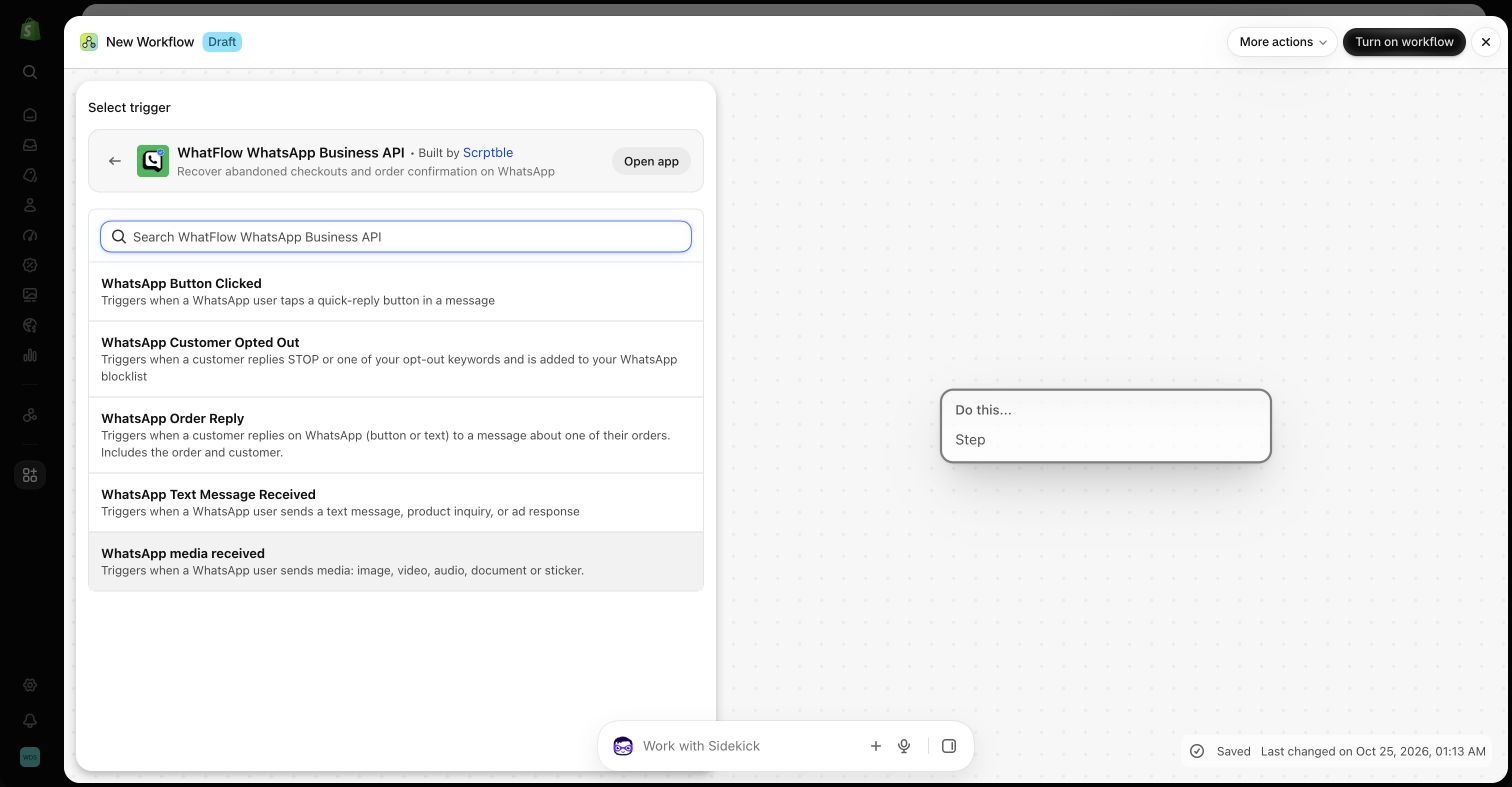
This is why WhatFlow has two kinds of WhatsApp triggers. One fires on any incoming message. The other, WhatsApp Order Reply, fires when a customer replies to a message about a specific order, and carries that order. If you want to tag or cancel an order from a reply, you use the second one. Our guide to turning WhatsApp order replies into Shopify actions shows it end to end, and routing incoming WhatsApp messages with Flow covers the first.
WhatFlow gives you three distinct tools: Shopify Flow for Shopify and WhatsApp events, Inbox Workflows for API-triggered sequences with waits and decisions, and WhatsApp Flows for forms customers fill out inside the chat. If the goal is a sale, a catalog cart event can start a Shopify Flow workflow, while payment is verified separately in Shopify. See the catalog event and checkout example.
WhatFlow's triggers listed in Shopify Flow in the demo store.
Check the action, exactly
An action is what the workflow does. Again, search the app in the Flow editor and read the real list. "Send message", "add tag", "create ticket" and "update customer" each mean something specific.
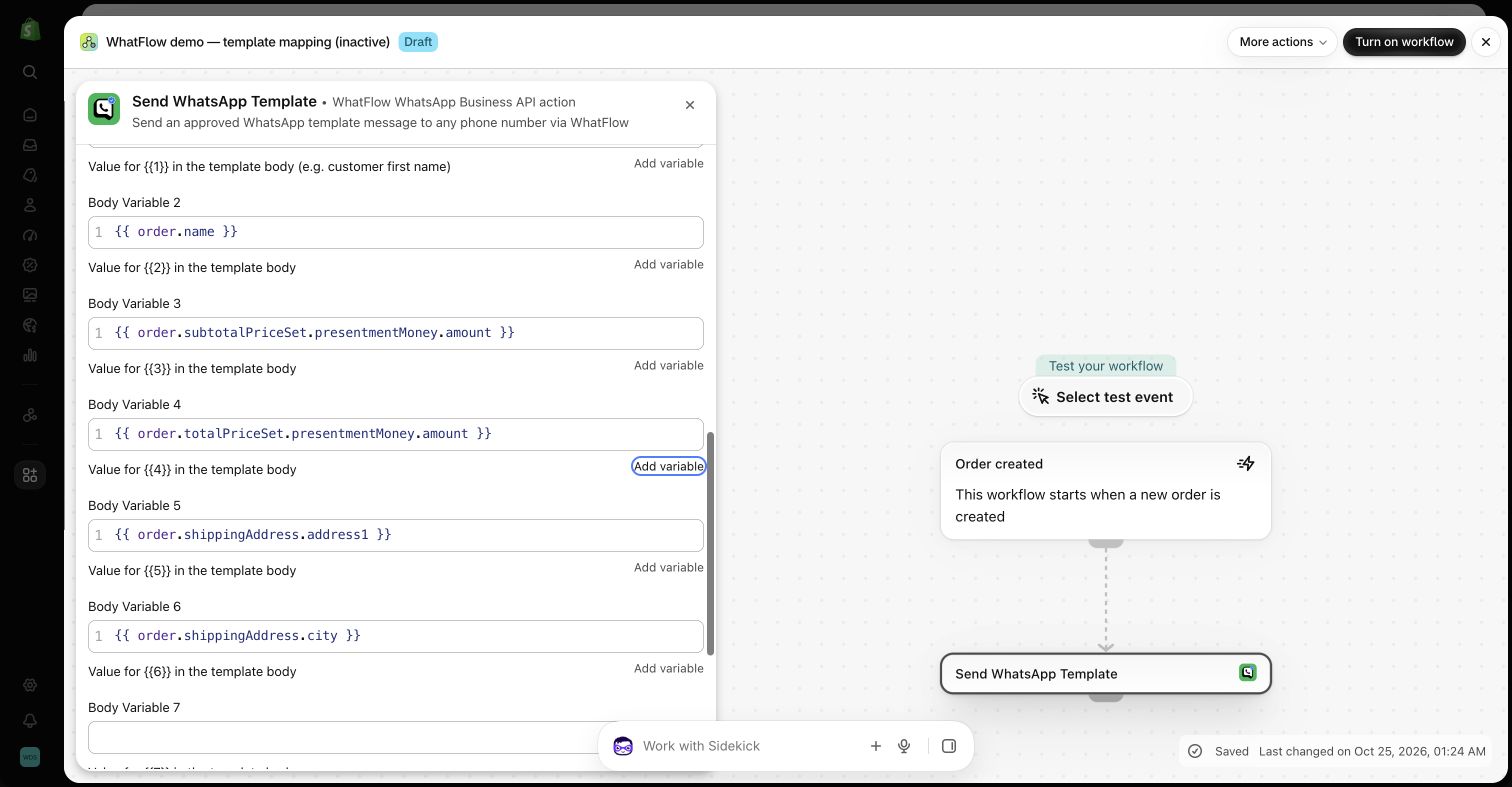
What inputs does it need? A template action needs the template, the recipient and values for each variable.
What does it actually do? Creating a support ticket isn't the same as resolving the issue. Name your workflow branches honestly.
Is it on your plan? Some apps only expose Flow actions on higher tiers. Check before you design around it.
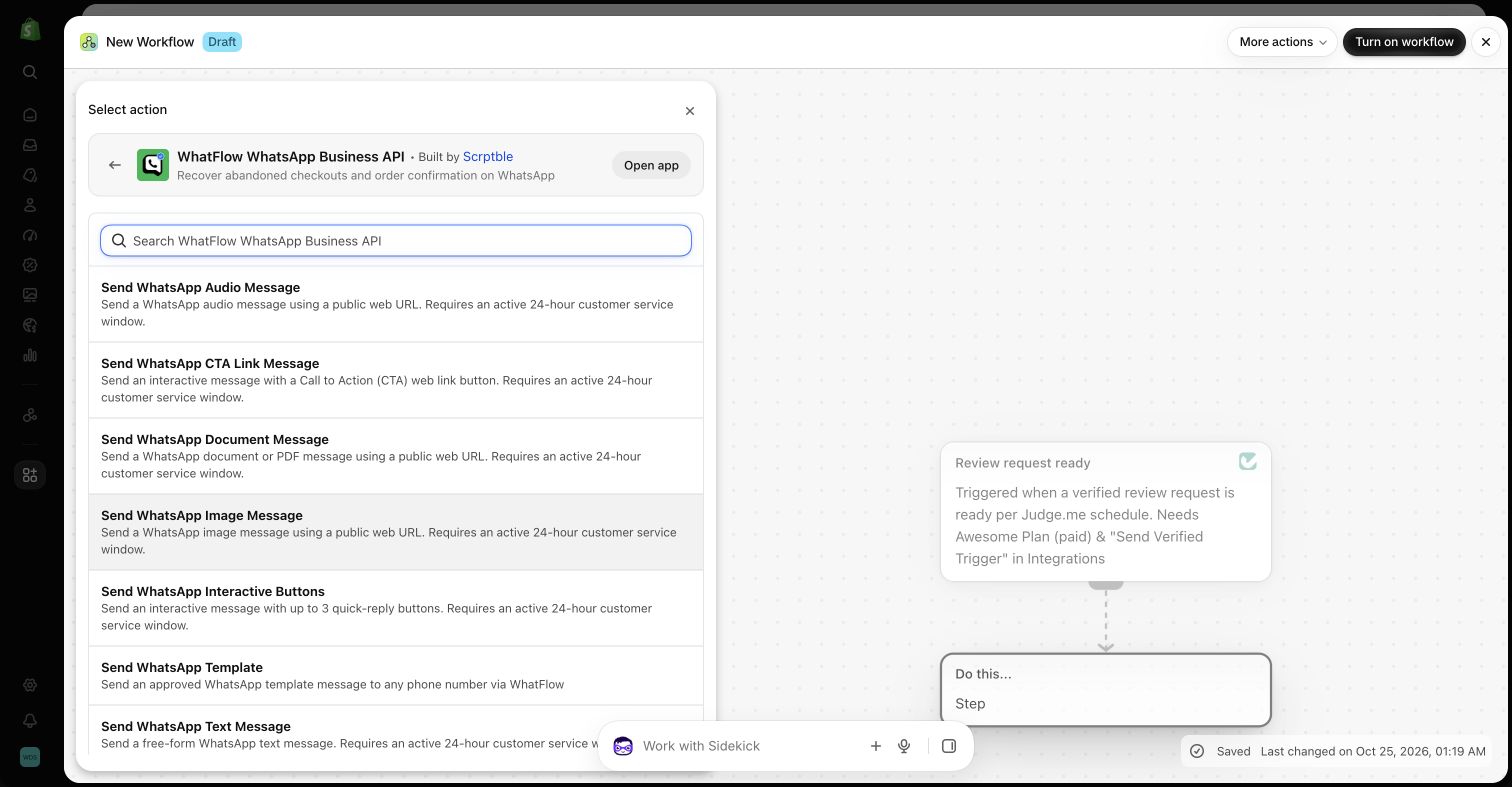
WhatFlow's Flow actions cover sending WhatsApp template, text, and media or video messages through Meta's official WhatsApp Cloud API. All of them are available on every plan, including Free, so a large team running Flow at volume gets the same triggers and actions as a store on day one.
WhatFlow's WhatsApp message actions in Shopify Flow. Demo store.
Map the data, don't match on names
Two fields called "customer" in two apps can mean different things. A phone number with a country code and one without won't match. A temporary file URL isn't a permanent media link.
For each action input, write down which trigger field fills it. If an input has no matching field, stop. That's a design problem, and the fix is a different trigger or an extra step, not a guess like "use the customer's most recent order".
A WhatFlow template action in Shopify Flow with variables mapped to order fields. Demo store; the workflow was not run.
Build a small acceptance table
Before switching anything on, write the cases you'll test and what should happen. Say you want "customer taps Confirm on a COD message, Flow adds a tag to that order".
Case
Expected result
Passed?
Customer taps Confirm
cod-confirmed tag on the right order
Customer taps Confirm twice
Tag added once, no duplicate message
Customer has two open orders, replies to the older message
Tag goes on the older order, not the newest
Customer types "yes" instead of tapping
No tag; message lands in the inbox
Order already fulfilled when the reply arrives
No change; team is notified
Then check the actual order in Shopify admin after each test. "The workflow ran" isn't the same as "the right thing happened to the right record".
Red flags in an integration listing
These don't mean an app is bad. They mean you need to look closer before building on it:
"Integrates with 100+ apps" with no list of the actual triggers and actions.
The integration needs a separate subscription to a third-party connector you weren't told about.
Flow support is "coming soon" or only mentioned in a changelog from two years ago.
Triggers without IDs. An event that says "customer replied" but doesn't pass a customer or order reference.
Actions on the top tier only, when the plan you're budgeting for is the entry one.
No way to see failures. If a workflow step fails and nothing tells you, you'll find out from an angry customer.
The fastest check is still the Flow editor itself. Install the app on your store (most have a free plan or trial), open Flow and look. Five minutes there is worth more than any feature page, including ours.
Remember the channel rules still apply
A Flow action doesn't bypass WhatsApp's rules. Outside the 24-hour customer service window you can only send approved templates, and only to customers who opted in (WhatsApp Business messaging policy). A workflow that fires a free-form text message to someone who hasn't messaged you in a week will fail, however neat it looks in Flow.
Flow, Zapier or custom code?
If both apps have native Flow triggers and actions, use Flow. It reads Shopify data directly and there's nothing extra to pay for or maintain. Reach for Zapier or similar when one side doesn't offer Flow support, and accept that you now have a third tool to watch. Custom code is for when neither works and you have someone to maintain it. Our Shopify Flow vs Zapier comparison goes into the trade-offs for WhatsApp specifically.
Free plan available
Run WhatsApp for your Shopify store with WhatFlow
Templates, COD confirmation, Shopify Flow automations and a shared team inbox with no seat fees. Every feature is included on every plan, including Free.
Name each workflow after its outcome, and add a note: which apps it depends on, which fields it uses, who handles failures. When an app updates or you change plans, that note is how you find out what might break. If this is your first workflow, start small; our guide to choosing a first Shopify automation shows what to build before anything else, and connecting WhatsApp to your other Shopify apps shows what comes after.
Frequently asked questions
How do I check what a Shopify app can do in Shopify Flow?
Open Shopify Flow, start a new workflow and search for the app under triggers and actions. The list shows exactly which events and tasks the installed app exposes, which is more reliable than its marketing page.
What's the difference between a trigger and an action in Shopify Flow?
A trigger is the event that starts a workflow, such as an order being created or a WhatsApp reply arriving. An action is what the workflow does next, such as adding a tag or sending a message.
Is Shopify Flow better than Zapier for app integrations?
For workflows that stay inside Shopify and its installed apps, Flow is usually simpler because it reads Shopify data natively. Zapier makes sense when you need to reach tools that don't offer Flow triggers or actions.
Which WhatFlow triggers and actions are available in Shopify Flow?
WhatFlow adds triggers for incoming WhatsApp messages and order replies, and actions for sending template, text and media or video messages.