To route incoming WhatsApp messages with Shopify Flow, use WhatFlow's WhatsApp Text Message Received trigger, add a condition that checks the message body, and reply with a text or button message addressed to the sender's number (fromPhoneNumber). Anything that doesn't match stays in your team inbox for a person. Start with one narrow keyword, test it, then widen it.
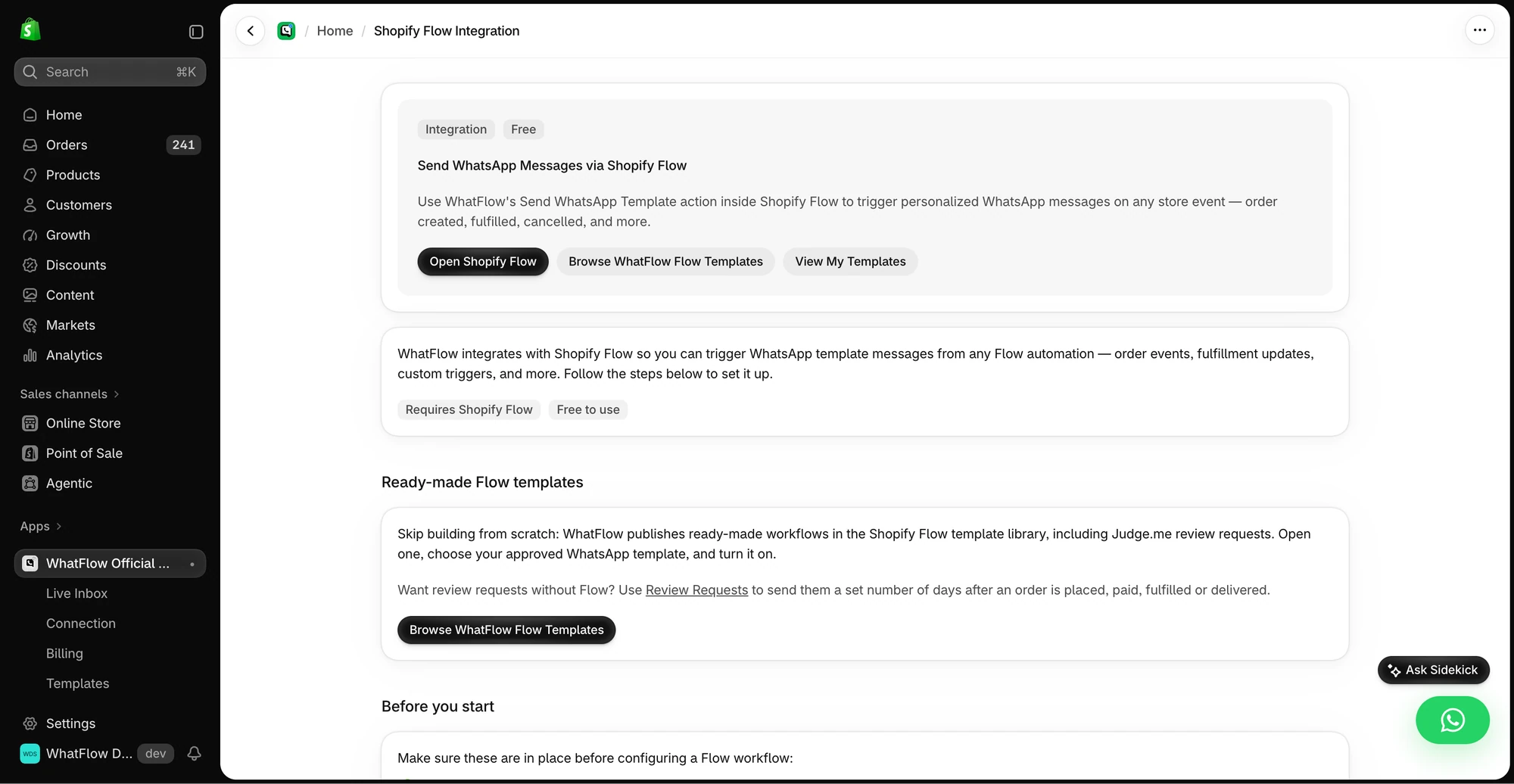
The in-app guide links to Shopify Flow, templates and setup instructions for WhatsApp actions.
The goal isn't a chatbot. It's taking the three questions you answer forty times a week off your plate, and making sure everything else reaches a human quickly.
Which WhatsApp questions should you route automatically?
Good candidates are questions with one correct answer that doesn't depend on the customer's order:
"How long does delivery take?"
"Do you deliver to Jeddah?"
"What's your return window?"
"Are you open on Friday?"
Bad candidates are anything with emotion or a specific order in it. "My parcel arrived damaged" and "Where is order #1042?" both mention delivery, and neither wants your delivery policy pasted back at them. Route those to a person.
Step 1: Use the WhatsApp Text Message Received trigger
Create a new workflow in Flow, keep it inactive, and choose WhatsApp Text Message Received. It fires on incoming texts, product enquiries and some ad-response messages, and gives you:
Message Body: what the customer wrote. Use this in your condition.
Sender Phone Number (fromPhoneNumber): who to reply to.
Profile Name: their WhatsApp display name. Handy context, but not a verified Shopify identity.
One thing this trigger doesn't give you is an order. A phone number can belong to someone with three orders, or none. If a branch needs to change an order, use the order-aware trigger instead; see .
WhatFlow gives you three distinct tools: Shopify Flow for Shopify and WhatsApp events, Inbox Workflows for API-triggered sequences with waits and decisions, and WhatsApp Flows for forms customers fill out inside the chat. If the goal is a sale, a catalog cart event can start a Shopify Flow workflow, while payment is verified separately in Shopify. See the catalog event and checkout example.
Step 2: Start with a narrow condition
For your first test, use an exact keyword such as DELIVERY_INFO. It's boring, and that's the point: you know exactly when it should fire. Once the mapping works, decide which real phrases to catch.
When you widen it, test it against the messages that should not match:
Customer message
Should it get the delivery auto-reply?
"how long is delivery to Riyadh"
Yes
"delivery time?"
Yes
"my delivery never came"
No, that's a complaint
"I don't need delivery, can I pick up?"
No
"envío a Monterrey cuánto tarda"
Only if you've written a Spanish rule
Also check that one message can't match two workflows at once. Two auto-replies to "hi, delivery?" looks like a broken bot.
Step 3: Reply with text or with buttons
For a single answer, use Send WhatsApp Text Message. When there's a natural next choice, use Send WhatsApp Interactive Buttons, which supports up to three quick-reply buttons. Either way, set the recipient to fromPhoneNumber.
A text reply:
We deliver in 2–4 business days across the UAE, and 5–7 days to the rest of the GCC. You'll get a tracking link here on WhatsApp when it ships. Anything else? Reply TEAM and one of us will jump in.
A button reply for a general "hi":
Hi! What can we help with?
[Delivery times] [Returns] [Talk to a person]
Both actions are free-form, so they need an open 24-hour customer service window. An incoming message opens one, so an instant reply is fine. A reply you've delayed until the next afternoon may not be.
What our demo workflow actually does
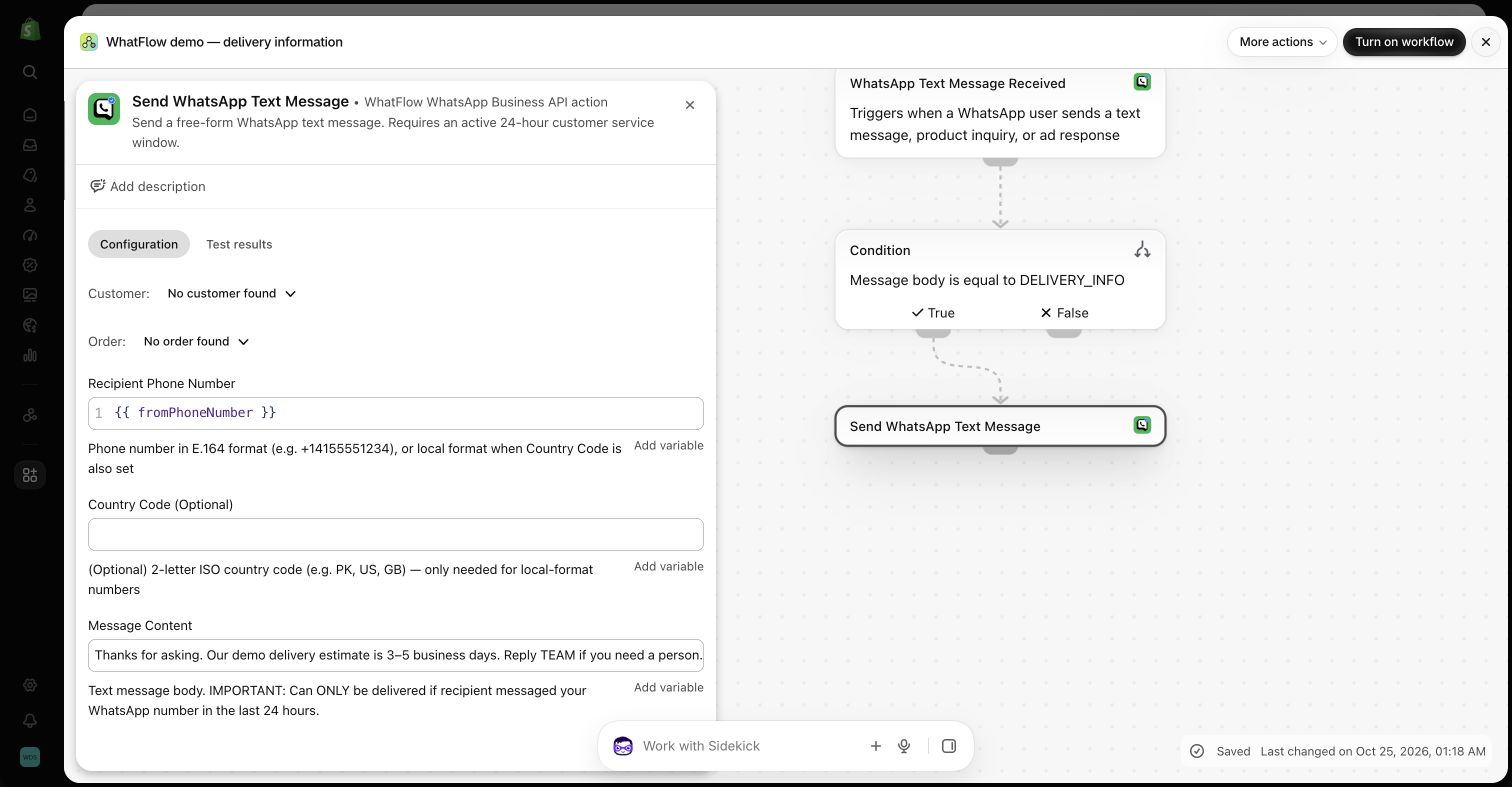
In the demo store, the condition checks whether Message Body equals DELIVERY_INFO. If it does, Send WhatsApp Text Message sends a sample delivery answer to fromPhoneNumber. Sidekick generated those steps; we checked the recipient and message fields and saved it inactive.
Inactive demo: the recipient is fromPhoneNumber. The 3–5 business day text is sample copy.
The sample says 3–5 business days and invites the customer to reply TEAM. Two things to change before you copy it: use your real delivery times, and know who's going to answer TEAM. That word doesn't assign anyone. It just tells your team a human is wanted.
Button clicks for menus, order replies for orders
WhatFlow has a separate WhatsApp Button Clicked trigger. It gives you Button Text and Button Payload, which is perfect for menus: if they tap "Returns", send the returns answer. Check the exact values your buttons send instead of copying them from a tutorial.
But a button that says "My order" doesn't tell Flow which order. Keep button routing for conversation, and use WhatsApp Order Reply when an order needs to change.
How do you hand off to a human honestly?
Every routing workflow needs an exit to a person, and your wording should match what really happens. "I've assigned this to your account manager" is a lie if no one was assigned. Something like this is better:
Thanks, I've flagged this for the team. Someone will reply here today before 6pm.
The handoff itself happens in WhatFlow's team inbox, where staff can assign and filter conversations. The Flow steps in this guide don't assign chats.
If you use a helpdesk with a Flow connector, you can add its action to a branch, but check which customer identifiers it needs. A phone number from WhatsApp isn't always enough. For the people side, read setting up a shared team inbox, and for after-hours replies, our away message examples.
What should happen when a customer sends a photo?
WhatsApp media received is its own trigger, for images, videos, audio, documents and stickers. Use it to send attachments to a person rather than an auto-reply. A photo of a cracked mug is evidence for someone to look at, not an automatic refund.
Two technical notes. The Meta media ID in the trigger isn't a public image URL. And any temporary download link expires and should stay private. Don't paste customer photos into shared spreadsheets or team chats.
Test the silence as well as the reply
Before activating, test with your own number:
The exact keyword gets the reply.
A complaint that mentions "delivery" gets nothing automatic.
Sending the keyword twice doesn't produce a pile of replies.
Flow's test mode checks the logic without sending. Then do one real run and read the conversation in WhatFlow.
Free plan available
Run WhatsApp for your Shopify store with WhatFlow
Templates, COD confirmation, Shopify Flow automations and a shared team inbox with no seat fees. Every feature is included on every plan, including Free.
Routing works best with more than one person on the inbox
Auto-replies take care of the easy questions, and that leaves more time for the hard ones, but someone still has to answer those. WhatFlow's inbox has assignment, filters and no seat fees at any team size, so you can add the colleague who handles returns, or a whole support shift, without another subscription. Every feature, Flow included, is on every plan including Free.
Frequently asked questions
Can Shopify Flow auto-reply to WhatsApp messages?
Yes, with WhatFlow installed. Use the WhatsApp Text Message Received trigger, add a condition on the message body, and reply with Send WhatsApp Text Message or Send WhatsApp Interactive Buttons addressed to the sender's number.
Can a Shopify Flow workflow assign a WhatsApp chat to a team member?
Not with the steps in this guide. Assignment happens in the WhatFlow team inbox, where staff can assign and filter conversations. Don't tell customers they've been assigned to someone unless that has actually happened.
Can I forward a customer's WhatsApp photo to another app through Flow?
Only if the next action accepts the data the media trigger supplies. A Meta media ID isn't a public URL, and temporary download links are private and expire, so most stores route photos to a person in the inbox instead.
How long can a Flow auto-reply wait before WhatsApp blocks it?
Free-form replies need an open 24-hour customer service window, which runs from the customer's last message. A reply delayed beyond that needs an approved template instead.