To send a WhatsApp template from Shopify Flow, install WhatFlow, pick a Shopify trigger that actually carries the data your message needs, add the Send WhatsApp Template action, then map the approved template name, the customer's phone number and each variable. Test it on your own number before activating. A green Flow run means the request was accepted. It doesn't mean the customer read anything.
That's the whole job. The rest of this guide is about the details that trip people up, because the template workflows that break usually fail on one of three things: the wrong trigger, the wrong phone field, or a variable mapped to the wrong slot.
Why send WhatsApp templates from Shopify Flow?
A WhatsApp template is a message format Meta reviews and approves before you can use it. Outside the 24-hour customer service window, WhatsApp only lets a business start a conversation with an approved template. (If that window is new to you, read how the 24-hour customer service window works first.)
Shopify Flow is where your store events already live: order created, fulfillment created, customer tagged. Connecting the two means nobody has to copy an order number into WhatsApp by hand. Say you run a COD fashion store and take 60 orders a day. Without automation, someone is opening each order, typing a confirmation and hoping they didn't swap two phone numbers. With Flow, the order event sends the template and the reply comes back into your inbox.
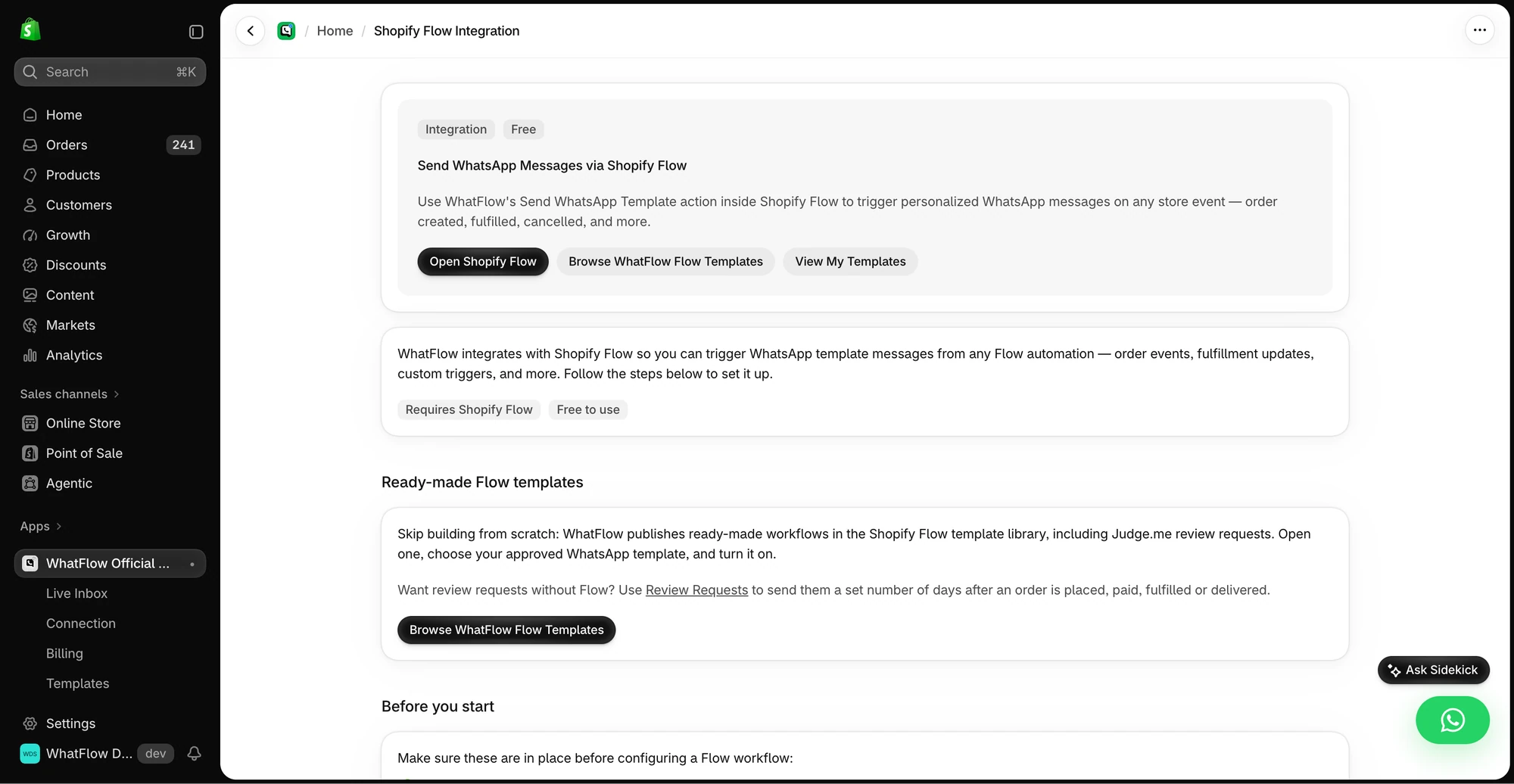
The in-app guide links to Shopify Flow, templates and setup instructions for WhatsApp actions.
We built WhatFlow's Flow actions for exactly this. If you want the bigger picture first (all five triggers, all eight actions), start with the WhatFlow and Shopify Flow automation guide.
Step 1: Get the template approved before you open Flow
Build the message in WhatFlow's template editor and submit it for Meta approval. Flow can only send what Meta has already approved, so there's no point wiring up a workflow around a draft.
Write down four things once it's approved: the exact template name, the language, the header type, and what each body variable means. Here's a COD confirmation template with six variables:
Hi {{1}}, thanks for your order {{2}}! Subtotal {{3}}, total to pay on delivery {{4}}. We'll deliver to {{5}}, {{6}}. Tap Confirm if everything looks right, or Cancel if you've changed your mind.
Pick the category honestly. An order confirmation is a utility message. A "you might also like" line turns it into marketing, and Meta can recategorise it. Our guide to marketing vs utility templates explains the difference, and if Meta bounces your draft, see why WhatsApp templates get rejected.
Step 2: Choose a trigger that has the data your message promises
This is where most mistakes happen. "Order created", "fulfillment created" and "parcel delivered" are three different moments, and each one carries different data.
Message you want to send
Trigger to use
What to check
Order or COD confirmation
Order created
Phone number and shipping address are present
Shipped, with tracking link
A fulfillment event
Tracking number and URL actually exist when it fires
Review request
Your review app's Flow trigger, if it has one
The trigger includes a phone number (many don't)
If your template says "here's your tracking link", don't fire it on Order created. The tracking number doesn't exist yet. Shopify also notes that some order fields fill in a moment after the order is created, so pick the trigger that already has what you need.
Split shipments deserve a decision up front. An order with two fulfillments fires two fulfillment events. Do you want two messages, or one? Put that rule in the workflow, not in your head.
Step 3: Add Send WhatsApp Template and map the recipient
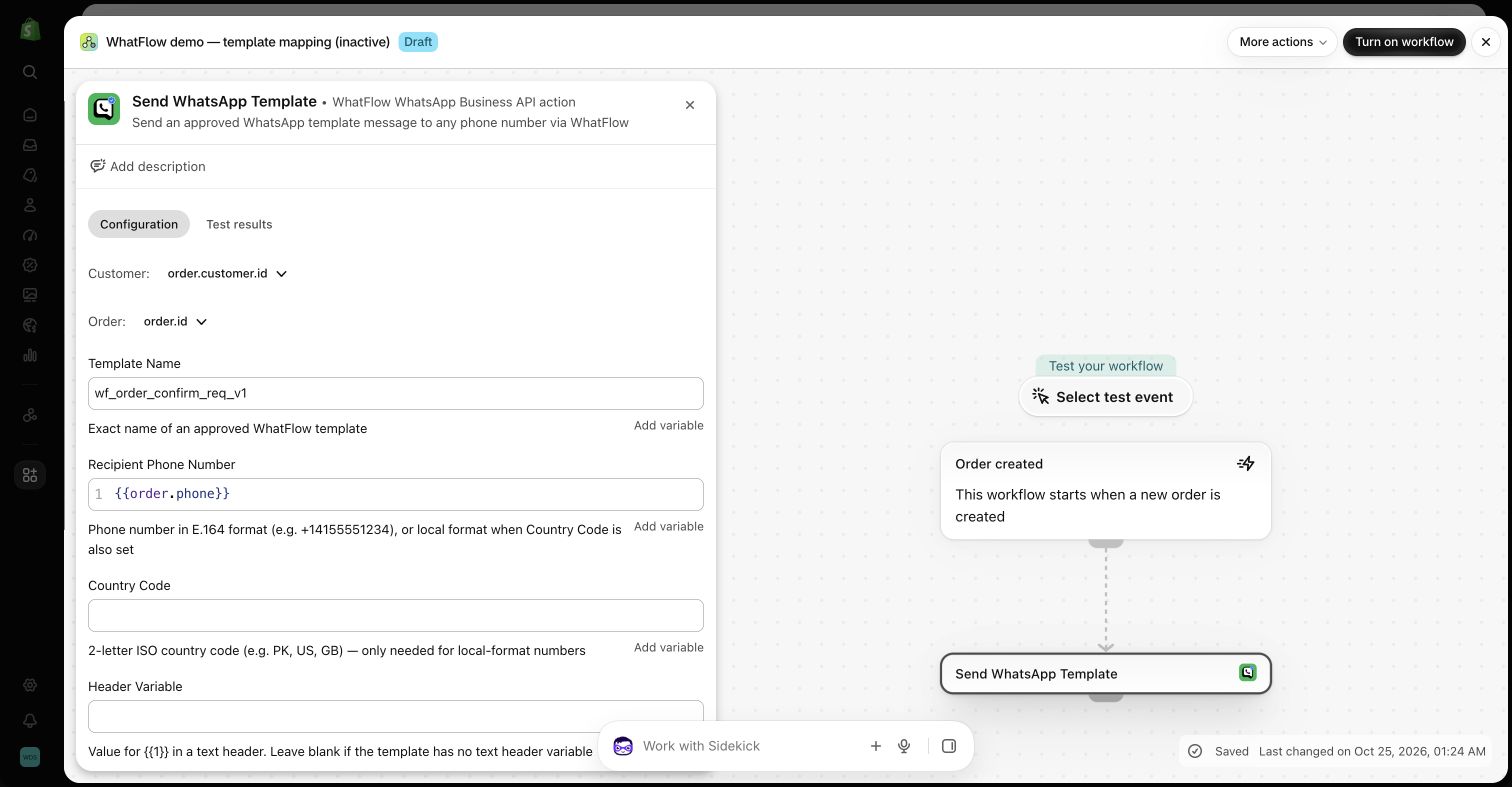
In your inactive workflow, click Add action, choose WhatFlow, then Send WhatsApp Template. Type the exact approved template name.
WhatFlow's template action in a demo Flow editor. Use your own approved template name.
For the recipient, map a variable that holds the customer's phone, such as order.phone. WhatFlow accepts a full international number, or a local number plus a country code. Don't guess the country from the customer's name or language. Use what the order gives you.
Two habits that save you later:
Add a condition before the action: phone is not empty. Otherwise Flow will happily attempt a send with nothing in the recipient field.
Never leave a test number typed into the recipient box. It's the easiest way to send yourself every customer's order confirmation for a day.
Step 4: Map each variable to the right slot
The template action shows header inputs (when the template has a header), body parameters, a URL-button variable and optional order and customer references. Only fill the inputs your template actually uses. A six-variable template needs six values, not every field Flow offers.
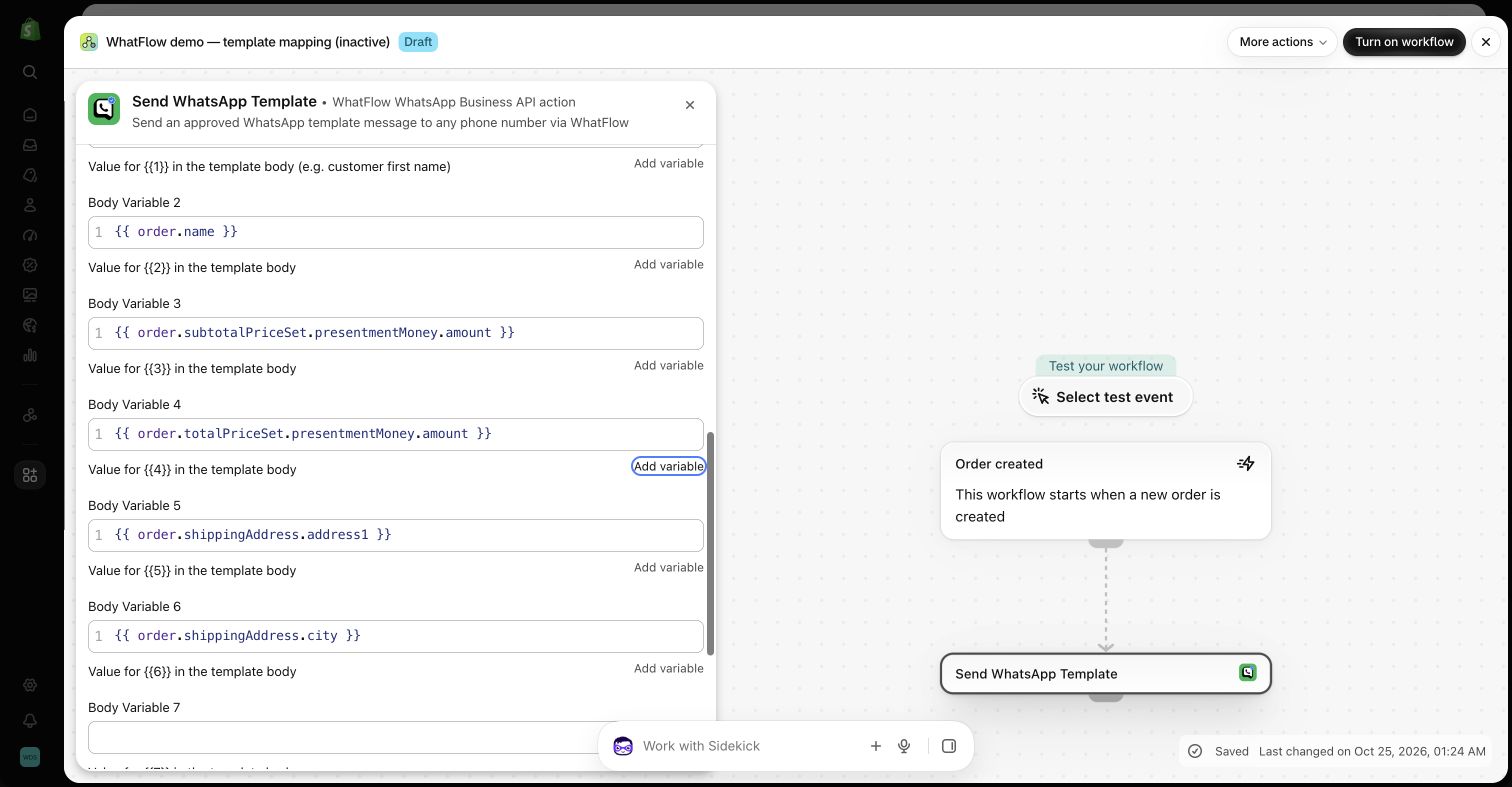
Here's the demo setup in our screenshots. It uses Shopify's Order created trigger and an approved utility template called wf_order_confirm_req_v1. The recipient is order.phone, and order.id and order.customer.id are passed as references. The six body variables map to:
Shipping first name
Order name (the #1042-style number)
Subtotal, in presentment currency
Total, in presentment currency
Shipping address line
Shipping city
Body variables in the inactive demo workflow. These are field mappings only; no message was sent.
Keep the approved preview open beside the Flow editor and check each slot by meaning, not by position. Swapping subtotal and total is an easy mistake and a confusing message for a COD customer who's about to count out cash. Check currency formatting too.
Pass the order and customer references whenever you can. They let a reply be tied back to the right order, which is what makes the order reply and COD confirmation workflow possible.
One more check: if you already use WhatFlow's built-in order notifications, make sure your new Flow doesn't send the same message twice.
Template or one of the other seven WhatFlow actions?
WhatFlow adds eight message actions to Flow. The template is the one you'll use for anything business-initiated. The others are for conversations that are already open.
Action
Use it for
Works outside the 24-hour window?
Send WhatsApp Template
Order updates, COD confirmation, reminders
Yes
Send WhatsApp Text Message
Short replies to an incoming message
No
Send WhatsApp Interactive Buttons
Up to three quick-reply choices
No
Send WhatsApp CTA Link Message
One clear link button
No
Image, video, audio and document actions
Sending a file in an open chat
No
The media actions need a direct, publicly reachable media URL. A Meta media ID from a message you received isn't the same thing and won't work in that field.
How do you test a WhatsApp Flow without messaging real customers?
Start with Flow's test mode. Shopify's guide to testing workflows explains that it walks through your logic without running notification actions, so it checks your conditions and mappings but sends nothing.
Then do one real run: place a test order with your own phone number, activate the workflow briefly, and look at the actual message on your phone. Check:
Every variable rendered, with no blank or {{3}} left showing
The currency and address read correctly
A test order with no phone number stops at your condition
A split shipment sends the number of messages you decided on
Remember there are three separate outcomes: Flow accepted the request, WhatsApp delivered the message, the customer read it. A green run only proves the first. Check the conversation in WhatFlow for the rest. And if a send looks uncertain, don't just trigger another copy. Look first.
What does sending templates from Flow cost?
Two separate bills. Meta charges per delivered template message, with rates that vary by category and the customer's country. Since October 1, 2026 that includes utility templates sent inside an open customer service window, which used to be free. Check Meta's pricing page for current rates, or our plain-English WhatsApp Business API pricing guide.
WhatFlow's side is simpler. Every feature, Flow integration included, is on every plan including Free. Plans only differ by messaging allowances and rates; see current WhatFlow pricing. The team inbox has assignment and no seat fees at any team size, so whoever handles the replies doesn't cost you extra, whether that's one person or forty.
Free plan available
Run WhatsApp for your Shopify store with WhatFlow
Templates, COD confirmation, Shopify Flow automations and a shared team inbox with no seat fees. Every feature is included on every plan, including Free.
Don't build ten workflows on day one. Pick the message that saves you the most manual work (for most COD stores, that's the order confirmation), get it right, watch the first week of replies, then add the next one.
Frequently asked questions
Can Shopify Flow send WhatsApp messages on its own?
No. Shopify Flow has no built-in WhatsApp action. You need an installed app that adds one, such as WhatFlow WhatsApp Business API, which adds Send WhatsApp Template plus text, button, CTA and media actions to Flow.
Do I need Shopify Plus to use Shopify Flow with WhatsApp?
No. As of November 2026, Shopify makes Flow available on the Basic, Grow, Advanced and Plus plans. A few individual Flow features have their own plan limits, but the WhatFlow template action doesn't need a custom HTTP request.
Can I send a normal text message from Flow instead of a template?
Only inside an open 24-hour customer service window, which starts when the customer messages you. For anything business-initiated outside that window, WhatsApp requires a Meta-approved template.
My Flow run succeeded, so why didn't the customer get the WhatsApp message?
A successful Flow step means the send request was accepted, not that the message was delivered or read. Check the conversation in WhatFlow for the delivery status, and look for a missing or badly formatted phone number, an unapproved template or a mismatched variable.
Does WhatFlow charge extra for the Shopify Flow integration?
No. WhatFlow WhatsApp Business API includes every feature, Flow triggers and actions included, on every plan including Free. Plans differ only by messaging allowances and rates, and Meta's WhatsApp charges are billed separately.