Shopify Sidekick can draft a WhatsApp workflow in Shopify Flow from a plain-English request. With WhatFlow installed, you describe the trigger, the condition and the WhatsApp action, and Sidekick builds an inactive draft using WhatFlow's Flow steps. You then check the trigger, recipient, branches and message fields yourself before switching it on. Think of it as a fast first draft, not a finished workflow.
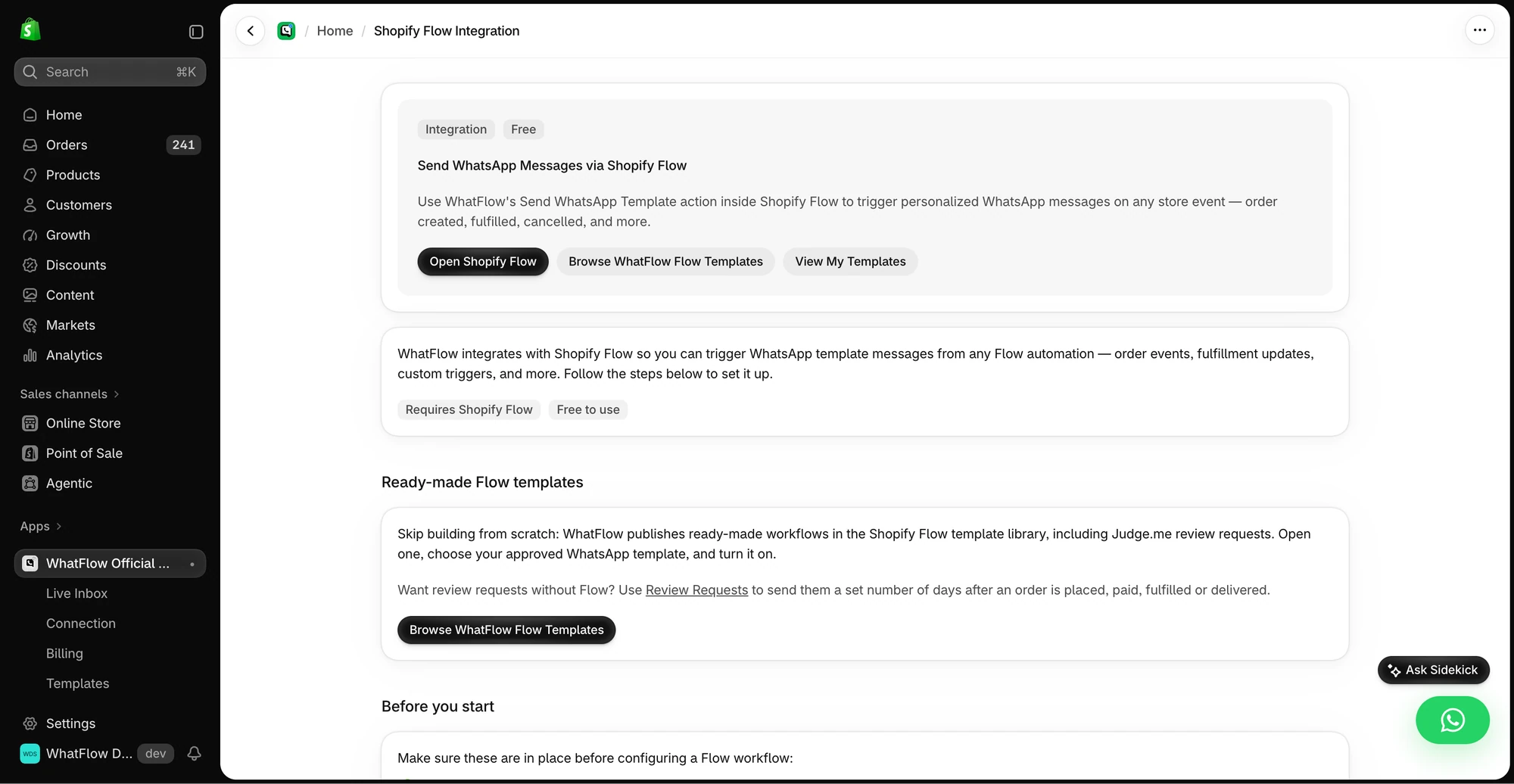
The in-app guide links to Shopify Flow, templates and setup instructions for WhatsApp actions.
I like Sidekick for this. It removes the blank-canvas problem, which is what stops most store owners from ever opening Flow. But it writes plausible workflows, not necessarily correct ones, and the difference is usually one field.
What Sidekick does well, and what it doesn't
Sidekick is Shopify's AI assistant in the admin. On desktop, it can turn a description into Flow steps you can review and edit. Shopify's documentation on Sidekick and Flow says generated workflows start inactive and that complex requests can miss business-specific logic.
To be clear about who does what: the AI here is Shopify's. WhatFlow has no built-in AI bot; it plugs into the AI you already use. Sidekick can use WhatFlow because our triggers and actions are native Flow steps, the same ones you'd pick by hand. For chats rather than workflows, WhatFlow's MCP connector does the same job for Claude, ChatGPT or Cursor: they can read Live Inbox chats and draft replies that a person approves before sending.
Where Sidekick helps:
Picking a sensible trigger and action from your description
Laying out the condition and branches
Filling in obvious fields, like replying to the sender
Where you need to check its work:
Whether it chose the order-aware trigger or a generic one
Which order, customer or phone number the action actually uses
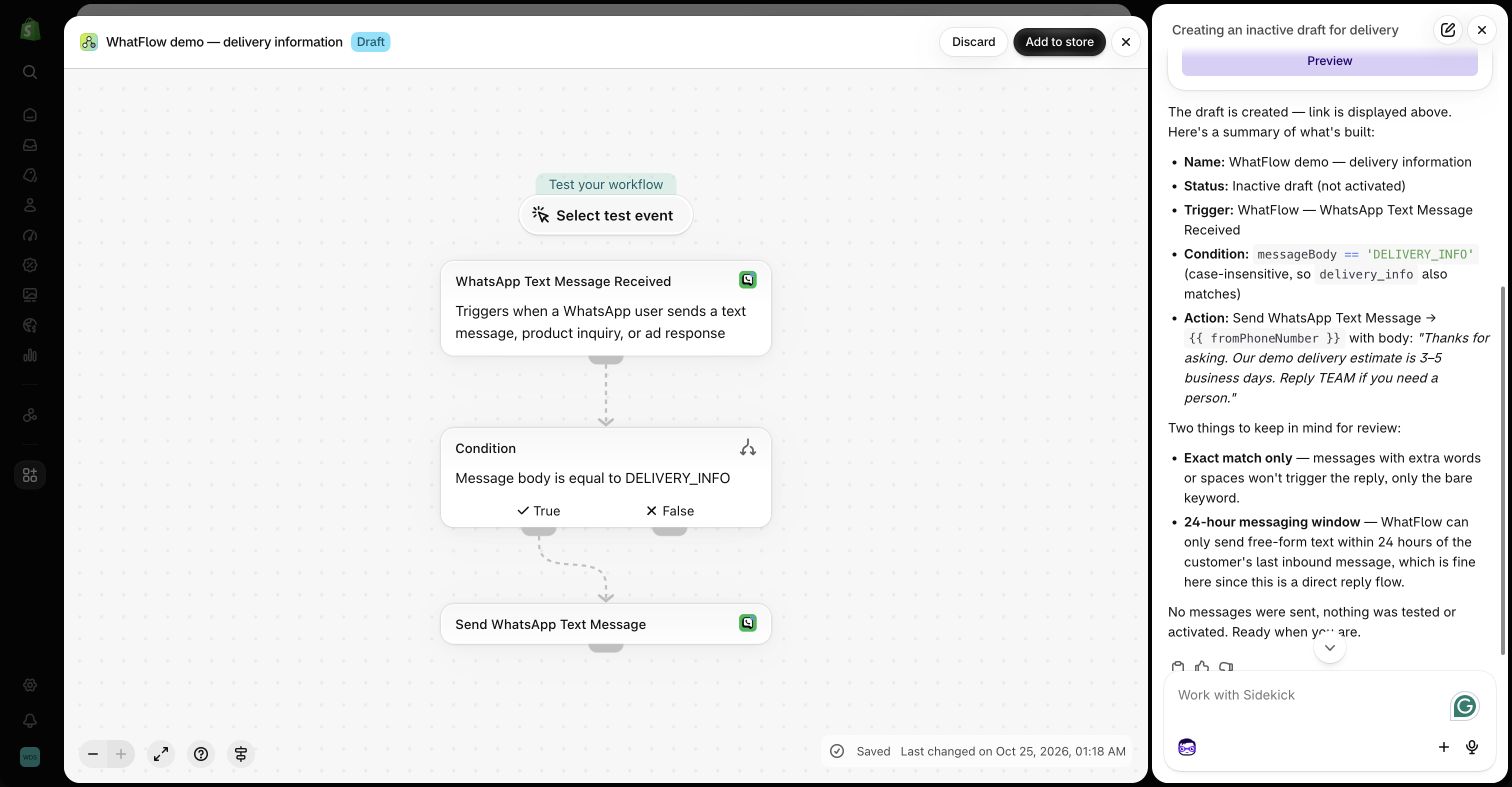
We gave Sidekick a request for an inactive delivery-info workflow: when a WhatsApp text says exactly DELIVERY_INFO, reply with our delivery times. It produced all three steps:
Trigger: WhatsApp Text Message Received
Condition: message body equals DELIVERY_INFO
Action: Send WhatsApp Text Message, with the recipient set to fromPhoneNumber
We added it to the store, opened the action, checked the recipient and the sample message, and left it inactive. Nothing was sent.
Sidekick drafting a demo WhatFlow workflow. Kept inactive; no customer messages were sent.
That's a good result, and a reason to be specific. An exact keyword gives Sidekick, and you, something unambiguous to test. The incoming message routing guide covers how to grow that into real customer questions.
How to write a Sidekick prompt for a WhatsApp workflow
Name the event, the rule, the action and the fact that it should stay inactive. Use WhatFlow's step names if you know them. Vague prompts get vague workflows.
WhatFlow gives you three distinct tools: Shopify Flow for Shopify and WhatsApp events, Inbox Workflows for API-triggered sequences with waits and decisions, and WhatsApp Flows for forms customers fill out inside the chat. If the goal is a sale, a catalog cart event can start a Shopify Flow workflow, while payment is verified separately in Shopify. See the catalog event and checkout example.
Weak prompt:
Make a workflow that confirms COD orders on WhatsApp.
Better prompt:
Draft an inactive workflow using the WhatFlow trigger WhatsApp Order Reply. If Reply Type is BUTTON and Button Text is "Confirm order", add the tag WF_COD_CONFIRMED to the order from the trigger. Leave every other reply for manual review. Don't send any messages and don't activate the workflow.
Swap "Confirm order" for the exact button label in your own template. If you haven't decided the label yet, wait. A placeholder in a condition looks like a working rule and isn't.
Check 1: Did it pick the right trigger?
For anything that changes an order, the trigger must be WhatsApp Order Reply. It carries the order and customer references. WhatsApp Button Clicked looks similar (both involve a button) but it's for routing a conversation, and it doesn't tell Flow which order to change. If Sidekick swaps one for the other, fix it.
Check 2: Which order and which phone number?
Open each action and look at what it points to. The tag action should use the order from the trigger, not one order you happened to click while testing. A reply action should go to the sender (fromPhoneNumber), not a number someone typed in. Test with one customer who has two open orders and make sure the right one gets tagged. The order reply guide walks through that test.
Check 3: What happens on the "no" branch?
The confirm branch is the easy part. Ask what happens when someone types "can I change the address?" or taps Cancel. Those shouldn't fall through to the confirm tag. If Sidekick leaves the false branch empty, that's fine, as long as someone in your inbox is watching for those replies.
Check 4: Did it add things you didn't ask for?
Sometimes a helpful assistant over-delivers. If your request was "add a tag" and the draft also cancels, refunds or fulfills orders, delete those steps. Each of those needs its own rule and its own test.
Check 5: Do the message rules still hold?
Sidekick can't change WhatsApp's rules. Free-form text, buttons, CTA links and media need an open 24-hour customer service window; outside it you need an approved template.
For outbound messages, a prompt like this works:
Draft an inactive workflow for a fulfillment event. Check that the customer's phone and tracking number exist, then add WhatFlow's Send WhatsApp Template action. Leave the template name and variables for me to fill in. Don't activate it.
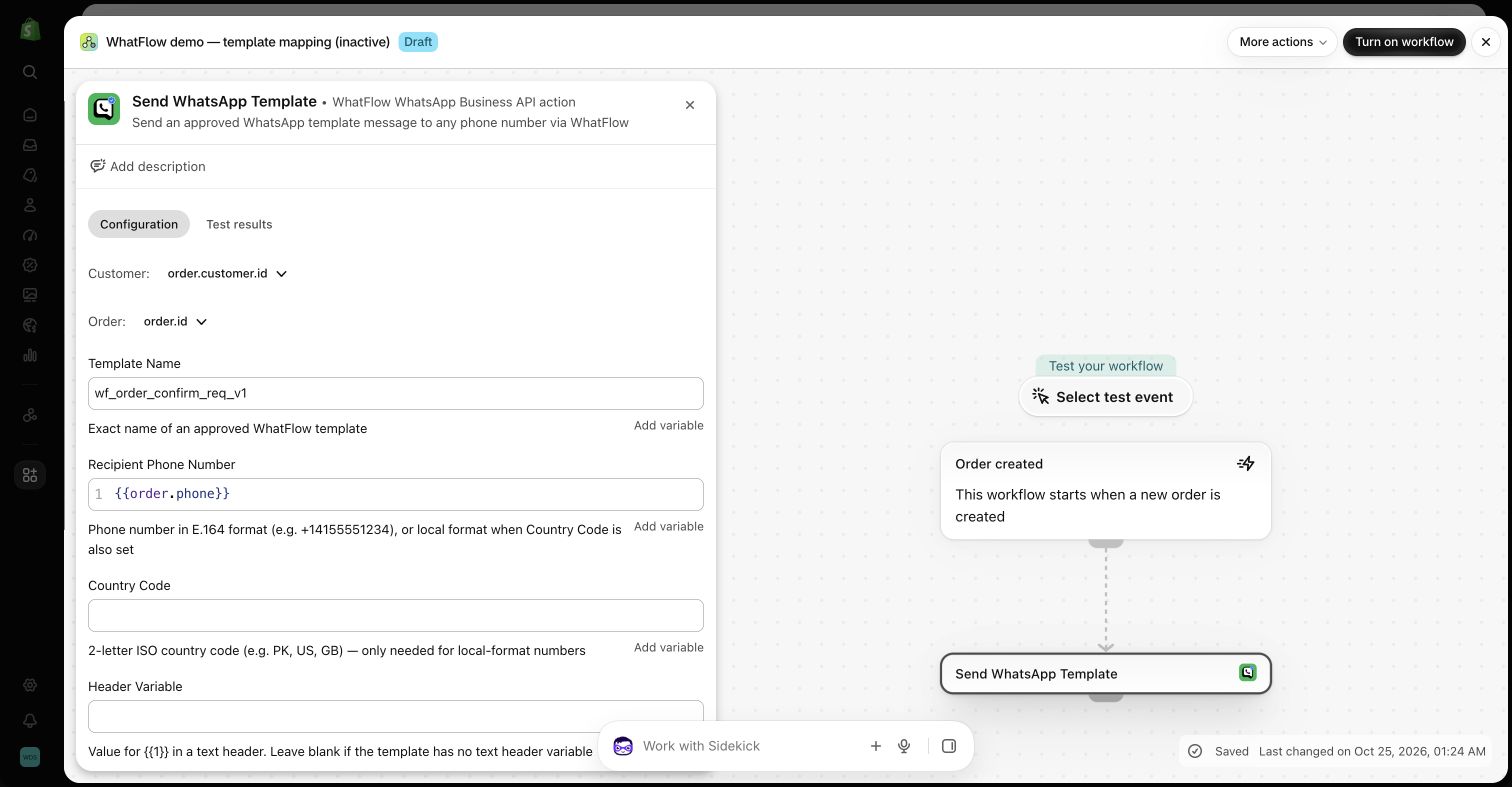
Notice it doesn't ask Sidekick to invent a template name. You pick the approved template and map the variables yourself; our guide to sending WhatsApp templates from Shopify Flow shows how. If Sidekick can't add the WhatFlow action, insert it from Flow's action picker.
WhatFlow's template action in a demo Flow editor. Use your own approved template name.
Test the rule, then name it properly
Run Flow's test mode first. It walks the logic without sending. Then do one controlled live test with your own number and a test order: a matching reply, a non-matching reply, a missing phone number and a double tap. Look at the Shopify order and the WhatFlow conversation, not just the run log.
Before you activate, rename the workflow and add a note: what it does, which template it uses, who handles exceptions. "Sidekick workflow 3" means nothing to the next person. I'd also keep a three-line review note: what you asked for, what Sidekick built, what you changed.
Templates, COD confirmation, Shopify Flow automations and a shared team inbox with no seat fees. Every feature is included on every plan, including Free.
Sidekick gets you from idea to draft in a minute. Checking the draft takes another fifteen. That's still a lot faster than building from nothing, and with WhatFlow every Flow trigger and action is on every plan, including Free, so you can try it without upgrading anything.
Frequently asked questions
Can Shopify Sidekick create Shopify Flow workflows?
Yes. On desktop, Sidekick can generate a Flow workflow from a plain-language description. Shopify creates these workflows inactive, so you review and activate them yourself.
Can Sidekick use WhatFlow's WhatsApp triggers and actions?
It can when WhatFlow WhatsApp Business API is installed; in our demo store it picked WhatsApp Text Message Received and Send WhatsApp Text Message on its own. If it leaves a WhatFlow step out, add it manually from Flow's trigger or action picker.
Does WhatFlow have its own AI to write workflows or replies?
WhatFlow has no built-in AI bot. It connects to AI you already use instead. Sidekick is Shopify's assistant, and it works with WhatFlow because WhatFlow's steps are native Shopify Flow triggers and actions. For replies, WhatFlow's MCP connector lets Claude, ChatGPT or Cursor read Live Inbox chats and draft replies, with draft mode so a person approves each one before it is sent.
Will Sidekick turn on a workflow without asking?
No. Shopify documents that Sidekick-generated workflows start inactive and need manual activation.