To send Shopify order notifications on WhatsApp, connect your number to the official WhatsApp Business Platform through a Shopify app, get one utility template approved per order event (confirmation, shipped, out for delivery, delivered, refund), and fire each one from the matching Shopify event. Customers must have opted in. Meta charges per delivered message, usually a fraction of a cent to a few cents each.
I'm Safwan, co-founder of WhatFlow, a WhatsApp app for Shopify. Order notifications are the first thing most stores switch on with us, and they're the messages customers actually want. This guide covers which ones to send, the template category for each, sample wording, how to set them up in WhatFlow and in Shopify Flow, what they cost, and the mistakes that cause duplicate or broken messages.
Which Shopify order notifications should you send on WhatsApp?
Shopify already sends email notifications for these moments. According to Shopify's customer notifications help page, the default set includes order confirmation, order canceled, order refund, shipping confirmation, shipping update, out for delivery and delivered. WhatsApp doesn't replace that list. It picks the moments where a customer is likely to check their phone rather than their inbox.
Out for delivery and delivered are the tricky ones. Shopify sends its own versions only "when a tracking event with the corresponding status is received from the carrier or fulfillment app", and it notes that timing and accuracy vary by carrier. Your WhatsApp version has the same dependency. If your courier doesn't post those events, the message won't fire.
What template category is each order notification?
A WhatsApp template is a message Meta approves before you can send it. Outside the 24-hour customer service window (the 24 hours after a customer last messaged you), templates are the only messages a business can send. Every template is marketing, utility or authentication.
Meta's template categorization guide defines utility as non-promotional messages that are triggered by a user action or request and are specific to the user's order, account or transaction. It gives order confirmations, "your package is on its way" shipping updates and "your refund has been processed" messages as utility examples. So every notification in the table above is utility when written properly.
Two rules decide whether it stays that way:
No promo. Meta says a template that mixes an order update with a promotion is marketing. "Your order shipped, and here's 10% off your next one" is a marketing template, priced at marketing rates.
Meta can change it later. If an approved utility template is being used for marketing, Meta can move it to marketing automatically, normally with a day's notice.
Meta's guide doesn't mention cash on delivery specifically. A COD confirmation that only asks the buyer to confirm or cancel their own order fits the order-management examples, but Meta makes the call when it reviews your template. Which WhatsApp template category should your Shopify message use? has more borderline cases.
Hi {{1}}, thanks for your order {{2}}. We've got it and we're packing it now. Total: {{3}}. We'll message you here when it ships.
COD confirmation (with Confirm and Cancel quick-reply buttons)
Hi {{1}}, you ordered {{2}} for {{3}}, cash on delivery. Please tap Confirm so we can dispatch it, or Cancel if you no longer need it.
Shipped
Good news, {{1}}: order {{2}} has shipped with {{3}}. Track it here: {{4}}
Out for delivery
Hi {{1}}, order {{2}} is out for delivery today. If you're paying cash on delivery, please keep {{3}} ready.
Delivered
Hi {{1}}, order {{2}} was marked as delivered. If anything's missing or damaged, reply to this message and we'll sort it out.
Refund processed
Hi {{1}}, we've processed your refund of {{2}} for order {{3}}. Depending on your bank or payment method, it can take a few days to show.
Order canceled
Hi {{1}}, order {{2}} has been canceled as requested. If you paid online, we'll refund {{3}} to your original payment method. Reply here if you didn't ask for this.
A few wording rules I'd stick to across all of them:
Lead with the order number. Customers with two orders in flight need to know which one you mean.
One job per message. "Shipped" says shipped and gives tracking. It doesn't also ask for a review.
Invite a reply. "Reply to this message" turns a dead-end notification into a support channel, and a customer reply opens the 24-hour customer service window so your team can answer freely.
No urgency you can't back up. Don't promise "arriving today" from a template that fires on "in transit".
Write each in the languages your customers read. Templates work in any language WhatsApp supports, and you can keep several language versions of the same template; choosing template languages for order updates covers how to pick.
How to set up WhatsApp order notifications in WhatFlow
WhatFlow WhatsApp Business API runs on the official Meta Cloud API and connects through Meta's signup from Shopify Admin. Once your number shows as connected in Connections, setup goes like this.
1. Build each template from its Shopify event
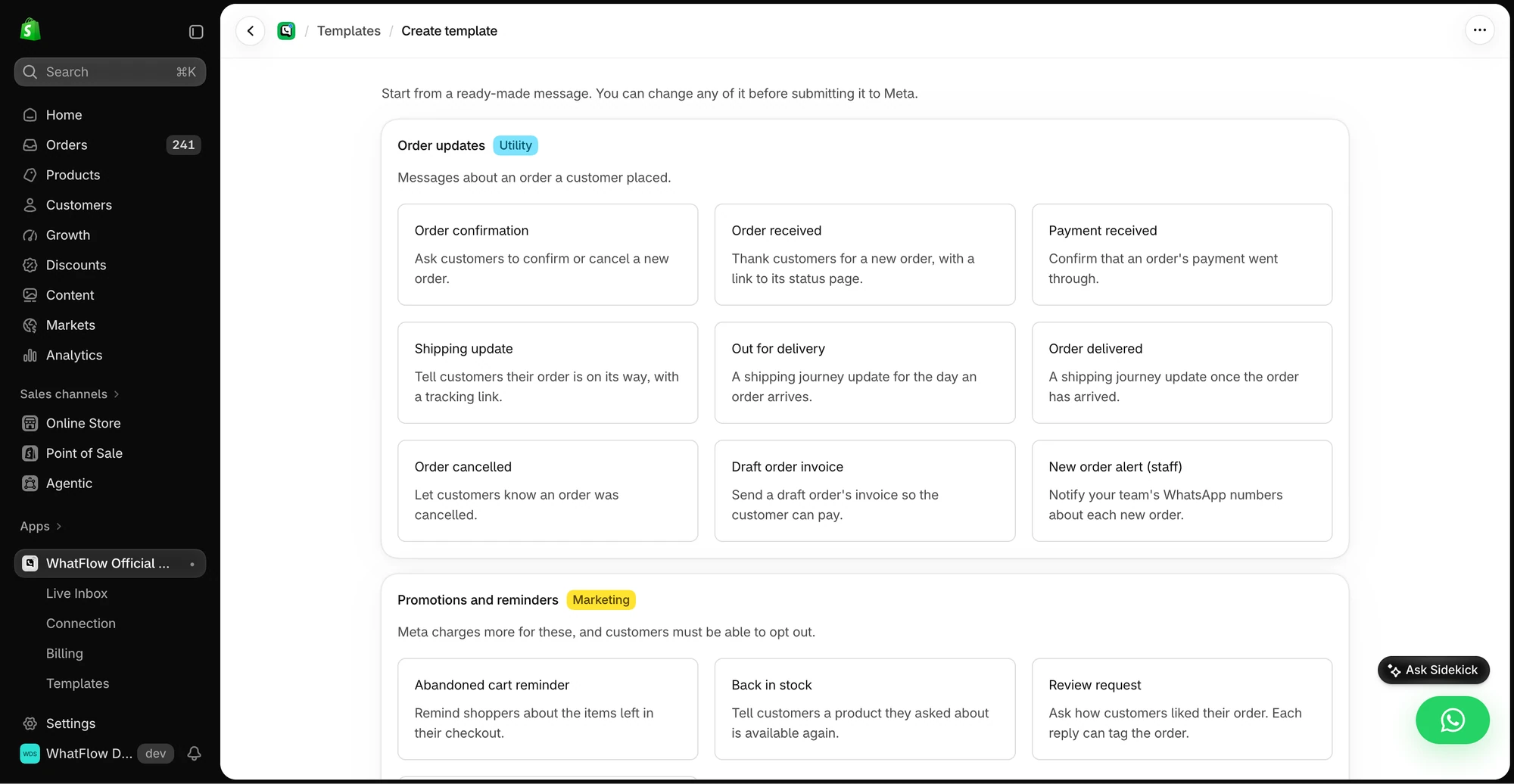
Open Message Editor (or start from a draft in Template Library) and pick the event first. The event decides which order data you can use. A new order confirmation can't include a tracking link, because the tracking number doesn't exist yet.
Demo Message Editor showing the Shopify events a template can be built for.
Map each variable, fill the examples with realistic test values, and check the order: {{1}} name, {{2}} order number, and so on. Then check language, category and approval status in Templates. Don't attach a template to an automation until it's approved. The WhatFlow template guide has the full walkthrough.
2. Set up COD confirmation
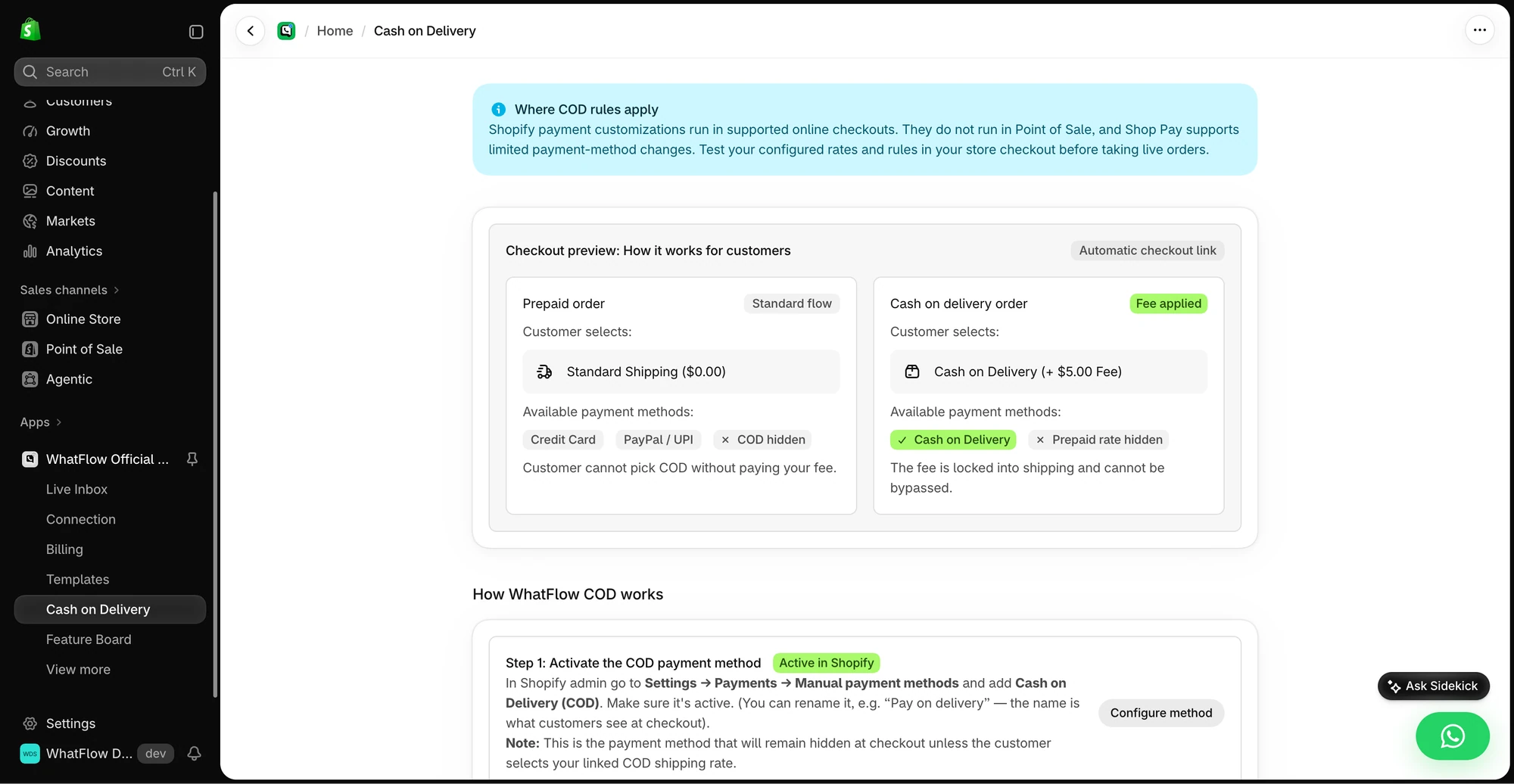
If you sell cash on delivery, open Cash on Delivery, check the manual payment method WhatFlow should manage, select any COD shipping rates, and choose your approved confirmation template. The Confirm and Cancel replies can tag or cancel the Shopify order through Shopify Flow.
Demo COD rules with a sample checkout preview. Nothing was sent.
Test confirm, cancel, no reply, and a customer with two open orders. Decide who follows up on no-replies before you automate any cancellation. COD rules, confirmation and OTP in WhatFlow covers each test.
3. Pick your shipping stages
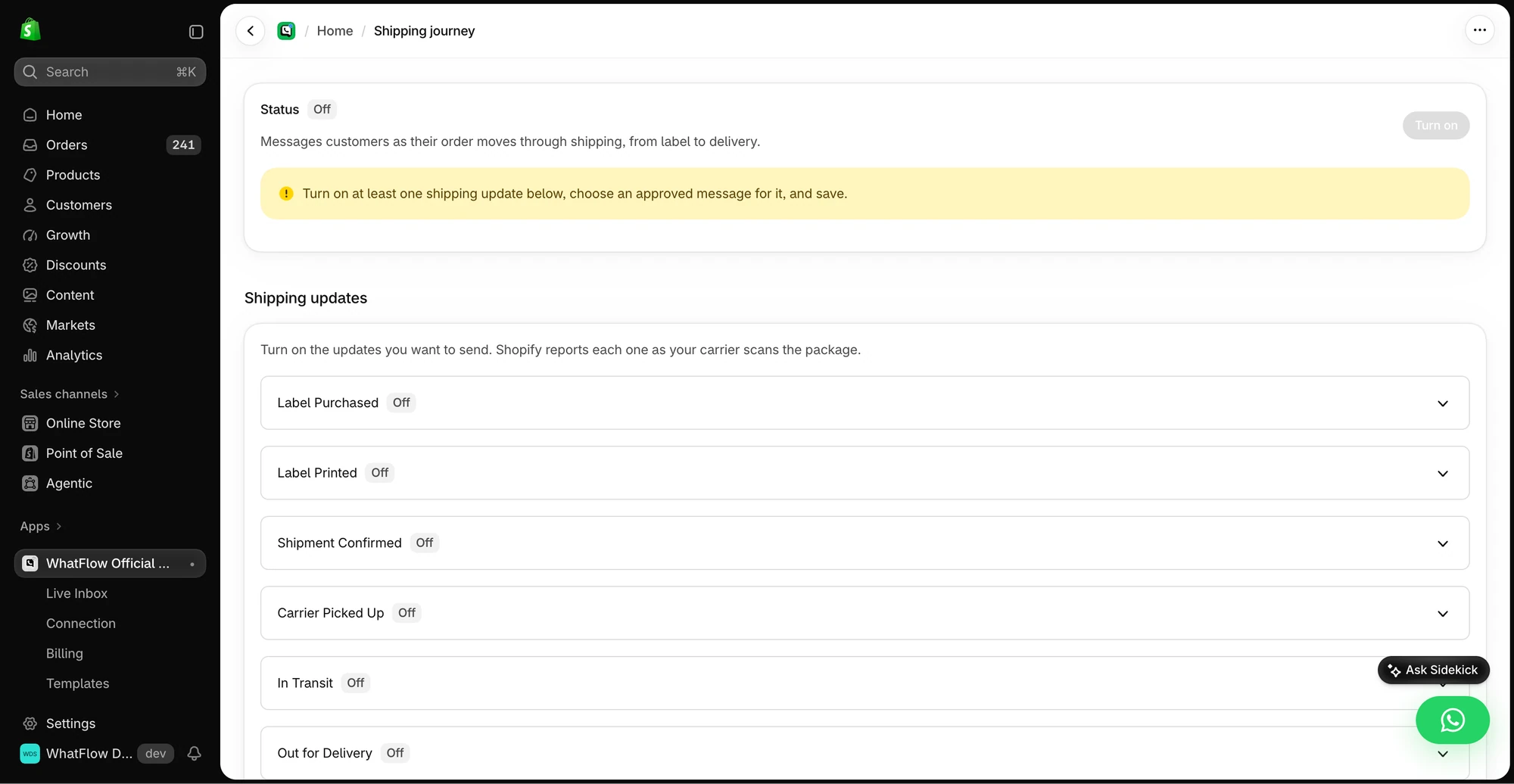
Open Shipping Journey. WhatFlow lists individual stages such as label, carrier pickup, in transit and delivered. Start with one stage, select its approved template, and confirm your carrier and Shopify actually send that event. Test the tracking link on a phone.
Demo Shipping Journey settings with individual fulfillment stages.
How to send order notifications on WhatsApp with Shopify Flow
Shopify Flow is Shopify's automation app: a trigger starts a workflow, conditions check the data, and actions do the work. WhatFlow adds WhatsApp actions (send template, text and media) and triggers (incoming messages and order replies) to it. Use Flow when you want to build a notification yourself, such as a refund message, or add extra conditions.
Order fulfilled or Fulfillment created for shipped;
Fulfillment event created for carrier updates;
Refund created for refunds;
Order canceled if you want to confirm cancellations.
A refund notification workflow, step by step:
In Shopify Flow, create a workflow with the Refund created trigger.
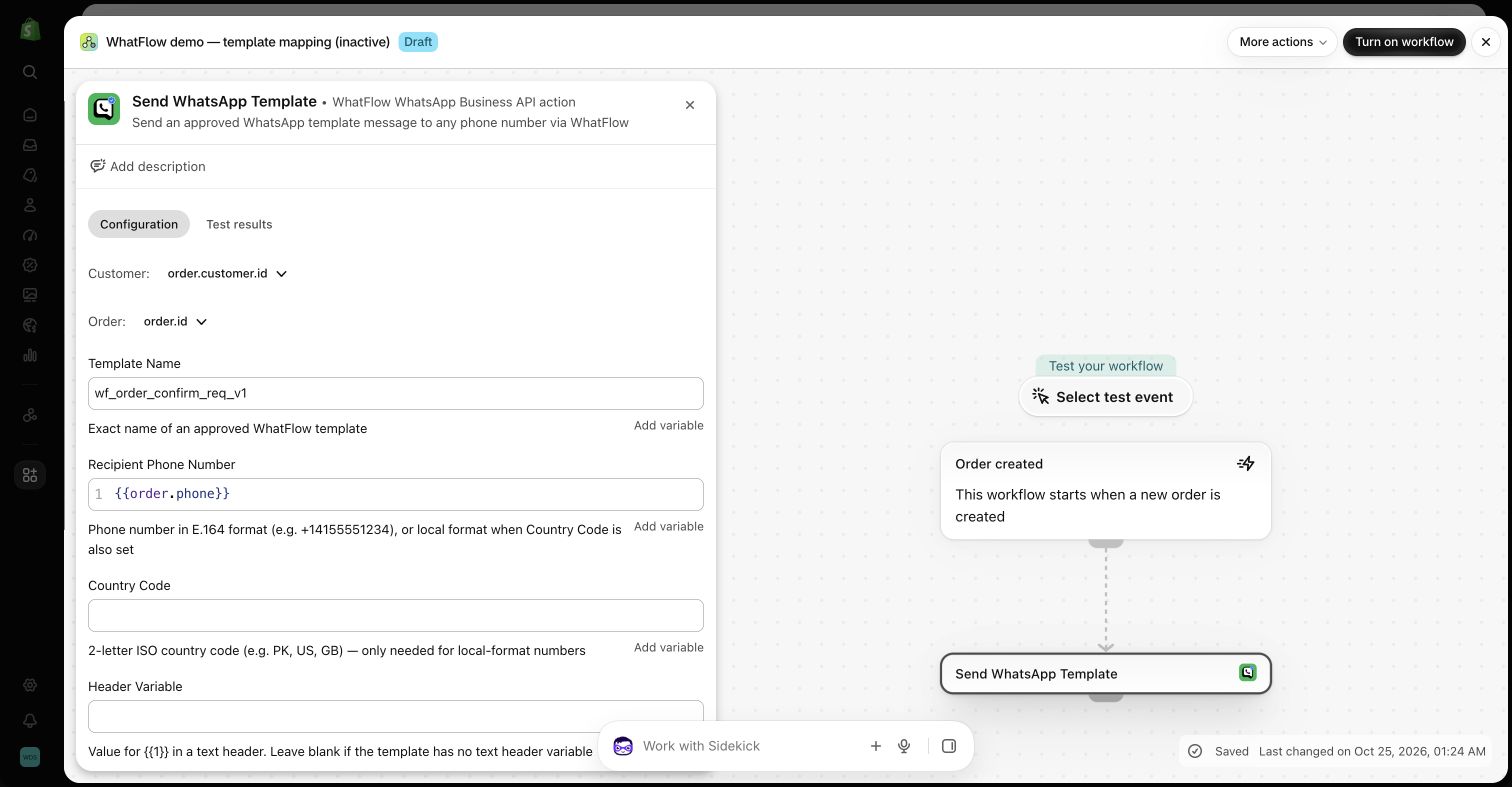
Add the WhatFlow Send WhatsApp Template action.
Choose your approved refund template and map the recipient to the order's phone number.
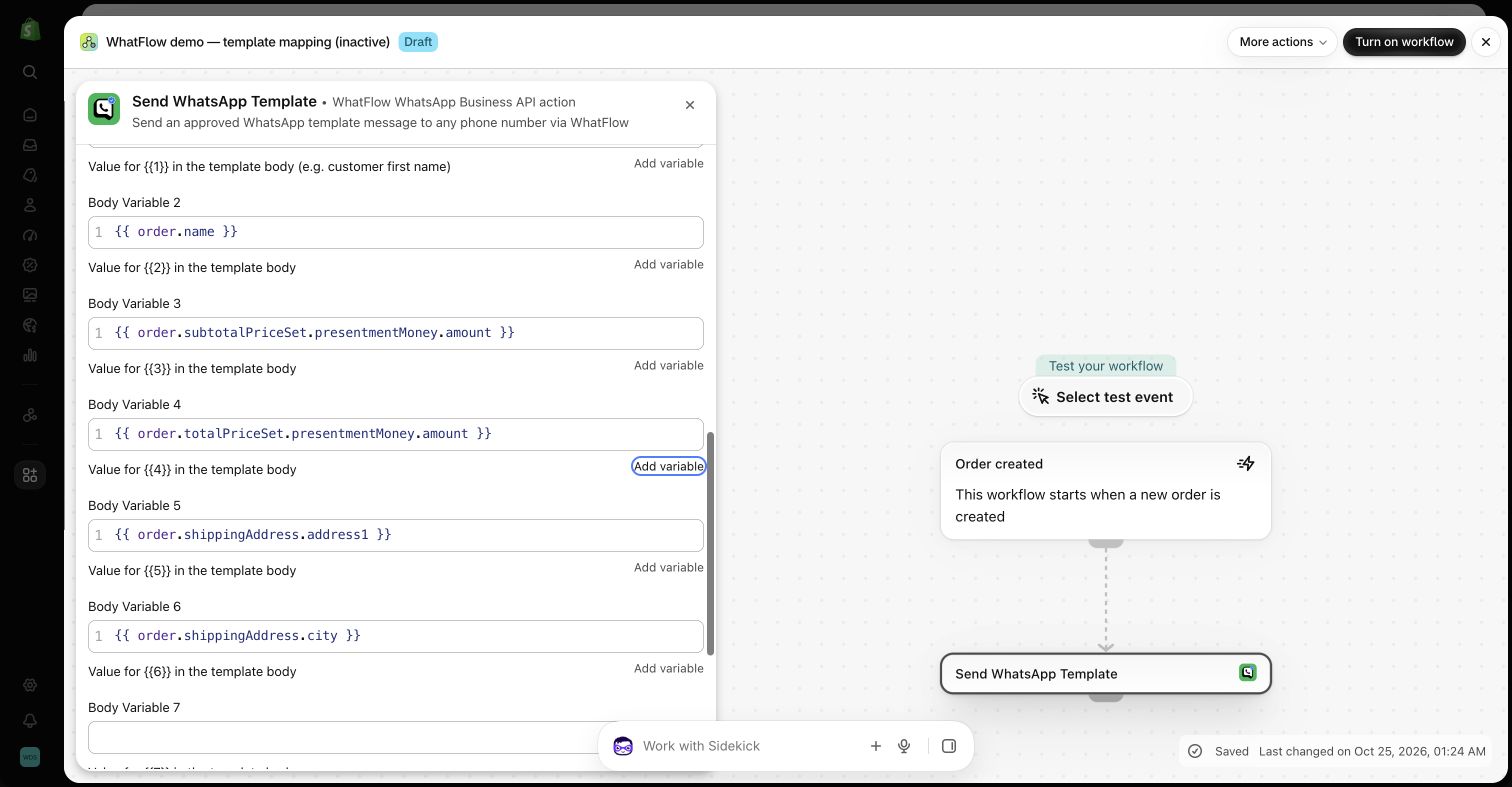
Map the variables to order fields: customer first name, refund amount, order name.
Add a condition that the phone number isn't empty, and decide what happens when it is.
Keep the workflow inactive, test on an order you control, then turn it on.
WhatFlow's Send WhatsApp Template action in a demo Flow workflow.
Template variables mapped to Shopify order fields in a demo workflow.
One gotcha with carrier updates: Shopify says Fulfillment event created fires on updates from third-party fulfillment services and isn't for manual fulfillments, where you should use Order fulfilled instead. Add a condition on the event's status so "in transit" doesn't send your "out for delivery" template, and check the status values your carrier actually sends in a test run before going live.
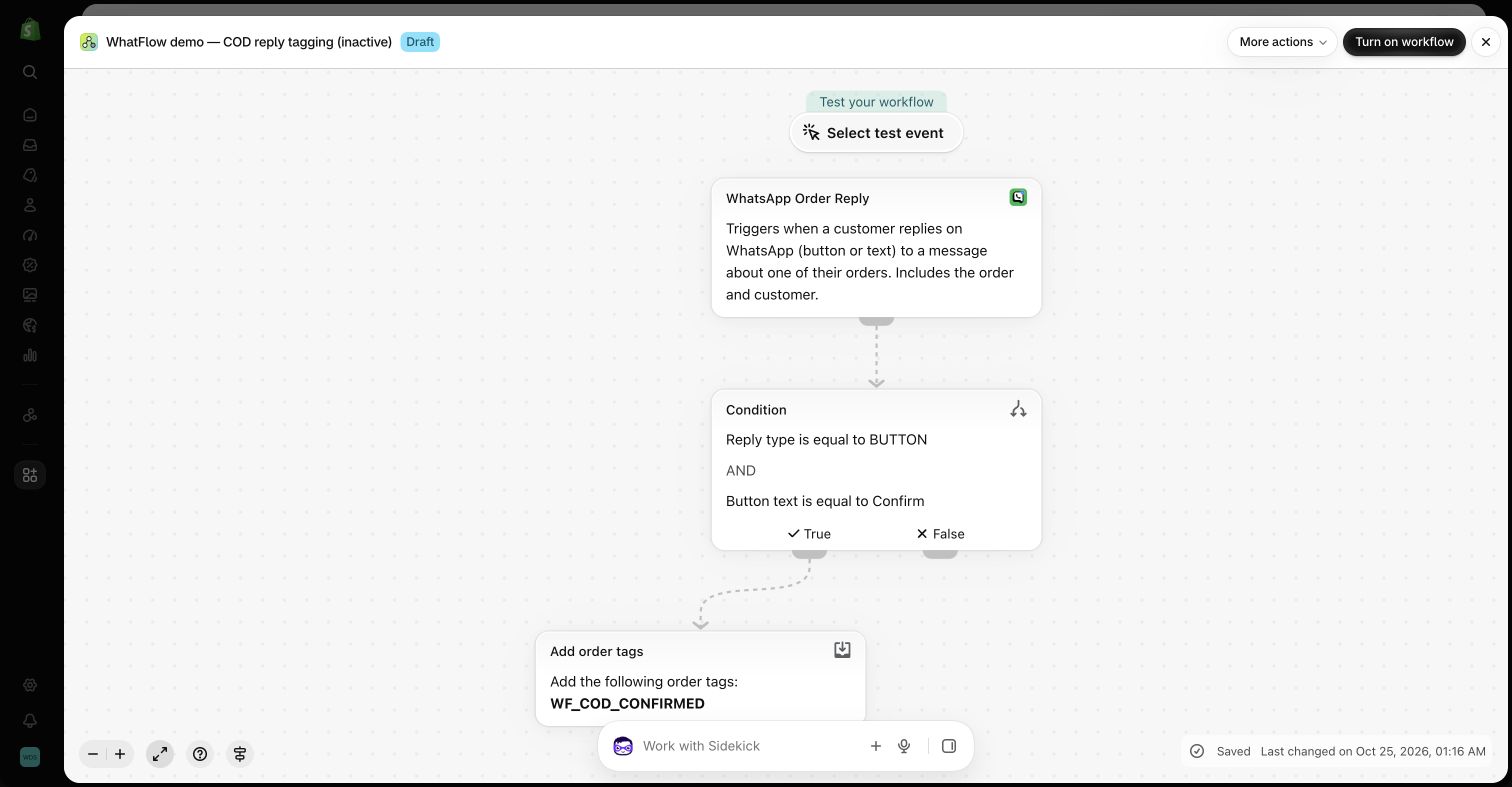
For COD, the flow runs the other way: WhatFlow's order-reply trigger fires when the customer taps Confirm or Cancel, and Flow tags or cancels the order.
An inactive demo workflow that tags the order based on the customer's WhatsApp reply.
Meta charges per delivered template message, by category and recipient country, per Meta's pricing documentation. Order notifications are utility. Since October 1, 2026, utility templates are charged even when sent inside an open customer service window; they were free there from July 2025 until then.
Utility rates per message, as of November 2026 (USD):
Country
Per utility message
Per order (4 notifications)
India
$0.0014
$0.0056
North America
$0.0034
$0.0136
Brazil
$0.0068
$0.0272
Saudi Arabia
$0.0107
$0.0428
Pakistan
$0.015
$0.06
UAE
$0.0157
$0.0628
UK
$0.022
$0.088
Indonesia
$0.025
$0.10
Germany
$0.055
$0.22
Say you ship 1,000 orders a month to Saudi Arabia and send four utility notifications per order (confirmation, shipped, out for delivery, delivered). That's 4,000 messages at $0.0107, about $42.80 a month to Meta. The same plan for India is about $5.60. Higher monthly volumes get utility volume tier discounts.
When a customer replies ("can you deliver after 6pm?"), your free-form answers are service messages. Each business phone number gets 1,000 free service messages a month; after that they're charged at the utility rate for that country.
Meta bills those charges directly, separate from your app plan. WhatFlow passes them through with zero markup and has a Free plan and paid plans from $4.99/month, with every feature on every plan. The pricing page has a country rate table and a calculator.
Run WhatsApp for your Shopify store with WhatFlow
Free plan available. Templates, COD confirmation, Shopify Flow automations and a shared team inbox with no seat fees. Every feature is included on every plan, including Free.
Do you need opt-in for WhatsApp order notifications?
Yes. The WhatsApp Business Messaging Policy says a business may only contact people who've given their number and opt-in permission to receive messages, and it must honour every opt-out request, on WhatsApp or off it. The policy leaves the opt-in method to you and recommends getting opt-in for each category of message you plan to send.
For order notifications, the natural place is checkout, next to the phone field:
Send me order and delivery updates on WhatsApp. Reply STOP any time.
Keep marketing consent separate. Someone who wants to know where their parcel is hasn't agreed to your Black Friday campaign. WhatsApp opt-in wording for Shopify stores has more variations.
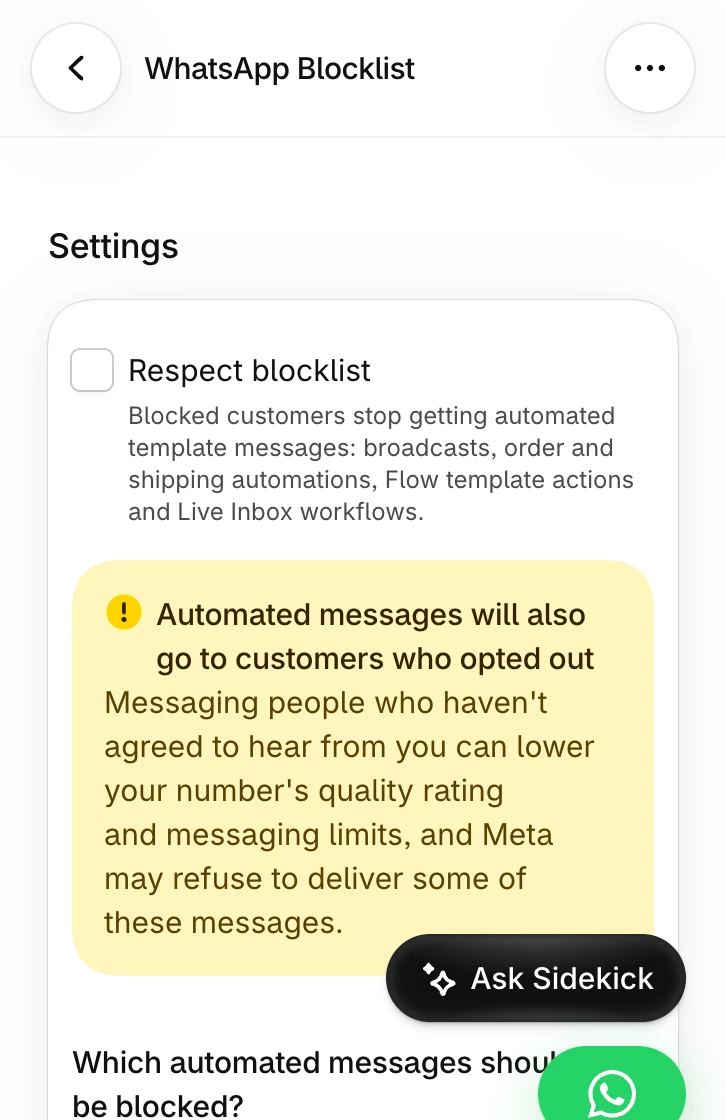
In WhatFlow, turn on Respect blocklist in WhatsApp Blocklist so numbers that send STOP are suppressed from the automated message types you select, including order and shipping automations and template actions in Shopify Flow.
Demo store showing the warning when suppression is off. Turn on Respect blocklist before going live.
Common pitfalls with WhatsApp order notifications
Double notifications. The customer gets Shopify's shipping email, Shopify's SMS and your WhatsApp message within a minute. Decide per stage which channel owns it. Shopify lets you turn off the out for delivery and delivered notifications in Settings > Notifications, and skip the shipping confirmation or refund notification at the fulfillment or refund step.
Two apps sending the same event. You switched on WhatFlow's shipping stage and also built a Flow workflow on Order fulfilled. Pick one route per event.
Promo copy sneaking in. A "while you wait, check out our new range" line turns a utility template into marketing. Put cross-sells in a separate, opted-in campaign.
Tracking link in the wrong template. Order created runs before fulfillment, so there's no tracking number yet. The variable comes through blank.
Relying on carrier events that never arrive. Out for delivery and delivered depend on your carrier posting those statuses. If you fulfil manually or your local courier doesn't push tracking events, those templates won't fire. Test with a real shipment first.
Split shipments. An order in two parcels can trigger two "shipped" messages. Make the template say which items are in this shipment, or accept two messages and word them so they make sense together.
Wrong phone format. Numbers saved without a country code fail. Make the phone field at checkout ask for it, and check failed sends in your reports.
Refund wording that overpromises. "Your money is back in your account" isn't true on day one for most payment methods. Say it's processed and give a realistic timeframe.
Start with two, then add the rest
If you're setting this up this week, switch on order confirmation (or COD confirmation) and "shipped" first. Watch a week of real orders, read the replies that come back, and fix anything confusing. Then add refunds through Shopify Flow and the delivery stages once you've seen your carrier's events arrive on time.
No. Meta charges per delivered template message, and order confirmations are utility templates. As of November 2026, a utility message costs $0.0014 to India, $0.0034 to North America and $0.022 to the UK, and utility templates sent inside an open customer service window are charged too.
What template category is a Shopify shipping update on WhatsApp?
Utility, as long as it's about the customer's specific order and has no promotional content. Meta lists order confirmations, shipping updates and refund confirmations as utility examples, and it moves templates that mix in a promo to marketing.
Do I need customer opt-in to send order updates on WhatsApp?
Yes. WhatsApp's Business Messaging Policy requires opt-in permission before a business messages someone, order updates included. Ask at checkout next to the phone field, and keep it separate from marketing consent.
Should I turn off Shopify's email notifications if I send them on WhatsApp?
Not by default. Keep the order confirmation email as a record and decide stage by stage. Where the WhatsApp message fully replaces the email, such as out for delivery, you can turn the email off in Shopify's notification settings so customers don't get two pings.
Can Shopify Flow send WhatsApp messages?
Not by itself. A WhatsApp app has to add the action. WhatFlow adds WhatsApp template, text and media actions to Shopify Flow, so a trigger like Order created or Refund created can send an approved template.
What Meta's WhatsApp test number proves, what it can't, and the live pilot checklist to run on your real Shopify sender before customers see a message.
SSafwan AdnanRead
Shopify order notifications on WhatsApp: setup guide | WhatFlow