
Choose a starting template, map Shopify data, and confirm Meta approval before attaching it to an automation.
Pick the Shopify event first
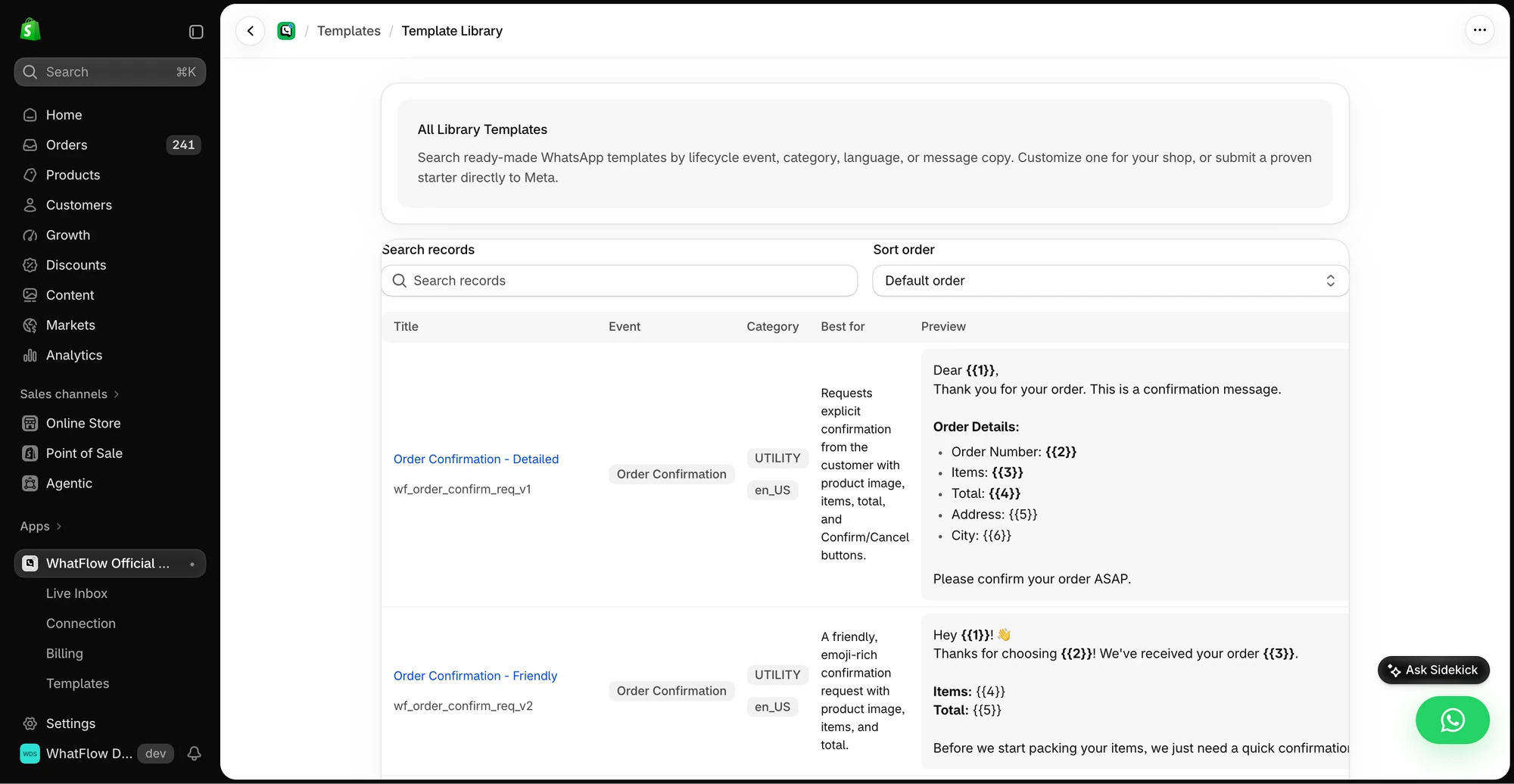
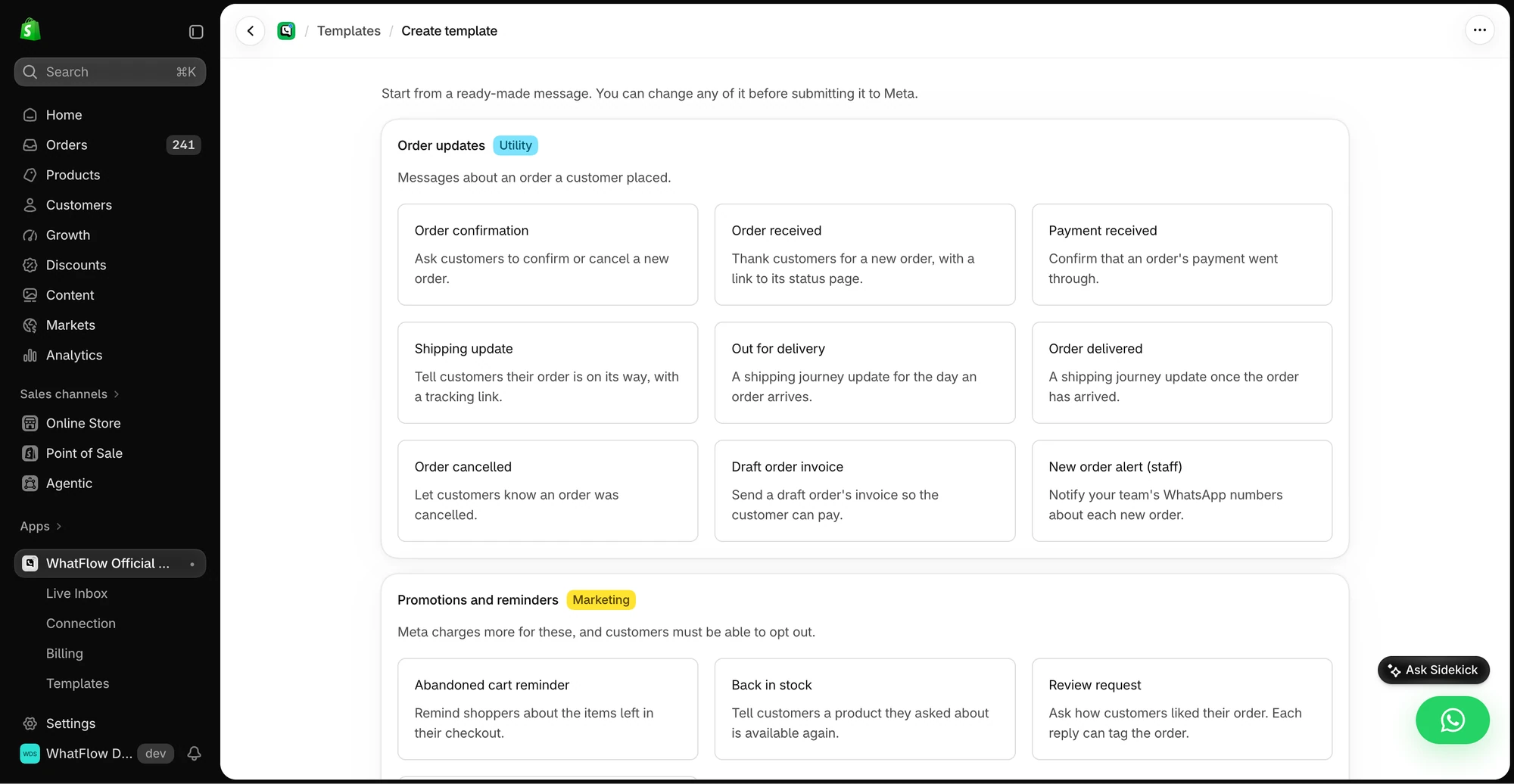
Open Template Library if you want a starting draft. Choose the event you need, such as an order update or a reminder. The library helps you see what information the event can provide. A fulfillment update needs a tracking value. A new order confirmation may run before that value exists.
Edit the draft and check the examples
In Message Editor, pick the event, write the body and map the variables. Fill the examples with realistic test values and check the order of each placeholder. Give buttons clear labels. If a button uses a link, open it on a phone. Keep promotional copy out of a template intended for an existing order update.
Review approval before enabling the automation
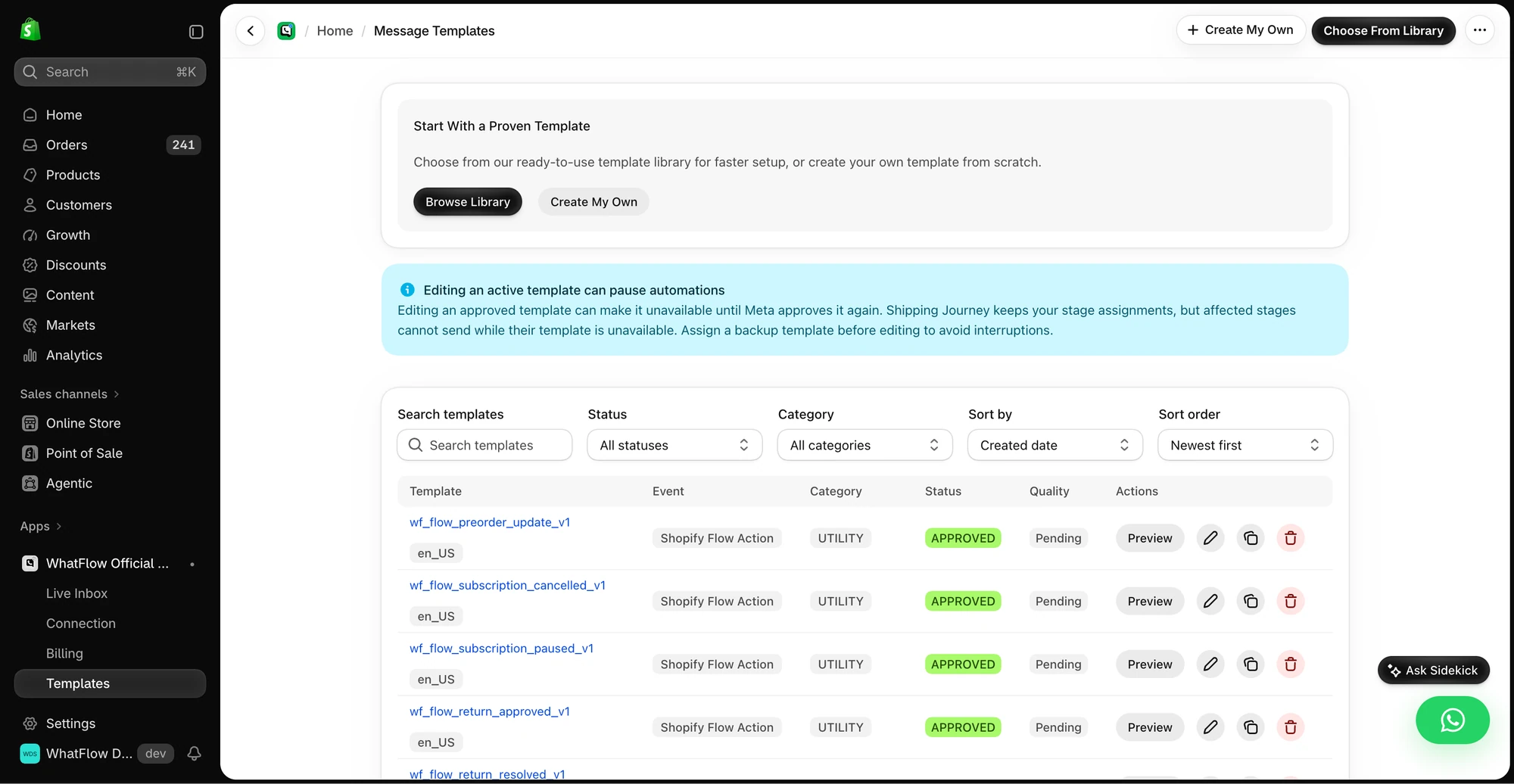
Open Templates and check the language, category and status. Select an approved template in the target feature and send an internal test. When a draft is rejected, correct the reason and verify approval before switching the automation to it. Keep a record of which automations use a template before changing or retiring it.