Here are 40 WhatsApp message templates for ecommerce, written for Shopify stores and grouped by customer journey: opt-in, orders, COD, shipping, delivery, cart recovery, reviews, back in stock, win-back and support. Each uses {{1}}-style variables that Meta accepts and shows the likely template category. Swap in your store's name and voice, submit them for approval, and you've covered most of what a store sends.
A few ground rules before you copy anything:
{{1}}, {{2}} and so on are positional variables. They're filled in order with values you send (name, order number, link). Number them in order, keep text before the first and after the last, and add realistic samples when you submit. Why Meta rejects templates covers the formatting rules.
The category is my best guess, not Meta's verdict. Meta checks the wording and can move a utility template to marketing. Anything with an offer or persuasion is marketing. How categories work.
Templates are for starting conversations. Once a customer replies, a 24-hour window opens and your team can answer free-form. The 24-hour window explained.
Opt-in first. Every template below assumes the customer agreed to hear from you on WhatsApp.
Square brackets show quick-reply or link buttons.
Welcome and opt-in confirmation templates
Send these right after someone opts in. They confirm what the customer signed up for and set expectations, which cuts blocks later.
Hi {{1}}, thanks for joining the {{2}} WhatsApp list. Expect early access to drops and the occasional offer, around twice a month. Not for you? Tap below.
[Stop promotions]
3. Welcome with a first-order code · Marketing
Welcome to {{1}}, {{2}}! As promised, here's {{3}} off your first order with code {{4}}. Browse the bestsellers: {{5}}
4. Preference check · Utility or marketing, Meta decides
Hi {{1}}, quick one from {{2}}: what would you like to hear about on WhatsApp? Choose below and we'll stick to it.
[Order updates only] [New arrivals too] [Everything]
Hi {{1}}, we've received your custom order {{2}}. Our team starts on it {{3}} and it usually takes {{4}}. We'll send a photo before it ships.
COD confirmation templates
If you sell cash on delivery, these are your most valuable messages. A COD confirmation asks the customer to confirm or cancel before you ship, so you don't pay for parcels nobody accepts.
9. COD confirmation with buttons · Utility
Hi {{1}}, thanks for your order {{2}} from {{3}}. Amount to pay on delivery: {{4}}. Please confirm so we can dispatch it.
[Confirm order] [Cancel order]
10. COD confirmation with address check · Utility
Hi {{1}}, before we ship order {{2}}, please check your delivery address: {{3}}. Is this correct?
[Yes, ship it] [Change address]
11. COD reminder (no reply yet) · Utility
Hi {{1}}, we're holding order {{2}} until you confirm. Amount on delivery: {{3}}. Tap below to confirm or cancel.
[Confirm order] [Cancel order]
12. COD confirmed, thank you · Utility
Thanks {{1}}, order {{2}} is confirmed. Please keep {{3}} ready for the courier. We'll send tracking once it ships.
In WhatFlow, the buttons on templates 9 to 11 can trigger Shopify Flow to tag the order as confirmed or cancel it automatically. Turn WhatsApp order replies into Shopify actions shows the workflow.
Shipping update templates
Shipping updates prevent the "where is my order?" message before it's typed.
13. Order shipped · Utility
Hi {{1}}, your order {{2}} has shipped with {{3}}. Track it here: {{4}}
14. Partial shipment · Utility
Hi {{1}}, part of your order {{2}} has shipped today: {{3}}. The rest will follow by {{4}}. Tracking for this parcel: {{5}}
15. Shipping delay · Utility
Hi {{1}}, we're sorry: order {{2}} is delayed because {{3}}. New expected dispatch date: {{4}}. Reply here if you'd prefer to change or cancel the order.
Send these after the customer has had time to use the product. Generic feedback requests usually aren't accepted as utility, so expect marketing.
25. Simple review request · Likely marketing
Hi {{1}}, how are you finding your {{2}}? If you have a minute, a quick review helps other shoppers a lot: {{3}}
26. Review request with a question first · Likely marketing
Hi {{1}}, it's been two weeks since your {{2}} arrived. How's it going?
[Love it] [It's okay] [Having a problem]
Route "Love it" to a review link and "Having a problem" to your support team. It's kinder, and it stops unhappy customers going straight to a one-star review.
27. Photo review request · Likely marketing
Hi {{1}}, we'd love to see your {{2}} in use. Share a photo with your review here: {{3}}. You choose whether we feature it.
28. Review thank-you · Likely utility if no offer
Thanks {{1}}, your review of {{2}} is live. We read every one, and it genuinely helps us improve.
Pick five to start. For most stores: 1, 5, 9, 13 and 21.
Rewrite in your voice. Your store name, your tone, your real promises (don't write "ships in 24 hours" if it doesn't).
Choose the category honestly. Use my labels as a starting point.
Add realistic samples for every variable.
Submit and wait. Meta says review can take up to 24 hours; simple templates are often faster.
Connect them to triggers. Order created, fulfillment created, checkout abandoned, a tag added.
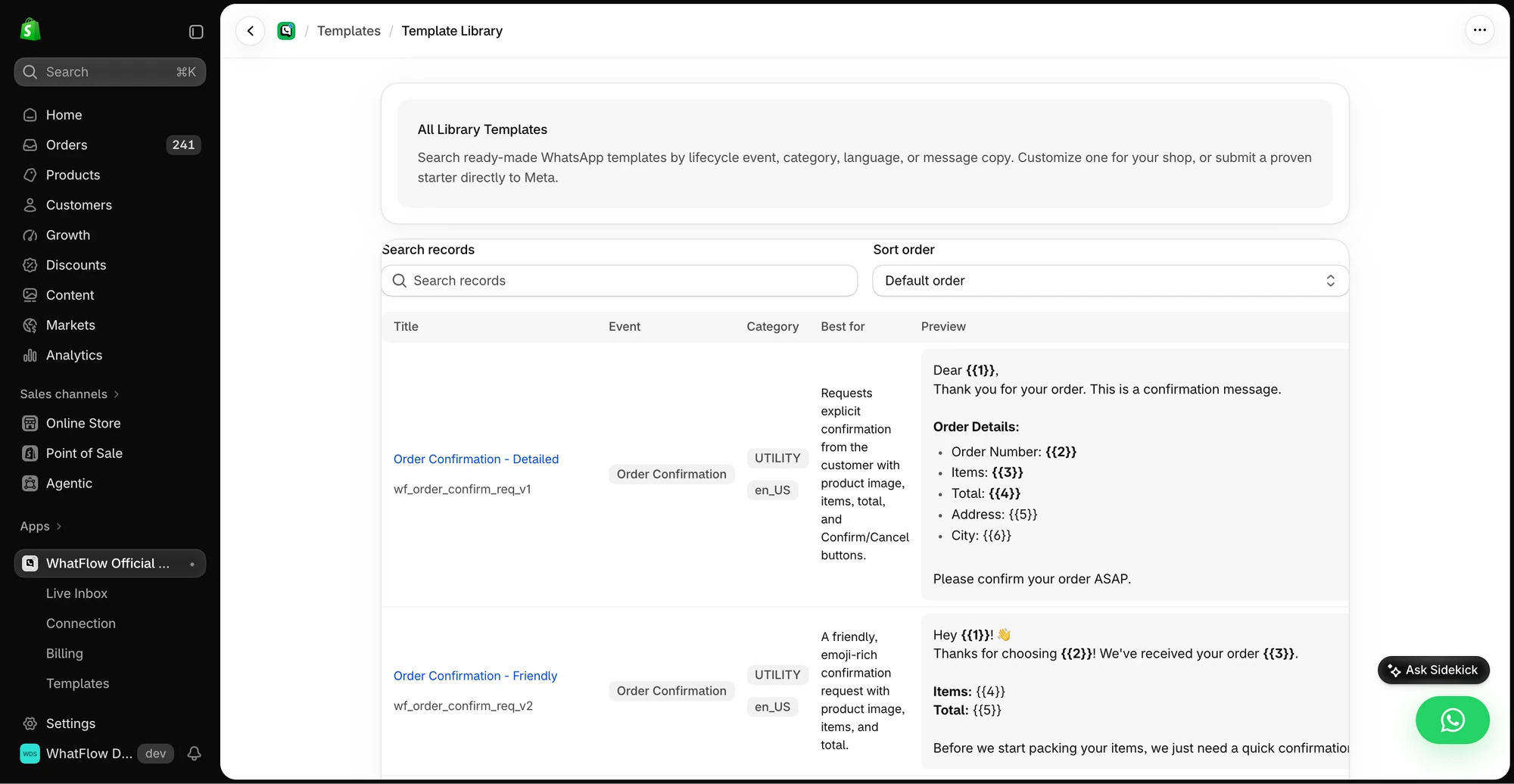
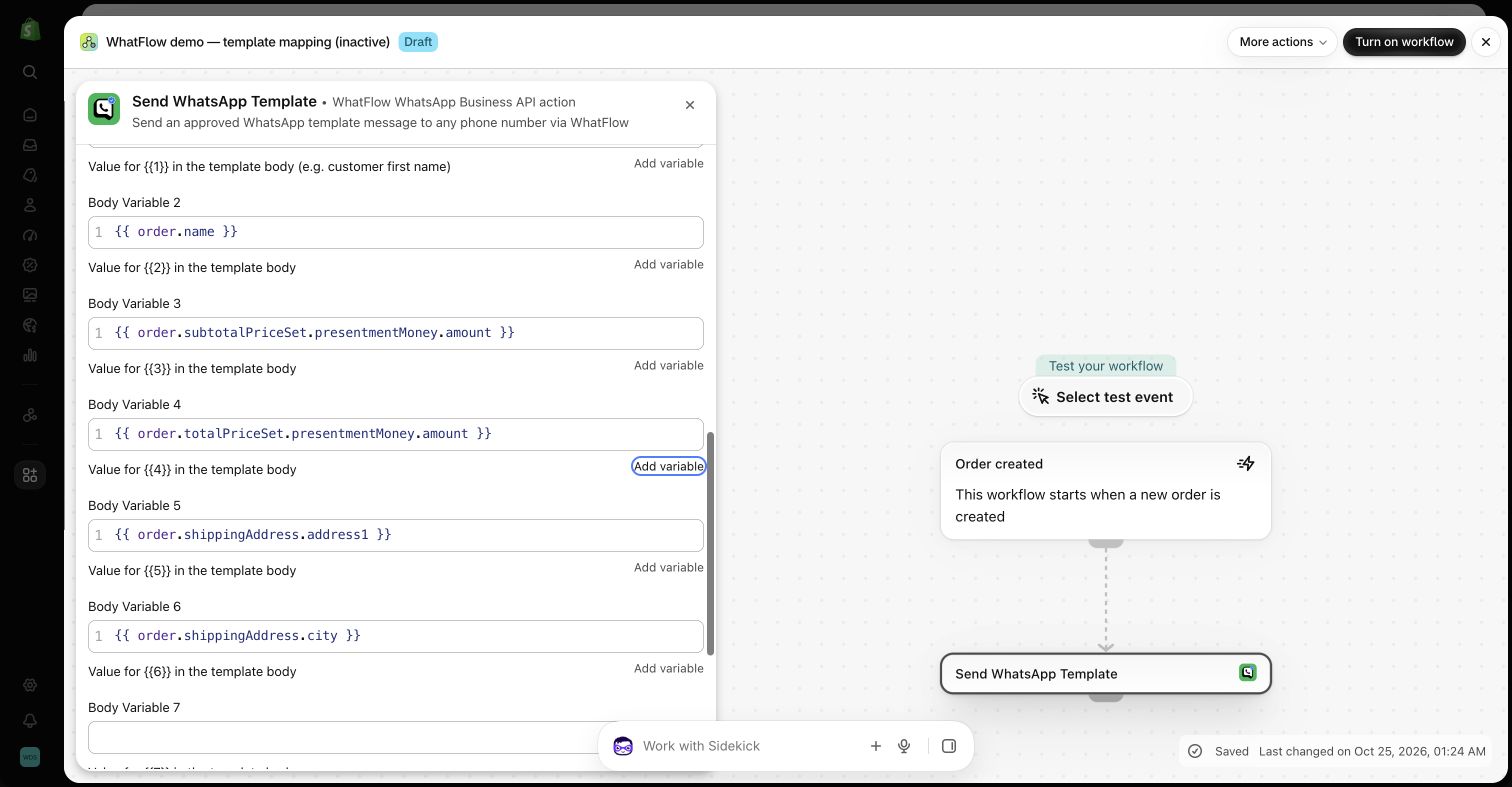
In WhatFlow you write and submit templates in the editor inside Shopify admin, then send them from built-in automations or from Shopify Flow using WhatFlow's "send template" action, mapping Shopify fields to each variable. Send WhatsApp templates from Shopify Flow walks through it.
WhatFlow template action in Shopify Flow, mapping order fields to template variables in a demo store.
How do you adapt these templates to your store?
Copying the wording gets you approved. Adapting it gets you replies. A few things I'd change before submitting anything above.
Write in the language your customers use
If most of your customers in Karachi or Riyadh write to you in Urdu or Arabic, send your order updates in Urdu or Arabic. Meta doesn't translate templates for you: each language is its own version of the template, with its own approval. Start with your top language for the utility templates (orders, COD, shipping), then add others once those are stable. For mixed-language markets, a short English message with the order details plus one line in the local language often works well. Planning multilingual customer messages covers this in more depth.
Match your brand's tone, then keep it consistent
A streetwear brand and a baby-products store shouldn't sound the same. But whatever tone you choose, keep it the same across every template, so customers recognise you before they've read your name. Two easy wins:
Sign off the same way every time, for example "Team Leafy Home". It reassures customers that the message is really from you.
Use one emoji at most, and only where it adds meaning (a box for shipping, a tick for confirmed). Walls of emoji read as spam and hurt quality.
Use buttons to start conversations
Buttons do two jobs. They make the next step obvious, and when a customer taps a quick-reply button, that tap opens a 24-hour customer service window, so your team can then reply free-form. That's why templates 4, 9, 10, 11, 19, 26 and 31 have buttons. Keep button labels short and specific: "Change address" beats "Click here".
Put the important detail first
People read WhatsApp notifications on their lock screen. The first line of the message is often all they see. "Your order 1042 has shipped" in the first line gets more taps than "Hi there, hope you're having a great week!" followed by the update.
Keep your promises realistic
If a template says "ships within 24 hours", every delayed order becomes a broken promise in writing. Use variables for dates and estimates you can fill accurately from Shopify, rather than fixed claims in the template text.
Which templates should you not send?
A quick list of things I'd leave out, even though they'd technically get approved:
Order updates with a promo tacked on. It turns utility into marketing and annoys people who only wanted their tracking link.
Fake scarcity. "Only 2 left!" when there are 200.
Anything asking for card numbers, passwords or ID numbers. Never.
Free plan available
Run WhatsApp for your Shopify store with WhatFlow
Templates, COD confirmation, Shopify Flow automations and a shared team inbox with no seat fees. Every feature is included on every plan, including Free.
Forty templates is more than most stores need. Pick the five that match your busiest customer moments, get them approved, and watch how customers reply for a couple of weeks before adding more. For the strategy around them, start with WhatsApp marketing for Shopify: the complete guide. WhatFlow includes the template editor, automations and Flow actions on every plan, including Free, and it runs on Meta's official Cloud API, so the same setup scales from your first hundred orders to your busiest Black Friday.
Frequently asked questions
Can I copy these WhatsApp templates exactly?
You can, but swap in your store name, tone and real details first. Each one still needs Meta approval, and Meta decides the final category from the wording.
What does {{1}} mean in a WhatsApp template?
It's a positional variable: a placeholder Meta fills with a value you send, such as the customer's first name or order number. Variables are numbered in the order they appear, starting at 1.
Which WhatsApp templates should a Shopify store set up first?
Order confirmation, shipping update and, if you sell cash on delivery, COD confirmation. They're utility messages customers expect, and they get your number trusted before you send any marketing.
Do I need a template to reply to a customer on WhatsApp?
Not inside the 24-hour customer service window that opens when the customer messages you. Templates are only required to start or restart a conversation outside that window.