A good WhatsApp marketing plan for a small Shopify store fits on one page: one customer journey, one opted-in audience, one approved template and one person who answers the replies. Run that for a month, look at what actually happened, then add the next journey. Don't start with a campaign calendar. Start with the message your customers would be glad to get.
The mistake I see most often is the opposite: a founder sets up WhatsApp, imports every phone number from Shopify and sends a "big sale!" broadcast on day one. Some of those people never agreed to it, nobody's ready for the replies, and the number's quality rating takes a hit before anything useful has happened.
Step 1: Pick one journey with an obvious benefit to the customer
Good first journeys are ones where the customer would be annoyed if you didn't message them:
Write the goal in plain words. "Help people who left checkout finish their order" beats "increase engagement".
Step 2: Build an audience that opted in
WhatsApp requires opt-in before you message someone first, and you must honour opt-outs. Meta's Business Messaging Policy is clear on this. A phone number in Shopify tells you how to reach someone. It doesn't tell you they want marketing on WhatsApp.
So your first marketing task is collecting opt-ins: a checkbox at checkout, a line on your WhatsApp chat button, a QR code on the packing slip. Our guide to collecting WhatsApp opt-ins on Shopify walks through each one. A list of 300 people who said yes beats 5,000 who didn't.
If you already have an opted-in Shopify audience, start a WhatFlow broadcast from selected customers or a Shopify segment in Admin. For a scheduled campaign built from CSV, Excel or existing conversations, use Team Inbox. Map the template fields, send a test, and make sure someone owns the replies. The campaign walkthrough shows both routes.
Step 3: Choose the right WhatFlow app
We make two separate WhatsApp apps for Shopify, and they connect differently:
WhatFlow WhatsApp Business API runs on Meta's official WhatsApp Cloud API and connects through Meta's Embedded Signup inside Shopify admin. It's the one for approved templates, campaigns, abandoned checkout recovery, COD confirmation and Shopify Flow automation, and it's built to grow with you: the team inbox has assignment and filters with no seat fees, so a 30-person team pays the same in seats as a team of two. Rated 5.0 from 55 ratings on the Shopify App Store as of November 2026.
WhatFlow Chat Automation is our older app. It connects as a linked device, with no Meta Business account needed, and suits very small or brand-new stores. Rated 4.0 from 329 ratings as of November 2026.
For the plan in this guide, with templates and campaigns, you want the Business API app. Our Chat Automation vs Business API comparison goes through the differences properly.
Step 4: Write the message around one next step
One message, one action. Here's an abandoned-checkout template for a skincare store:
Hi Priya, you left the Vitamin C serum in your cart. Still deciding? Reply here if you have a question about your skin type, or finish your order here: [link]. Reply STOP to opt out.
It does two things at once without asking for two decisions: it invites a question (great for a product that needs advice) or a click. It doesn't stack a discount, a cross-sell and a newsletter signup on top.
Templates need Meta's approval before you can send them. Allow a little time, and keep the first version simple.
Step 5: Plan for the replies before you send
WhatsApp is a conversation. Customers will reply with "does it work for oily skin?", "how much is shipping to Karachi?", "wrong number" and "STOP". Before the first send:
Name the person who answers, and their hours.
Save three or four replies for the questions you expect.
Decide who handles complaints and opt-outs.
WhatFlow's team inbox has no seat fees, so adding a part-time helper doesn't cost extra. That matters more than it sounds. Most small stores don't fail at WhatsApp because of the sending side. They fail because replies sit unanswered.
Step 6: Budget the whole journey, honestly
Two costs to add up:
Meta's charges. Since July 2025, Meta charges per delivered template, with rates depending on category and the customer's country. Check Meta's pricing page for your markets. Since October 1, 2026, customer-service replies are free only for the first 1,000 delivered per phone number each month, and utility templates inside an open window are charged too.
Your app. WhatFlow has a Free plan with every feature. Paid plans start at $4.99/month as of November 2026 and differ only by messaging allowances and rates. See WhatFlow pricing.
A worked example with made-up numbers: say you get 400 abandoned checkouts a month and 150 of those customers have opted in to WhatsApp. One reminder each is 150 marketing templates. Add a second reminder for those who didn't buy and you might be at 260. Multiply by your country's marketing rate and you have Meta's side. Our WhatsApp Business API pricing guide explains the rate structure.
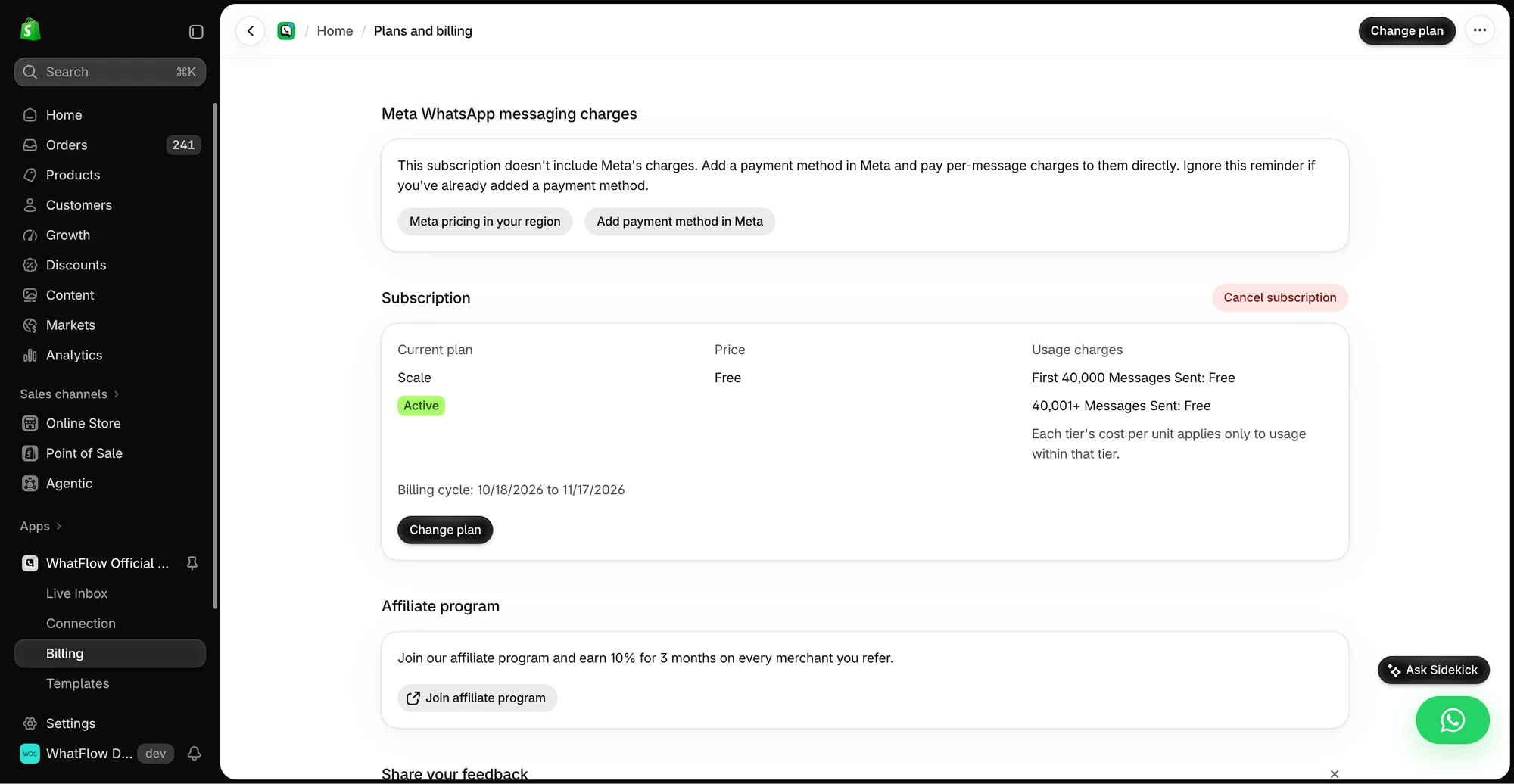
The demo Billing screen separates WhatFlow’s app subscription from Meta messaging charges. Check the pricing page for current public rates.
Don't forget the hidden cost: time spent answering replies. A campaign that creates 40 confused questions isn't cheap, whatever the message bill says.
Your first 90 days
When
Do this
Week 1
Install the app, connect your number, add opt-in collection
Week 2
Get your first template approved, set up the journey, test it on your own phone
Weeks 3–6
Run it. Read every reply. Fix confusing copy
Week 6
Review: who got it, who replied, who bought, who opted out, what it cost
Weeks 7–10
Add a second journey (e.g. back-in-stock or post-purchase)
Weeks 11–13
Try your first small broadcast to opted-in customers, with a real reason to send
Notice the broadcast is last. By then you'll know your audience, your reply load and your costs. Our complete guide to WhatsApp marketing for Shopify covers broadcasts and the rest once you're there.
Free plan available
Run WhatsApp for your Shopify store with WhatFlow
Templates, COD confirmation, Shopify Flow automations and a shared team inbox with no seat fees. Every feature is included on every plan, including Free.
At each review, ask three questions. Did the right people get it? Did they do the thing? Could the team handle the replies? If any answer is no, fix that before adding anything new. A small store with two journeys that work beats a big calendar nobody can keep up with.
Frequently asked questions
How do I start WhatsApp marketing for a small Shopify store?
Pick one journey with an obvious customer benefit, such as abandoned checkout recovery or back-in-stock alerts, collect WhatsApp opt-ins, get one template approved and make sure someone answers the replies. Run it for a month before adding a second journey.
Can I send WhatsApp marketing to every phone number in Shopify?
No. WhatsApp requires opt-in before business-initiated messages, and opt-outs must be honoured. A phone number on an order isn't permission to send marketing.
How much does WhatsApp marketing cost for a small store?
Two costs: Meta charges per delivered template message, varying by category and country, and your WhatsApp app charges its own fee. WhatFlow has a Free plan with every feature, and paid plans start at $4.99/month as of November 2026.
Which WhatFlow app should a small store use for marketing?
For templates, campaigns and Shopify Flow automation, use WhatFlow WhatsApp Business API, which runs on Meta's official Cloud API. WhatFlow Chat Automation is a separate app that connects as a linked device, without a Meta Business account.