
The first decision in a Shopify WhatsApp campaign is where the audience lives. If you already have a customer segment in Shopify, start there. If you have an opted-in spreadsheet or want to reach people from existing WhatsApp conversations, build the broadcast in WhatFlow Team Inbox. I’d choose the route before writing the message: it determines what you can personalize and how you’ll run the send.
Say you’re launching a new color of a popular backpack. The audience you want is people who explicitly asked to hear about the launch. Your goal is to get those customers to the product, answer questions about the new color, and see which messages failed. You can do that without treating the entire Shopify customer list as a marketing audience.
Route 1: Start from Shopify customers or a segment
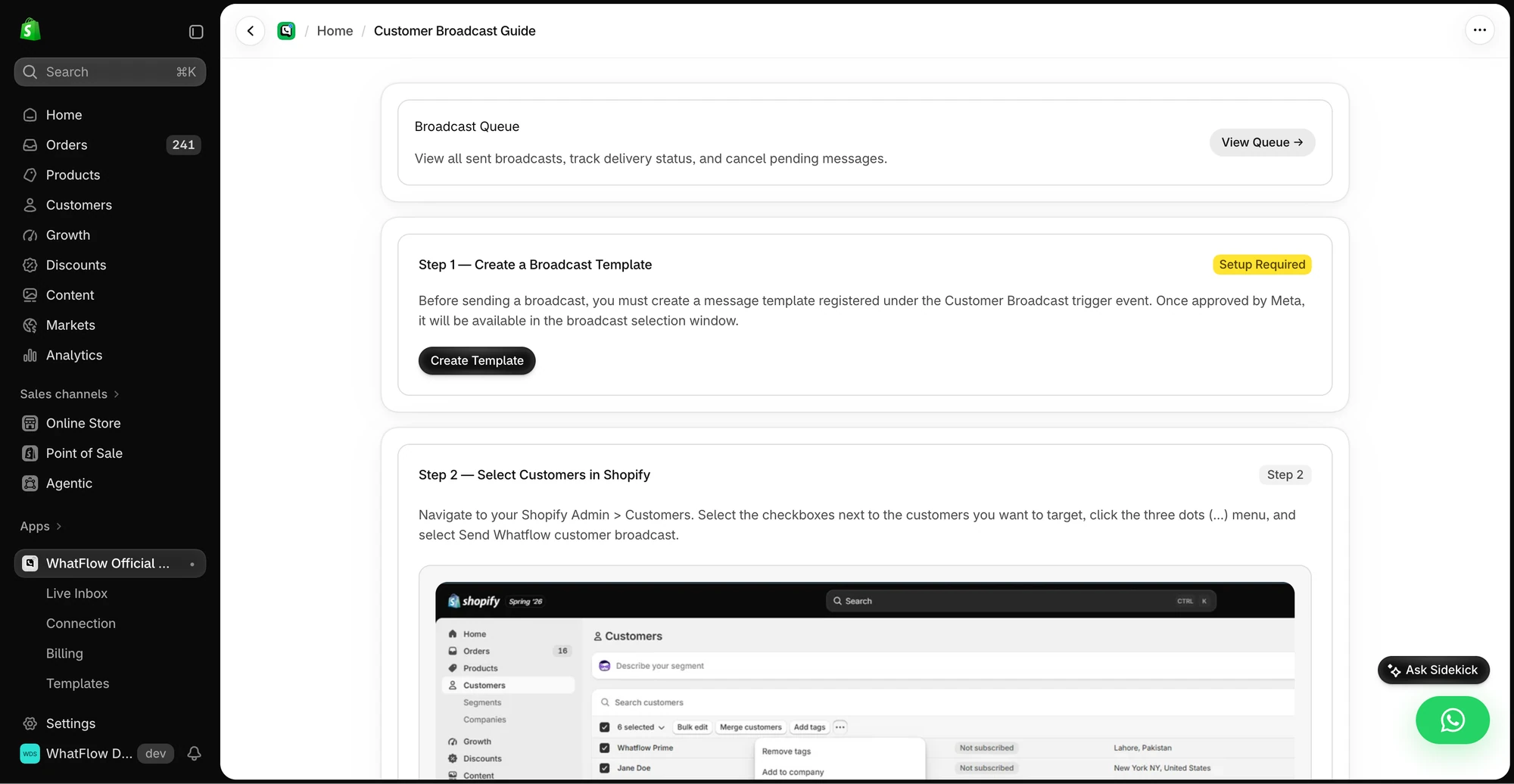
In Shopify Admin, select the customers you want to message and choose the WhatFlow broadcast action. If you already have a saved segment, open it and use Shopify’s Use segment action to start the WhatFlow broadcast builder. Pick the approved template, review who will receive the send, and use the WhatFlow queue to check progress.
This is a campaign launched from Shopify. It doesn’t create an automatically refreshed Shopify segment inside the Inbox audience picker. If you’re running another send a month later, review the audience again before you submit it.
Route 2: Build a scheduled campaign in Team Inbox
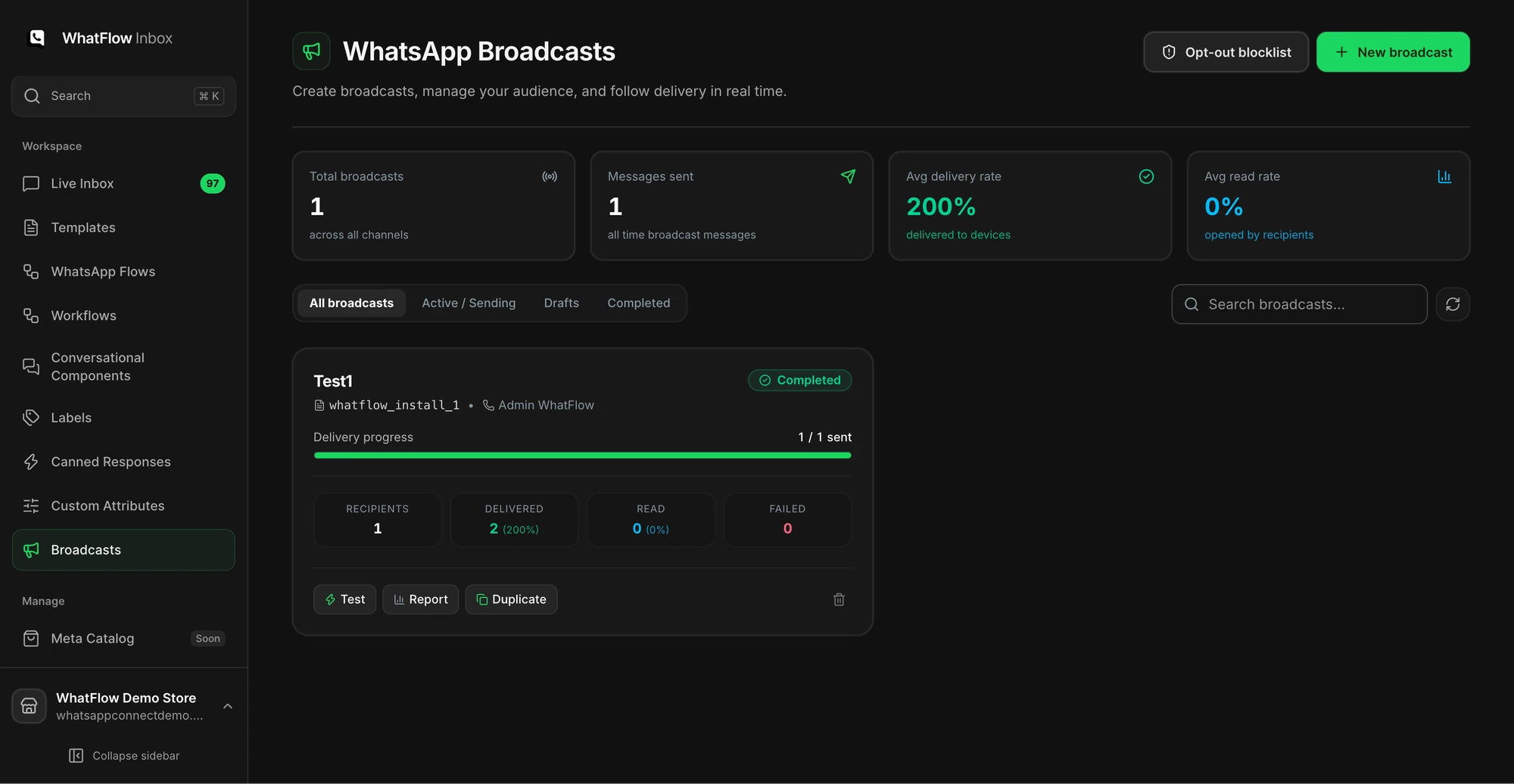
Open Broadcasts in Team Inbox and start a draft. Pick the sending number and an approved marketing template. For the audience, upload a CSV or Excel file or choose eligible contacts from existing conversations on that channel. Map spreadsheet columns to the fields in your template, then check the preview with a real example row from your test data.
For a launch, I’d make the action obvious:
Hi {{first_name}}, the olive Trail Pack you asked about is available. Tap View backpack for sizes and stock. If you’re unsure what fits, reply and we’ll help you choose.
That’s example copy for a marketing template, not a message we sent. Before scheduling, send a test to a number your team controls. Check the first-name field, the button link, and what happens when you reply. Check the time zone shown in the scheduler, and make sure someone is available to answer after the send. Review consent and opt-outs under .