A blue badge next to a WhatsApp business name means Meta has verified that account. For a Shopify store there are two routes: request Official Business Account status in WhatsApp Manager if your number is on the WhatsApp Business API, or subscribe to Meta Verified if you use the WhatsApp Business app. Before either, confirm it's the same number your storefront, order messages and ads use.
That last sentence is where most badge projects go wrong, so this guide spends more time on it than on the application form.
What does the WhatsApp blue badge actually mean?
WhatsApp's Help Center says a verified badge means Meta has verified the account based on its activity across Meta technologies. Some verified accounts belong to notable people, brands or entities. Others got there through a paid subscription like Meta Verified or Meta One.
For a shopper, the badge answers one question: "Is this really the store, or someone pretending to be it?" That matters more than it sounds if you sell in markets where fake WhatsApp "support" accounts ask customers to pay COD balances by bank transfer. It doesn't answer whether your messages are useful, and it doesn't raise your template approvals.
Which badge route fits your Shopify setup?
Your setup
Badge route
Where you apply
What Meta checks
Number on the WhatsApp Business Platform (API), e.g. through a Shopify app
One warning on the subscription route: WhatsApp says paying for Meta Verified or Meta One doesn't guarantee a badge. You might be verified automatically, asked for documents, or subscribed with no verification option at all.
Start with the number your customers actually message
Say you run a sneaker store in Jeddah. Your Instagram bio has one WhatsApp number, your theme's chat button has another (an old one from launch), and order updates go out from a third number connected through an app. You apply for a badge on the order-update number. It gets approved. And most customers still start chats on the old theme button, where there's no badge.
Before applying, run this test from a phone that isn't yours:
Tap the WhatsApp button on your Shopify storefront. Write down the number and name.
Open your last order confirmation message. Same number?
Tap the WhatsApp link in your Instagram bio and any active click-to-WhatsApp ad.
Check your packaging QR code or insert, if you have one.
If you get more than one number, fix that first. Point everything at the number you'll verify.
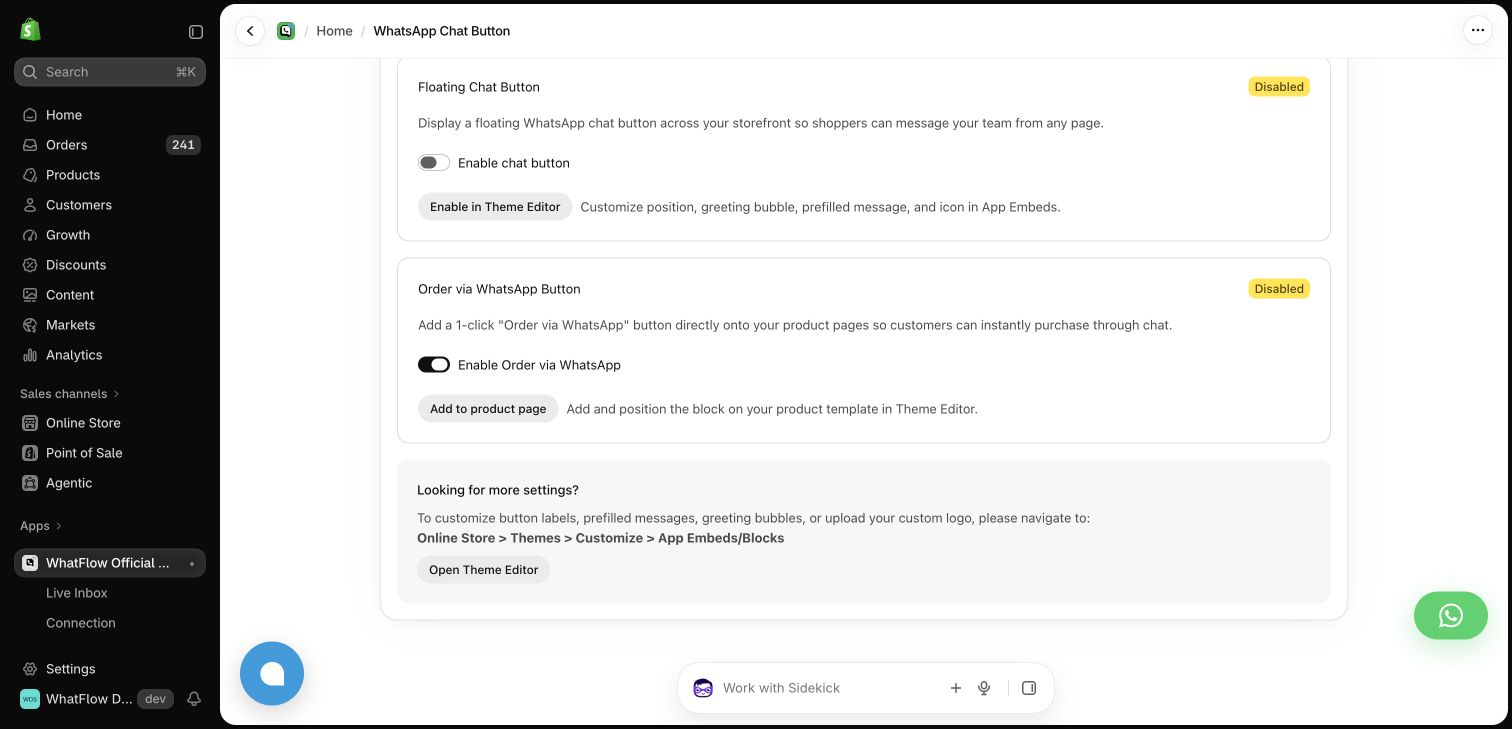
Demo store chat button settings. Check the number behind each button matches the one you're verifying.
In WhatFlow, you set up theme-matched WhatsApp chat buttons (free forever) in the same app that sends your order messages, which makes it easy to check both point at one number. Our guide to adding a WhatsApp chat button to Shopify covers placement.
Pre-application checklist
One number across storefront, order messages, ads, social bios and packaging.
Display name matches what customers know you as (your store name, not your legal entity, unless they're the same).
Business website loads, and the store name on it matches the WhatsApp display name.
Your Meta business portfolio has completed Business Verification (API route).
Two-step verification is on for the number (API route).
The person applying has admin access to the account and can answer Meta's prompts.
Business documents ready in case Meta asks for them.
Business Verification has a second payoff on the API: Meta's messaging limits doc lists it as one way to raise your limit on business-initiated messages.
What to do while you wait (or if you're rejected)
Most stores don't get a badge on the first try, and OBA rejections come with a 30-day wait before you can resubmit. Use that month on the things that make customers trust a chat regardless:
Name the order in every service message. "Your order #1042 from Sole Street has shipped" is more convincing than any checkmark.
Publish your number on your Shopify contact page and footer, and say you'll never ask for payment by bank transfer over WhatsApp if you don't.
Answer from one shared inbox, so customers don't get replies from staff phones with a different name.
Here's a short message worth saving for when customers ask whether you're real:
Hi Ayesha, yes, this is Sole Street's official WhatsApp. You can check the number against the one at the bottom of our website. We'll never ask you to pay by bank transfer in chat. Your order #1042 is packed and leaves today.
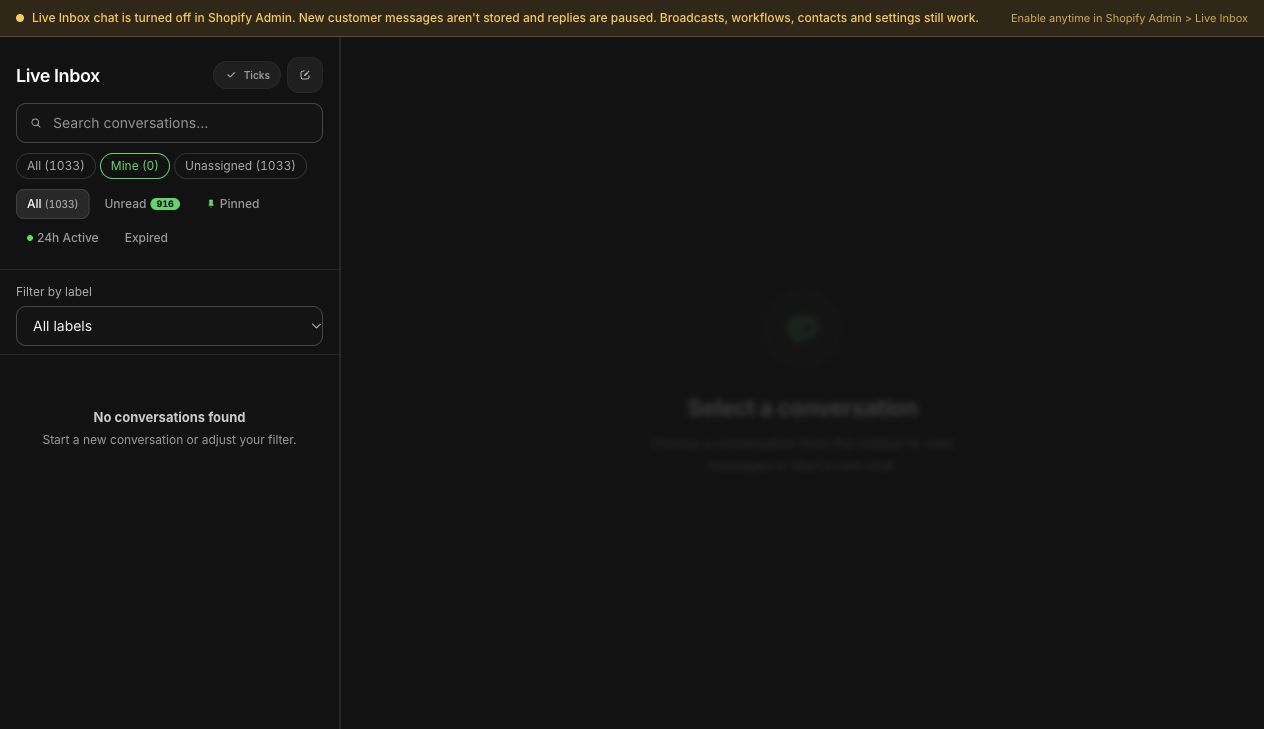
Demo inbox filters. Every reply goes out from the same verified-eligible number, whoever answers.
Where WhatFlow fits
WhatFlow WhatsApp Business API connects your number to Shopify through Meta Embedded Signup on the official Cloud API, so the number is eligible for Official Business Account status. Meta still decides the badge. What WhatFlow gives you is everything around it: order and shipping updates, COD confirmation, a shared team inbox with assignment and no seat fees, and Shopify Flow triggers. All of it is on every plan, including Free. Our team inbox walkthrough shows how to hand chats between teammates using Shopify order context.
Run WhatsApp for your Shopify store with WhatFlow
Free plan available. Templates, COD confirmation, Shopify Flow automations and a shared team inbox with no seat fees. Every feature is included on every plan, including Free.
If someone on your team asks about "blue ticks" and means the two blue marks under a message, that's a read receipt, not verification. The WhatsApp read-receipts guide explains what those mean for order confirmations and support.
Frequently asked questions
Does installing a Shopify WhatsApp app give me a blue badge?
No. Meta decides whether a WhatsApp account gets a verified badge. An app like WhatFlow connects your number to Shopify through Meta's official Cloud API, which makes the number eligible to request Official Business Account status, but the approval is Meta's.
Do I lose my badge if I don't buy Meta Verified?
WhatsApp's Meta Verified help page says businesses with a verified badge today keep their verified status without taking action. Badges can still be removed if Meta asks for extra verification you don't complete or the account stops meeting requirements.
How long do I wait after an Official Business Account rejection?
Meta's developer documentation says you must wait 30 days before submitting another Official Business Account request.
Is the WhatsApp badge green or blue?
It's blue now. Many merchants still search for the WhatsApp green tick, but Meta's documentation describes a blue checkmark beside the business name for Official Business Accounts.