A WhatsApp copy-code button puts your Shopify discount code on the customer's clipboard with one tap, so they don't have to switch apps and retype it at checkout. It lives on a marketing coupon template: one copy-code button per template, codes up to 20 characters. Create and test the discount in Shopify first, then build the template, then test the whole thing on a phone.
The button doesn't apply the discount. It copies it. The buyer still pastes it into the discount field at Shopify checkout, which is why the Shopify side has to work perfectly before you send anything.
Required, up to 1,024 characters, variables allowed
Extra button
An optional quick reply button, up to 25 characters
Category
Meta's examples use the marketing category
WhatsApp web
Coupon templates aren't currently supported on the web client
Two things catch people out. First, you give Meta a sample code when you create the template, and the real code goes in at send time. So the template can be reused for different campaigns, and you must make sure the code you send matches a live Shopify discount. Second, because the button text is fixed, all your offer details (amount, minimum spend, end date) have to be in the body.
Step 1: make the discount work in Shopify first
Say you're running a weekend offer: 15% off the summer collection, minimum spend Rs 5,000, ending Sunday at midnight, code SUMMER15.
In Shopify, create the discount code and set, per Shopify's discount settings:
Usage limits: one use per customer, if that's what you want; usage is unlimited by default
Combinations: which other discounts it can stack with
Active dates: start and end date, in your store's time zone
Eligibility: all customers, specific segments or specific markets
Then test it. Open a cart that qualifies and apply the code. Open one that doesn't (under Rs 5,000, or a non-summer product) and check the error. Decide now what your team says when someone misses the cutoff by an hour, because they will.
Step 2: build the coupon template
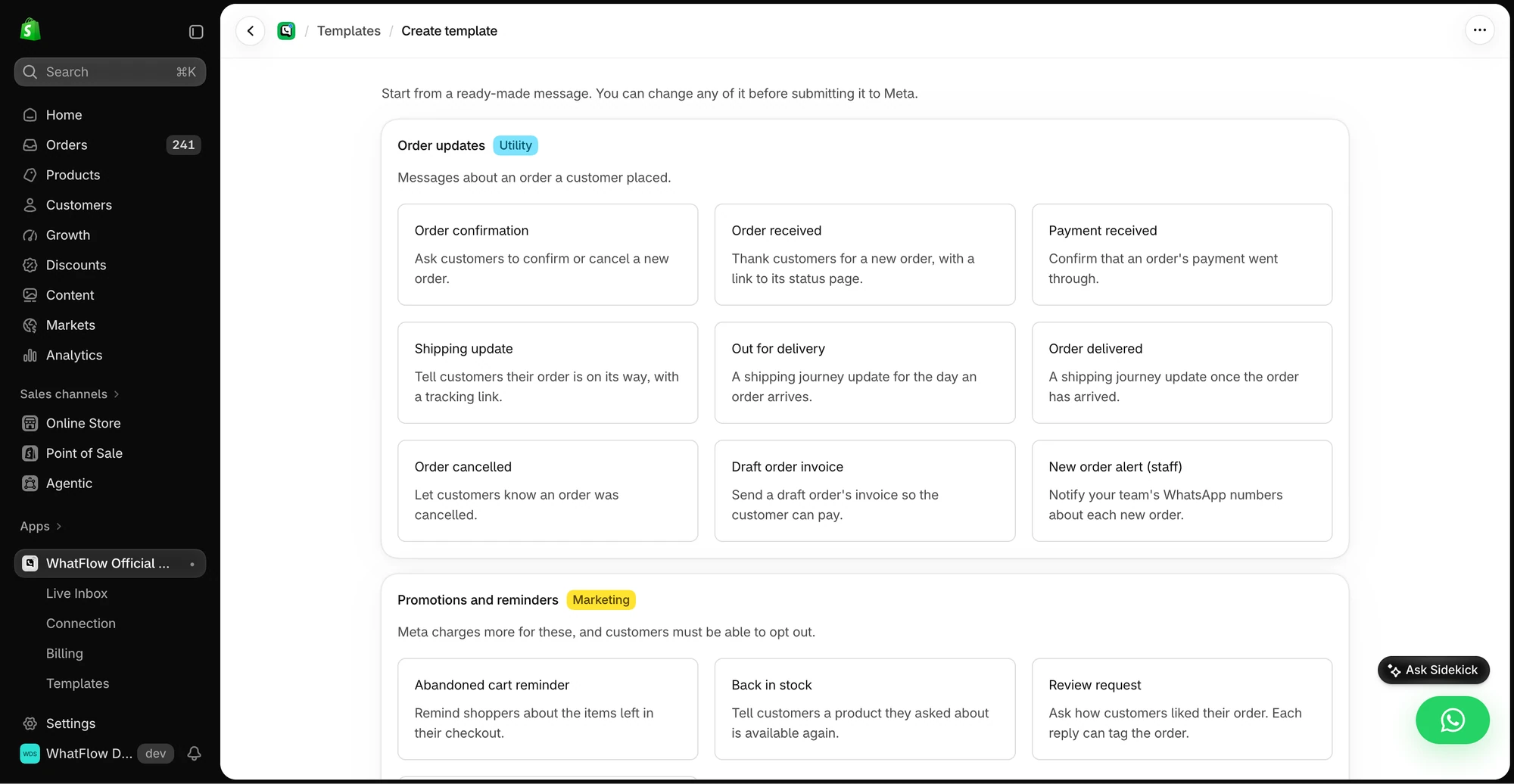
In WhatFlow, open the Message Editor, choose a marketing template and add Copy code under the button options. Enter a sample code for Meta's review. The template guide covers the editor and the approval steps.
The Message Editor in the WhatFlow demo store. Choose the message purpose, then open the button controls in the template setup. Nothing was sent.
A template body for the example might read:
Hi {{1}}, our summer collection is 15% off this weekend with code {{2}}. Spend Rs 5,000 or more on summer styles to use it. Ends Sunday at midnight. Tap below to copy your code, then paste it at checkout.
With the fixed copy-code button underneath, and maybe a quick reply button:
[Copy code] [Stop offers]
I like adding a "Stop offers" quick reply. It gives people an easy, polite way out, which beats them reaching for the block button.
Mention the minimum spend and end date in the body, in the same words as your Shopify settings and your offer page. If the template says "this weekend" and Shopify says Sunday 23:59 in a different time zone, you've got a support queue on Monday.
Keep it marketing. A discount is promotional by definition, so don't try to squeeze it into an order-update template. Our explainer on marketing vs utility templates covers why mixing them gets templates recategorised or rejected.
Step 3: check who you're sending to
A discount is a marketing message. You can send it only to customers who opted in to promotional messages from you, not just order updates. WhatsApp's Business Messaging Policy requires opt-in for business-initiated messages and says you must honour opt-outs. If your opt-in records are messy, fix that first with our guide to collecting WhatsApp opt-ins on Shopify.
Budget for it too. Meta charges per delivered marketing template, and rates vary by country. As of November 2026, a marketing message to India costs $0.0118 and to Brazil $0.0625. WhatFlow passes Meta's charges through with no markup; the WhatFlow pricing page has the full country table and a cost calculator.
Step 4: test from the buyer's side
After Meta approves the template, send it to your own phone. Not WhatsApp Web, since coupon templates don't show there. Then run through this:
Read the message on a small screen. Is the offer clear before you tap anything?
Tap Copy code. Paste it somewhere to check it's the real campaign code, not the sample.
Open the store, add an eligible product and paste the code at checkout. Does it apply?
Try an ineligible cart. Is the error message something your team can explain?
If the template has a link to a collection, check it opens the advertised collection.
Tap the quick reply button and check where that reply lands.
Free plan available. Templates, COD confirmation, Shopify Flow automations and a shared team inbox with no seat fees. Every feature is included on every plan, including Free.
Use Shopify's discount redemption reports to see how many orders used the code, and compare that with how many messages were delivered. A dedicated code per channel (SUMMER15 for WhatsApp, a different one for email) is the simplest way to tell which channel drove the order.
Frequently asked questions
What is a WhatsApp copy-code button?
It's a button on a WhatsApp coupon template that copies your discount code to the customer's clipboard when tapped. Meta allows one copy-code button per template, and the code can be up to 20 characters.
Does the copy-code button apply the discount at Shopify checkout?
No. It only copies the code. The customer still pastes it into the discount field at Shopify checkout, so test that the code works there.
Can I change the text on the WhatsApp copy-code button?
No. Meta's coupon template docs say the copy-code button text can't be customised. Put the offer details in the template body instead.
Do WhatsApp coupon templates work on WhatsApp Web?
Not as of November 2026. Meta says coupon code templates aren't currently supported by the WhatsApp web client, so test on a phone.
Can I send a discount code to customers who only opted in for order updates?
No. A discount is a marketing message, so the customer needs to have opted in to promotional messages from you. Order-update consent doesn't cover it.
Measure AOV and Margin on a Shopify WhatsApp Bundle Campaign
A bundle campaign can lift average order value and still leave you with less money. Measure contribution per recipient against a holdout, not just AOV.