WhatsApp template parts explained: header, body, footer, buttons and variables
Every part of a WhatsApp template with Meta's limits: 60-character headers, 1,024-character bodies, footers, button types and named or numbered variables.
A WhatsApp template has up to four parts: an optional header (text up to 60 characters, or an image, video, document or location), a required body (up to 1,024 characters), an optional footer (up to 60 characters of text) and optional buttons (up to 10). Variables like {{1}} or {{first_name}} fill in customer-specific details at send time.
Those are Meta's limits as of November 2026, from its template components documentation. Below is what each part is for, what I'd put in it for a Shopify store, and how WhatFlow fills the variables.
What is a WhatsApp message template?
A WhatsApp message template is a message format Meta approves in advance. Outside the 24-hour customer service window, an approved template is the only kind of message a business can send on the WhatsApp Business API, and Meta charges for each delivered template (pricing). Each template also has a category (marketing, utility or authentication), which is covered in which template category fits each Shopify message.
WhatsApp template components at a glance
Component
Required?
Limits (Meta, Nov 2026)
Variables
Header
Optional, max 1
Text: 60 characters. Or image, video, document; GIF only via the Marketing Messages API; location only for utility and marketing
Here's a full order shipped template using all four:
Header: Your order is on its way
Body: Hi {{1}}, good news: order {{2}} has shipped with {{3}}. It should reach you by {{4}}. Reply here if you need to change anything.
Footer: Leafy Home · Reply STOP to opt out
Buttons: [Track my order] (URL) · [Talk to us] (quick reply)
The header: grab attention in one line
The header sits above the body, as a line of text or a media block. You get one per template.
Text header: up to 60 characters, with at most one variable. Meta says not to use Markdown special characters in it.
Media header: image, video or document. Meta's supported media limits for the Cloud API are 5 MB for JPEG, PNG or static WebP images, 16 MB for MP4 or 3GPP video, and 100 MB for documents such as PDFs.
GIF header: an MP4 file of up to 3.5 MB, available only through the Marketing Messages API.
Location header: for utility and marketing templates. You supply the coordinates, name and address when you send.
What I'd use: a product image for back-in-stock and launch templates, a PDF document header for invoices if your customers ask for them, and no header at all for COD confirmations, where the body does the work.
Header (image): the restocked serum
Body: Hi {{1}}, {{2}} is back in stock. We've held stock for waitlist customers until {{3}}. Tap below to order.
The body: the only required part
The body is the message itself: up to 1,024 characters, with as many variables as the message needs. Most rejections happen here. Meta's template review rules reject bodies where:
A variable starts or ends the message ("dangling" parameters)
Variables contain special characters like #, $ or %
Numbered variables aren't sequential, or curly braces don't match
There are too many variables for the length of the message
So this gets rejected:
{{1}}, order {{3}} total ${{2}}
And this passes the formatting checks:
Hi {{1}}, thanks for your order {{2}}. The total to pay on delivery is {{3}}. Please confirm below so we can dispatch it.
The footer is optional plain text, up to 60 characters, shown right after the body. Meta's components doc doesn't list variables for it, so keep it static. Good footer uses: your store name, an opt-out line, or business hours.
Footer: Reply STOP to stop WhatsApp updates
Buttons: what customers can tap
Buttons are where templates earn their keep. Meta's limits, as of November 2026:
Button type
What it does
Max per template
Label
Other limits
Quick reply
Sends a preset reply back to you
10
25 characters
Must be grouped together, not mixed between other buttons
URL
Opens a link
2
25 characters
URL up to 2,000 characters; 1 variable, appended at the end
Phone number
Calls a number
1
25 characters
Number up to 20 characters
Copy code
Copies a code (for example a discount)
1
n/a
Example value up to 20 characters
The total across all types is 10. Three display rules worth knowing:
With more than three buttons, WhatsApp shows two and puts the rest behind a "See all options" button.
Templates with four or more buttons, or a quick reply mixed with another button type, can't be viewed on WhatsApp desktop clients. If your buyers are B2B and live on WhatsApp Desktop, keep it simple.
"Quick reply, URL, quick reply" is invalid. Group the quick replies.
My default for a COD confirmation is two quick replies and nothing else:
Hi {{1}}, please confirm your order {{2}} for {{3}}, payable on delivery.
A variable is a placeholder in a template that's replaced with real data (a name, an order number, a link) when the message is sent. Meta's template fundamentals supports two formats:
Positional (the default): numbered placeholders starting at 1, like {{1}}, {{2}}. Values must be supplied in the same order.
Named: lowercase names with underscores, unique within the template, like {{first_name}} or {{order_number}}. Values can be supplied in any order.
The same message both ways:
Hi {{1}}, your order {{2}} has shipped. Track it here: {{3}}
Hi {{first_name}}, your order {{order_number}} has shipped. Track it here: {{tracking_link}}
Named variables are easier to read six months later. Whichever you use, add realistic sample values when you submit (for example "Priya", "#1042", a real-looking tracking URL); Meta reviews with them, and an appeal must include a sample.
Other rules that apply to the whole template
Template names: lowercase letters, numbers and underscores, up to 512 characters.
Review time: up to 24 hours.
How many you can have: 250 templates per WhatsApp account if your business portfolio is unverified, up to 6,000 once it's verified with an approved display name. Meta business verification for WhatsApp.
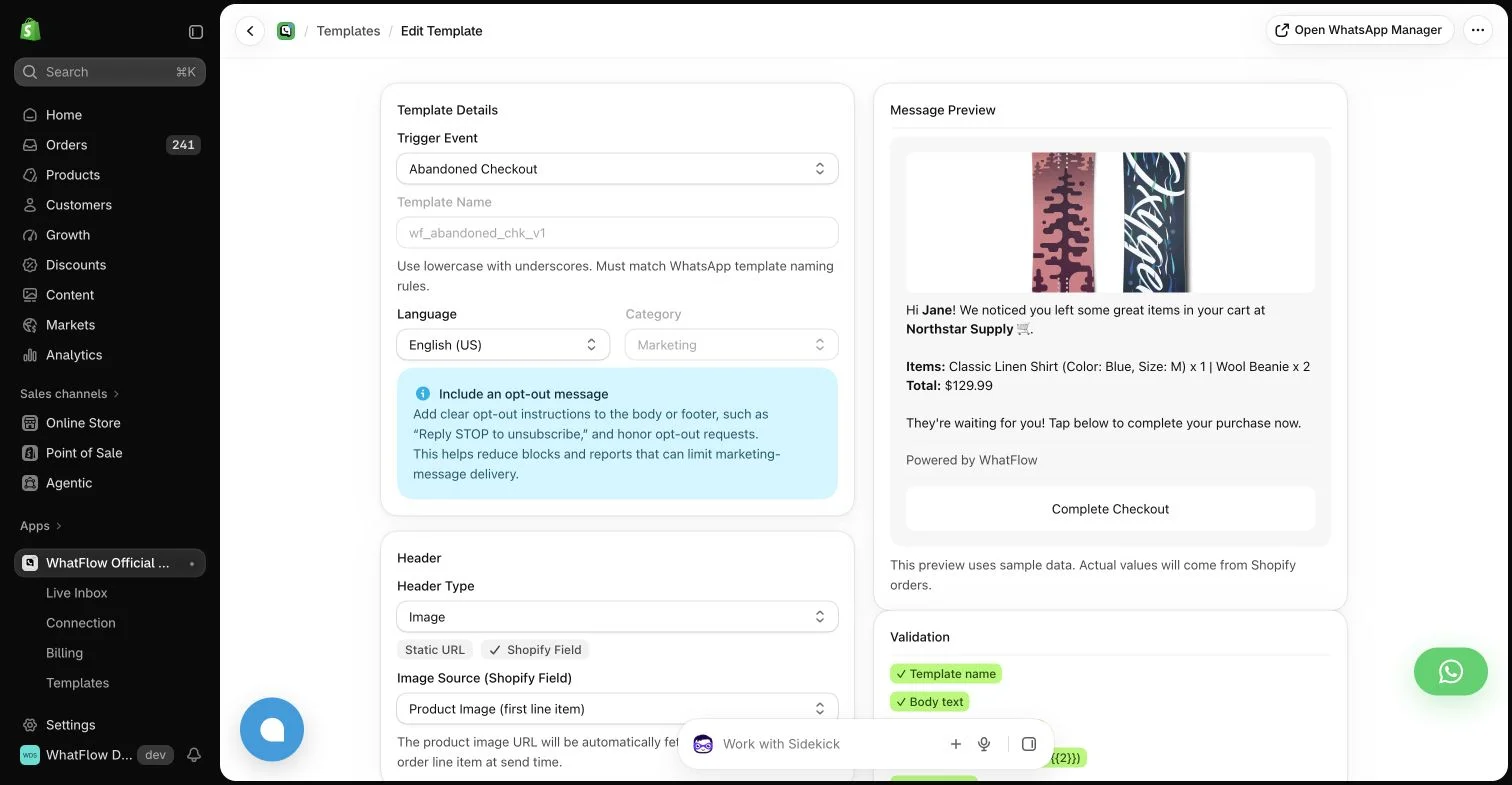
In WhatFlow WhatsApp Business API you build templates in the Message Editor. You pick the Shopify event first (an order update, a reminder), because the event decides which data exists. Then you write the body, map each variable, fill in example values and label your buttons, before the template goes to Meta for approval. Templates work in any language WhatsApp supports. WhatFlow's docs and examples use positional {{1}}-style variables.
WhatFlow's template editor in a demo store. Sample content only; nothing was sent.
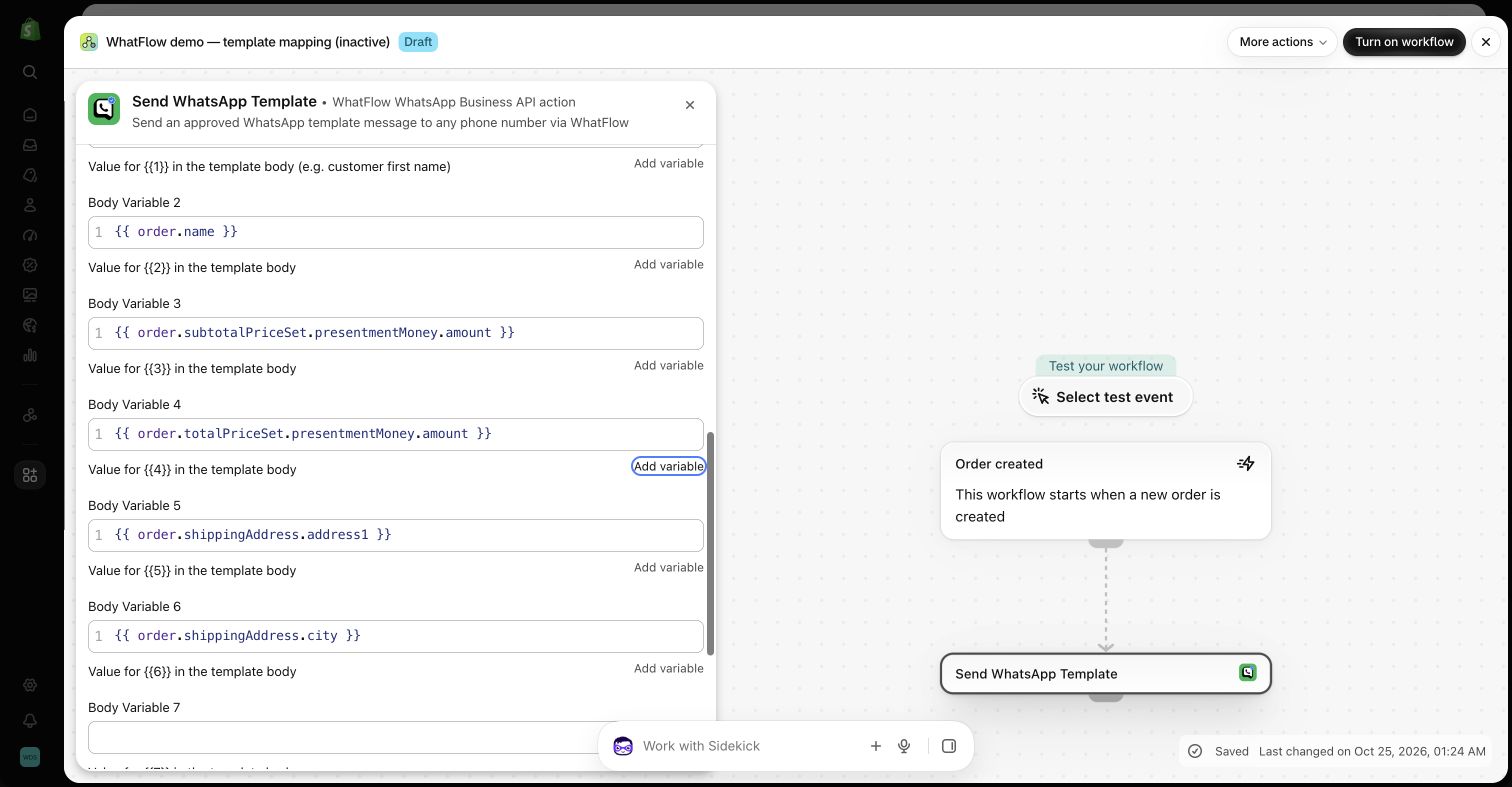
For custom automations, WhatFlow's Send WhatsApp Template action in Shopify Flow shows header inputs (when the template has a header), body parameters and a URL-button variable. You map each one to a Shopify field, such as the order name or the customer's first name, in the same order as the approved template.
Body variables in an inactive demo workflow. Field mappings only; no message was sent.
If {{2}} is the order number in the template, the second body parameter in Flow must be the order number. Get that wrong and the customer reads "your order Priya has shipped". The step-by-step Flow template guide walks through testing it.
Run WhatsApp for your Shopify store with WhatFlow
Free plan available. Templates, COD confirmation, Shopify Flow automations and a shared team inbox with no seat fees. Every feature is included on every plan, including Free.
Body is required (1,024 characters). Header (60-character text or media), footer (60 characters) and buttons (up to 10, with per-type caps) are optional. Use positional or named variables, never at the very start or end, and always with realistic samples. Then map each variable to the right Shopify field before anything goes live.
Frequently asked questions
What is the character limit for a WhatsApp template body?
Meta allows up to 1,024 characters in a WhatsApp template body, as of November 2026. Text headers and footers are each limited to 60 characters.
How many buttons can a WhatsApp template have?
Up to 10 buttons in total, according to Meta's template components doc. Within that, you can have up to 10 quick replies, 2 URL buttons, 1 phone number button and 1 copy code button, and WhatsApp shows only two buttons plus a See all options link when there are more than three.
What's the difference between named and positional variables in WhatsApp templates?
Positional variables are numbered, like {{1}} and {{2}}, and must be filled in that order. Named variables use lowercase names with underscores, like {{first_name}}, and their values can be supplied in any order. Positional is Meta's default.
Can a WhatsApp template start or end with a variable?
No. Meta's template review rules say a template can't start or end with a parameter, and variables can't contain special characters like #, $ or %.
Can I put an image in a WhatsApp template?
Yes, in the header. Meta supports image, video and document headers (plus GIF for the Marketing Messages API), and a location header for utility and marketing templates. A template has at most one header.