
Connect a Shopify event to a WhatsApp message and find manual messaging actions on individual Shopify records.
Build an event and action in Shopify Flow
Open the WhatFlow Shopify Flow guide, then open Shopify Flow. Pick a trigger that gives you the data your action needs. For example, start with an order reply if the next step needs an order reference. Add a condition for the specific response and choose a Shopify action such as tagging the order. Keep the workflow inactive while you review it.
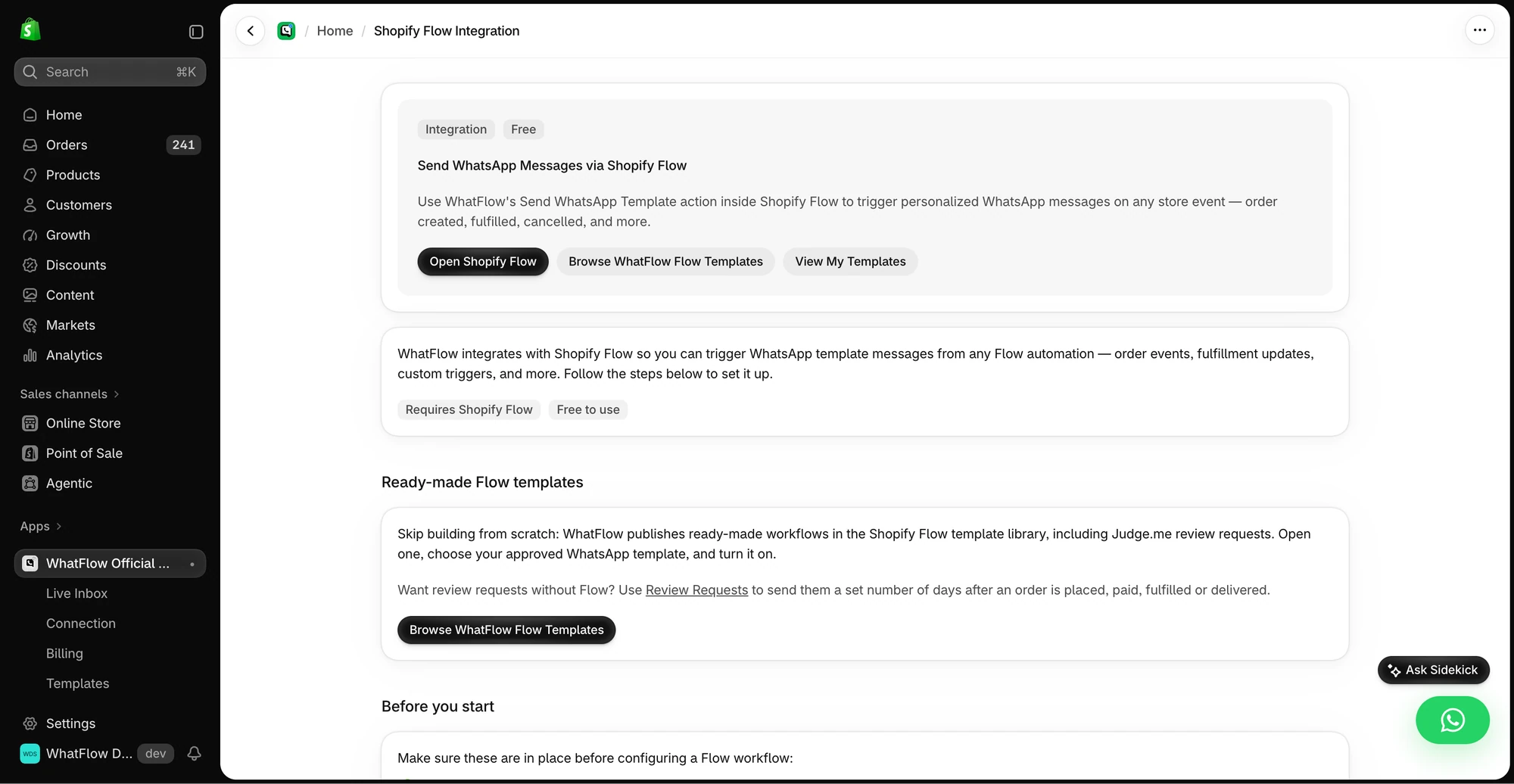
For outbound messages, select a WhatFlow message action and map the phone and template fields. Check what happens if the phone or the order reference is missing. The template setup walkthrough goes through the picker and variable mapping.
Send from a Shopify record
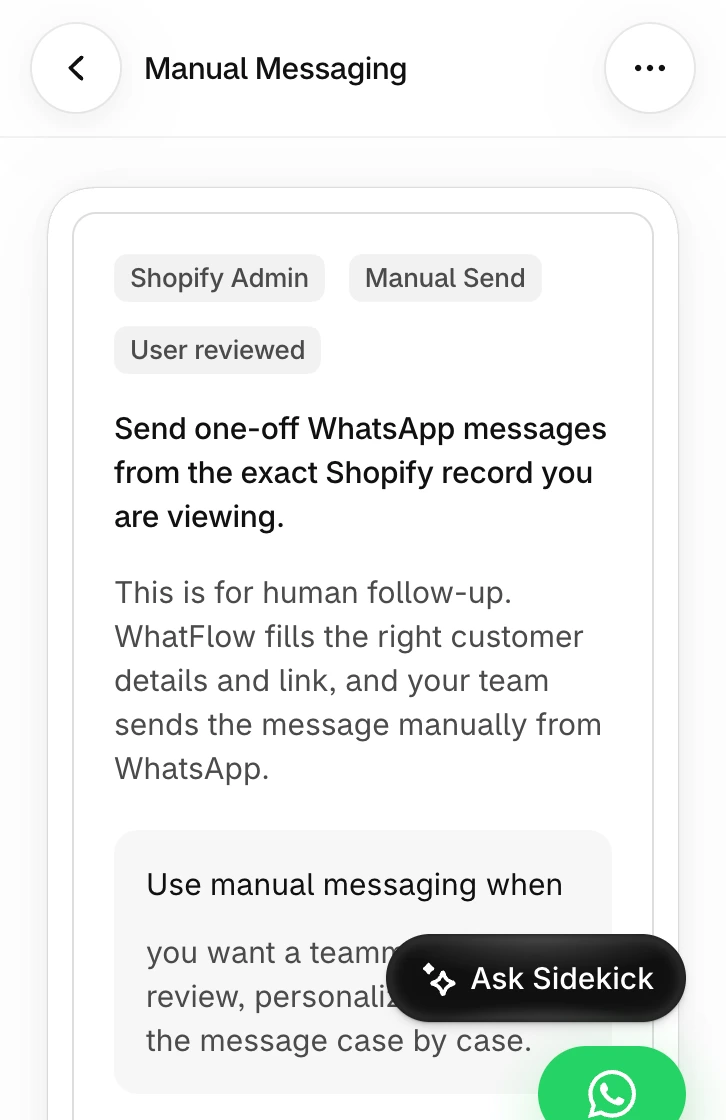
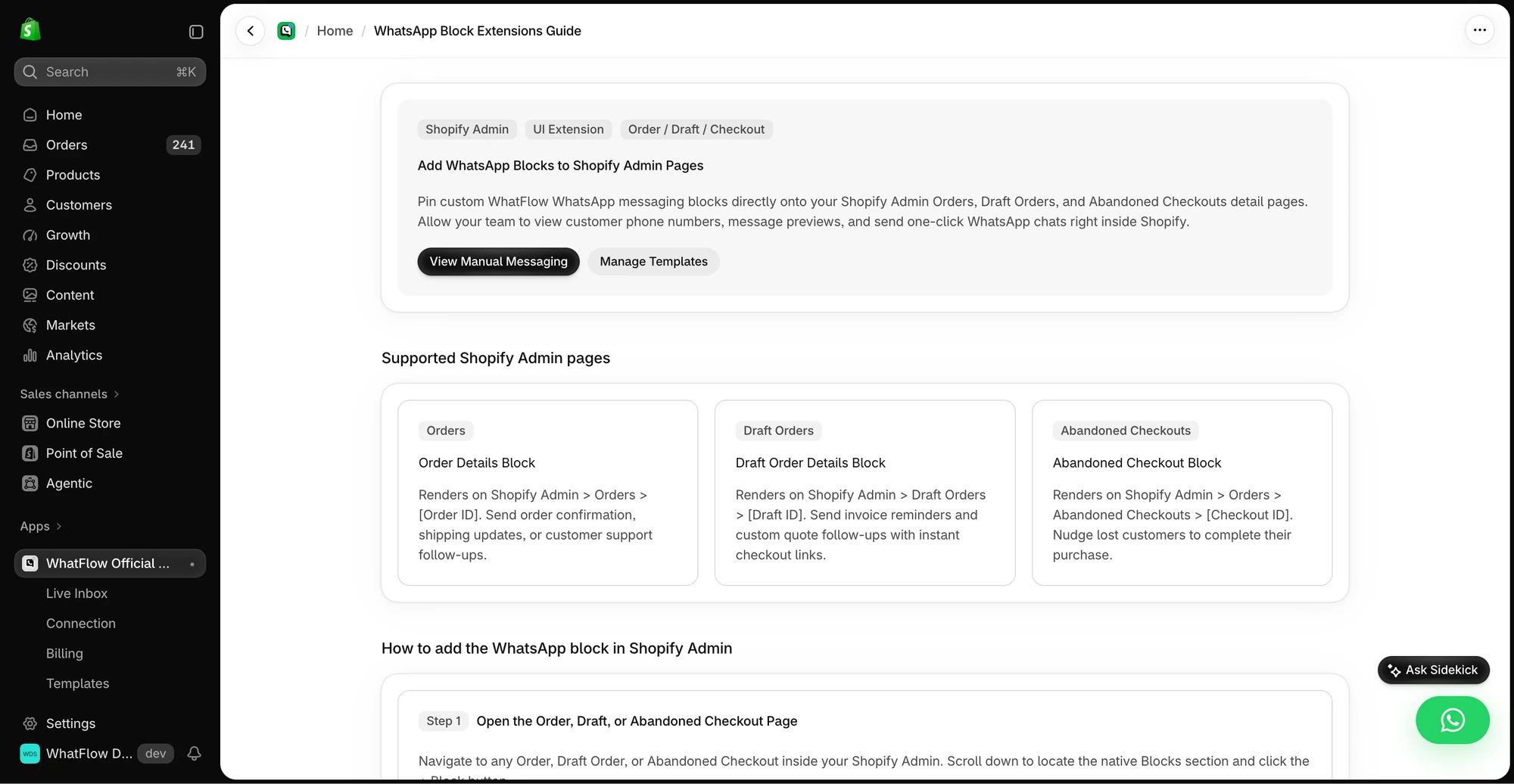
Open Admin Blocks for placement instructions. In Shopify Admin, open the supported order, draft order or abandoned checkout record and add the WhatFlow block where available. Use the send action only after checking the recipient and preview. Start with a single test record before using any bulk action.
When to use Manual Messaging
Use this route for an exception such as an open draft that needs a personal note. WhatFlow prepares the customer details and link from the Shopify record. Open the resulting message, check the recipient and text, then send it yourself in WhatsApp. For an unattended send, choose an approved template and configure the automation separately.