
Set up keyword replies, respect opt-outs and limit store reports to authorised numbers.
Create one auto-reply
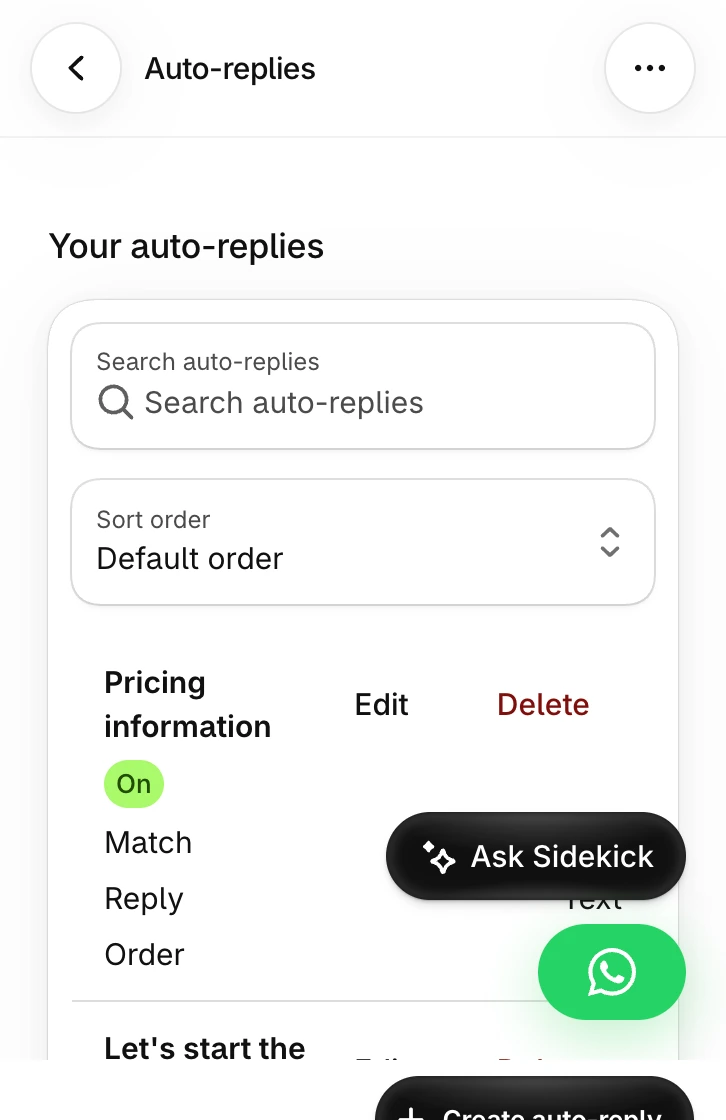
Open Auto-replies and create a rule for a common question, such as asking how to track an order. Configure what the customer must send, then choose the response and check the preview. Send the test phrase from a number you control and also try a similar phrase that should fall through to a teammate. Keep the rule narrow if broad matching catches questions it cannot answer.
Test your WhatsApp blocklist
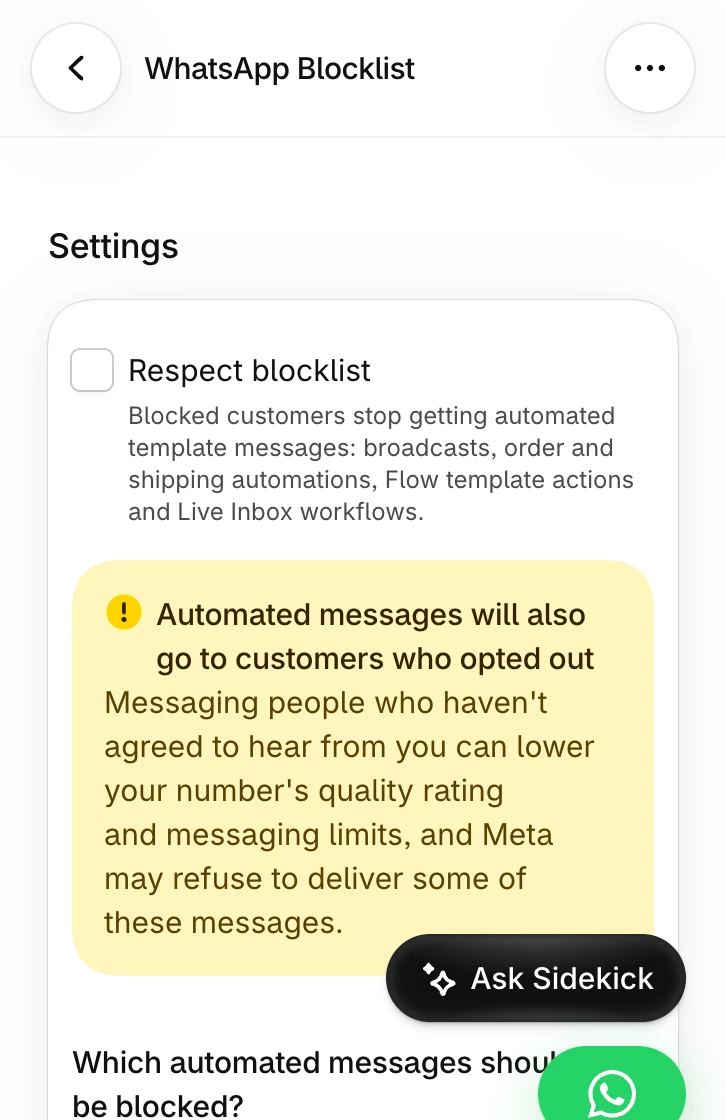
Open WhatsApp Blocklist to review opt-out and opt-in settings. Test a STOP message and confirm the test number appears where you expect. Review how your automation treats opted-out numbers and leave suppression enabled for the messages they asked to stop. A START message should restore only the permission the customer actually gave. Add a number manually when a legitimate opt-out arrives through another channel.
Check the message types selected under Respect blocklist. The feature covers automated sends such as broadcasts, order and shipping automations, template actions in Shopify Flow and Live Inbox workflows according to your settings. Verify manual follow-up separately so staff honour the same opt-outs.
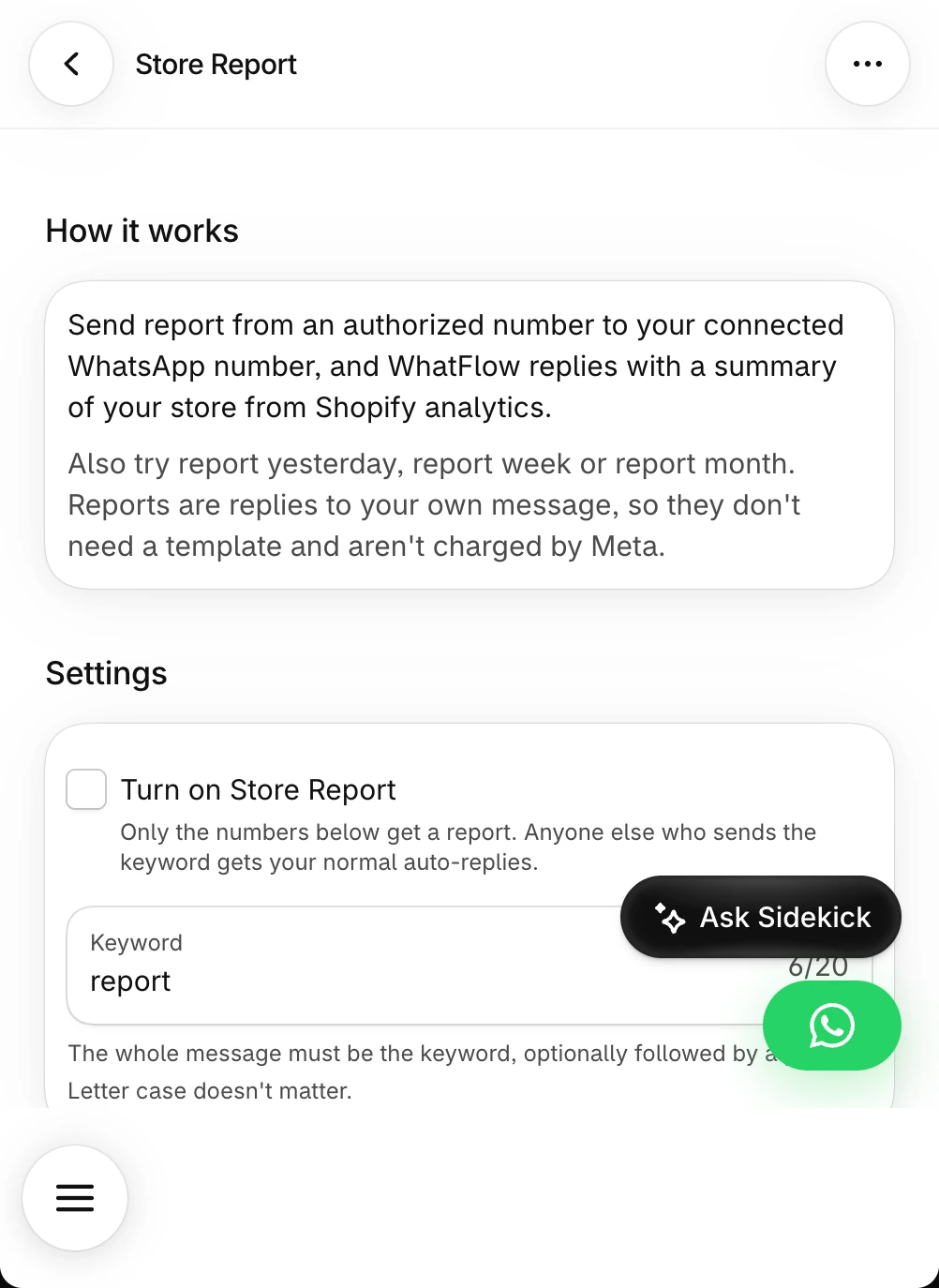
Request a Store Report
Open Store Report, choose the keyword and report sections, and review the authorised numbers. Keep the list limited to staff who should see the store metrics. If the keyword overlaps an auto-reply, choose another one. Test from an authorised number and verify an unauthorised test number cannot see the report.