To maintain a Shopify blog, keep one spreadsheet listing every post, the question it answers, who owns it and which facts in it can go out of date. Review posts when those facts change, with a yearly check as a backup. For each post, decide: keep, update, merge into a better post, redirect, or delete. Only change the published date when you've actually changed the content.
Why a Shopify blog needs maintenance as it grows
Publishing is the fun part. Six months later you have 80 posts, three of which answer "how do I measure a ring size" slightly differently, two recommend an app you uninstalled, and one quotes a shipping price from 2024.
Nobody notices until a customer messages: "Your blog says free shipping over ₹999, but checkout is charging me." Now the old post is costing you trust, not earning it.
I'm writing this in November 2026 while we do exactly this on the WhatFlow blog. Our older posts were accurate but so cautious they barely said anything, and several covered nearly the same ground. So this isn't theory. It's the checklist we're using.
Size chart, free-shipping threshold, link to sizing tool
Monthly visits
420
Links in from other posts
6
Decision
Update
The "reader question" column is the most important. Write it as a question a customer would actually type. If you can't, the post probably doesn't have a clear job.
The "facts that can go stale" column is the second most important. Prices, shipping thresholds, product specs, return windows, app names, screenshots of admin screens. These are what make posts wrong.
Step 2: Find the overlaps
Sort by reader question. When two or more posts answer essentially the same question, you have overlap. For example:
"How to measure your ring size at home"
"Ring size guide: find your perfect fit"
"What ring size should I buy?"
That's one question written three times. Pick the strongest post, move anything useful from the other two into it, and redirect the old URLs to it. Google's own guidance on consolidating duplicate URLs explains why one clear page beats several near-copies.
Separate posts are fine when the reader's task really differs. "What ring size am I?" and "Can I resize a ring after buying?" are different questions with different answers. Keep both. Our guide to building a content plan from customer questions helps you draw those lines before you write, so you have less to merge later.
Step 3: Decide what to do with each post
Decision
When
What to do
Keep
Accurate, distinct, still useful
Nothing. Note the review date.
Update
Useful topic, outdated facts or thin content
Fix facts, add examples, update the date honestly
Merge
Overlaps with a stronger post
Move useful parts, redirect the old URL
Redirect
Topic moved elsewhere (e.g. to a product page)
Redirect to the best matching page
Delete
No useful content, no traffic, no links worth keeping
Remove it. Consider a redirect anyway if it had links
When in doubt between deleting and redirecting, redirect. In Shopify you can add a URL redirect from the old blog address to the new one in a minute. Google explains how it treats permanent moves in its guide to redirects. Then fix your own internal links so they point straight to the new URL instead of bouncing through a redirect.
Step 4: Set update triggers
A yearly review is a fine safety net. But posts go stale when something changes, and that can happen any week. Write down your triggers:
Product change: new version, new size chart, discontinued colour
Price or shipping change: new free-shipping threshold, new delivery zones
Policy change: return window, warranty, COD rules
App or tool change: you switch review apps, an admin screen looks different
Repeat confusion: customers keep asking a question the post should answer
When a trigger fires, filter your sheet by the "facts that can go stale" column. If you changed the free-shipping threshold, search for every post that mentions it. Ten minutes, not a weekend.
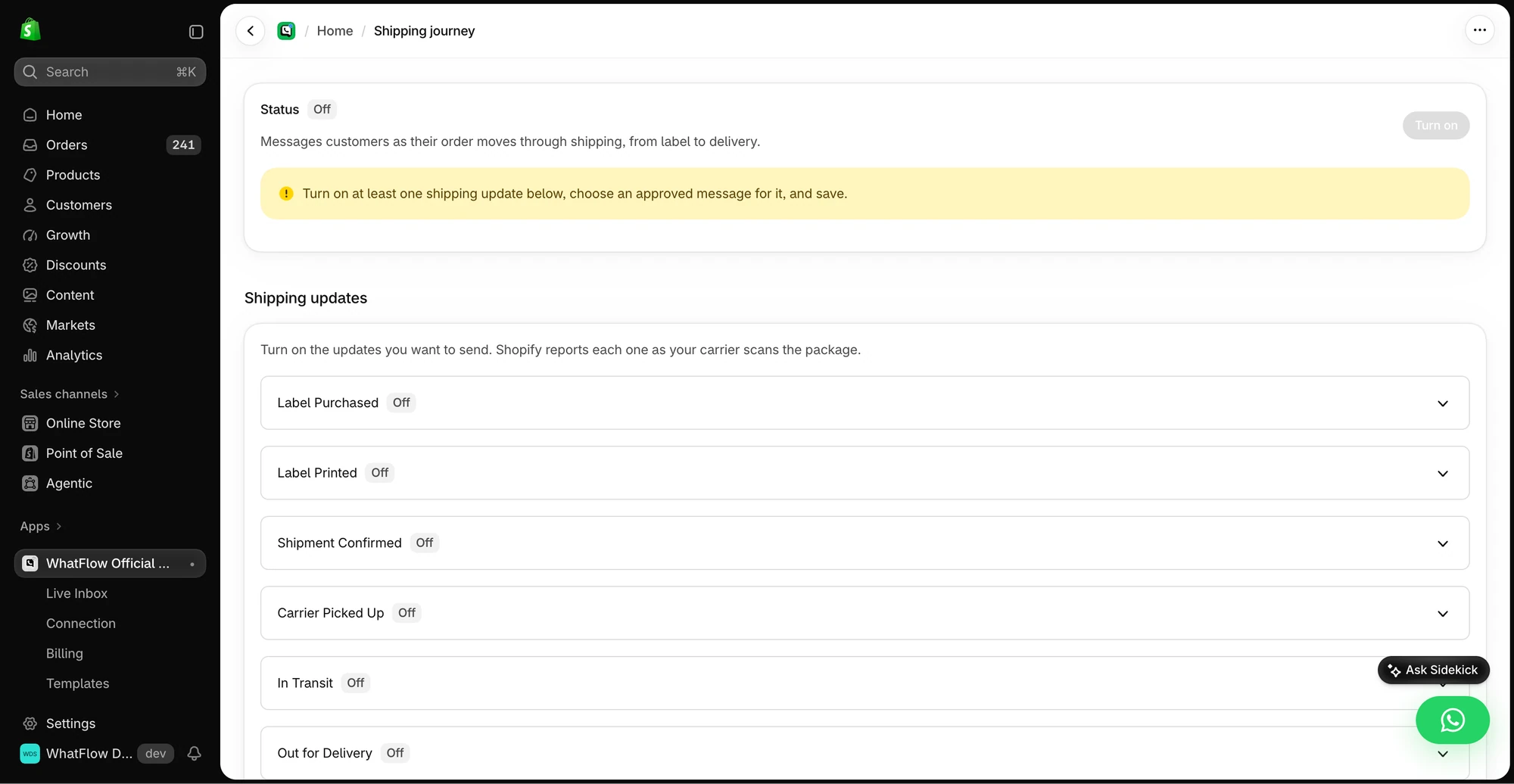
The demo Shipping Journey screen shows the available fulfillment stages. Individual stages need a message before they can be enabled.
This matters most for commercial claims. If you mention your apps' prices in posts, they drift. We keep WhatFlow's own claims in one place for the same reason: all features on every plan, including Free; no seat fees on the team inbox; plans that differ only by messaging allowances and rates. When something there changes, we know which posts to check. Our guide to auditing Shopify app costs is one of them.
Step 5: Be honest with dates
Don't bump the date on a post just to look fresh. Google's helpful content guidance literally lists "changing the date of pages to make them seem fresh when the content has not substantially changed" as a warning sign.
My rule: if you fixed a typo or a broken link, leave the date alone. If you rewrote sections, added new examples or corrected facts a reader would rely on, update it. Keep a one-line note in your sheet of what changed.
Step 6: Check the whole page
When you update a post, check:
Title and meta description still match the content
Every outbound link still works and still says what you claim
Screenshots match the current admin or app
Internal links point to the best current post, not a merged one
Product links go to products that still exist
Internal links deserve a moment. A few links woven into sentences, pointing to the specific next question, beat a giant "related posts" list at the bottom. If you sell through collections, link from posts to the collection pages you want to rank rather than the homepage.
Free plan available
Run WhatsApp for your Shopify store with WhatFlow
Templates, COD confirmation, Shopify Flow automations and a shared team inbox with no seat fees. Every feature is included on every plan, including Free.
A maintained blog is one part of a wider routine. If you haven't done a full pass recently, our Shopify SEO checklist covers the technical basics. And since more shoppers now get answers from ChatGPT, Perplexity and Google's AI Overviews, clear, current, specific posts matter even more; we wrote up how to get your store mentioned in AI answers.
Last practical tip: your best source of new post ideas and update triggers is your customer chats. If the same question keeps landing in your WhatsApp inbox, either a post is missing or an existing one isn't doing its job.
Frequently asked questions
How often should I update old Shopify blog posts?
Review your most important posts at least once a year, and immediately when something they describe changes: a product, a price, a policy or an app interface. A calendar alone misses the changes that matter.
Should I delete old blog posts on Shopify?
Delete a post only when it has no useful content and no traffic or links worth keeping. If another post covers the same topic better, merge the useful parts and add a URL redirect from the old address.
Does changing the date on a blog post help SEO?
Not if the content hasn't really changed. Google's helpful content guidance specifically flags changing page dates to make them seem fresh when the content hasn't substantially changed.
What should a content audit spreadsheet include?
URL, the reader question the post answers, owner, last real update, facts that can go out of date, traffic, and a decision: keep, update, merge, redirect or delete.